Manage Reservations
Learn how to manage inventory reservations in the vendor dashboard.
On this page
In this guide, you'll learn how to manage reservations in your store.
What is a Reservation?
A reservation is a reserved quantity of an inventory item. Reservations are created automatically for inventory items whose variants are purchased. This ensures the inventory item is not sold to another customer while the order is being processed. Once the item in the order is fulfilled, the reservation is removed.
You can also manually create reservations for inventory items. For example, you can reserve a quantity of an inventory item for an offline sale or a customer who has requested a reservation.
View Reservations
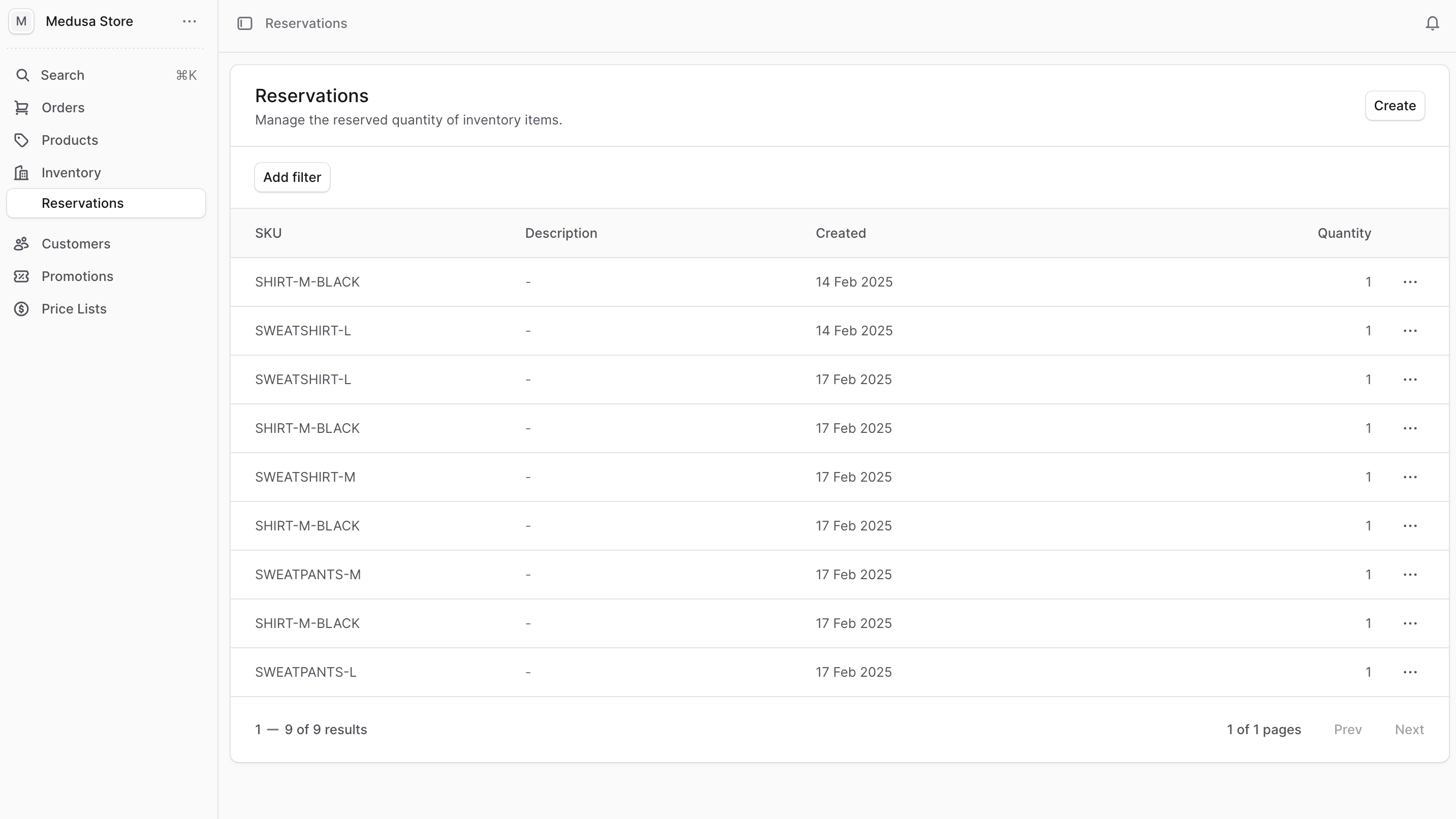
To view reservations, go to Inventory from the sidebar, then click Reservations.
In the list, you can see reservation details such as the SKU and reserved quantity. You can also search, filter, and sort the reservations to find the specific item you are looking for.
Create a Reservation
To create a reservation manually:
- Go to Inventory → Reservations.
- Click Create in the main section's header.
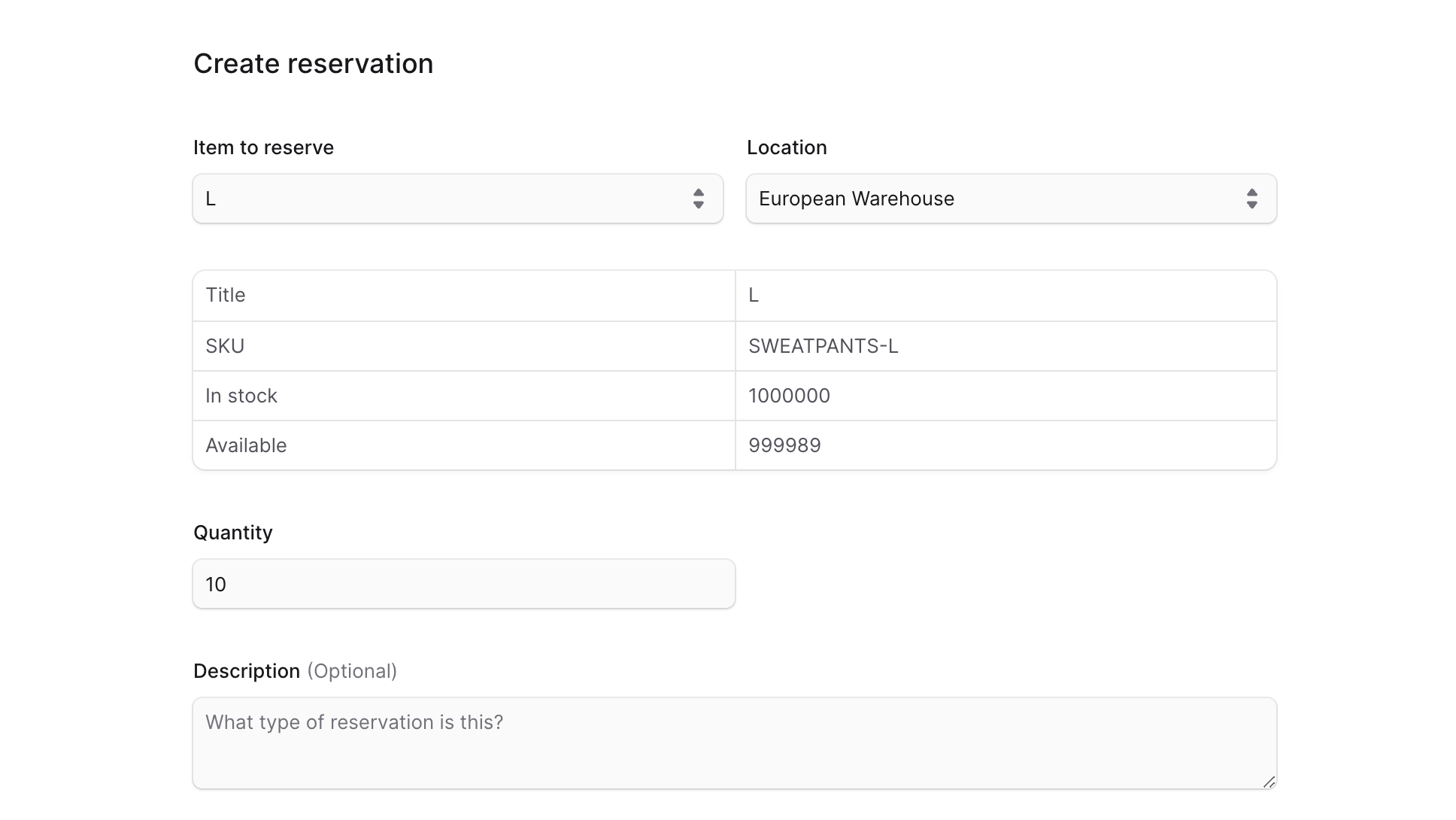
- In the form that opens:
- For Item to reserve, enter or choose the SKU of the item you want to create a reservation for.
- For Location, select the location where the reservation is created.
- Set the reserved quantity in Quantity.
- The table above the field shows how many units are available in the chosen location. When you change Quantity, availability updates in the table to reflect the change.
- Optionally add a description in Description.
- When you're done, click Create.
View Reservation Details
To view a reservation's details:
- Go to Inventory → Reservations.
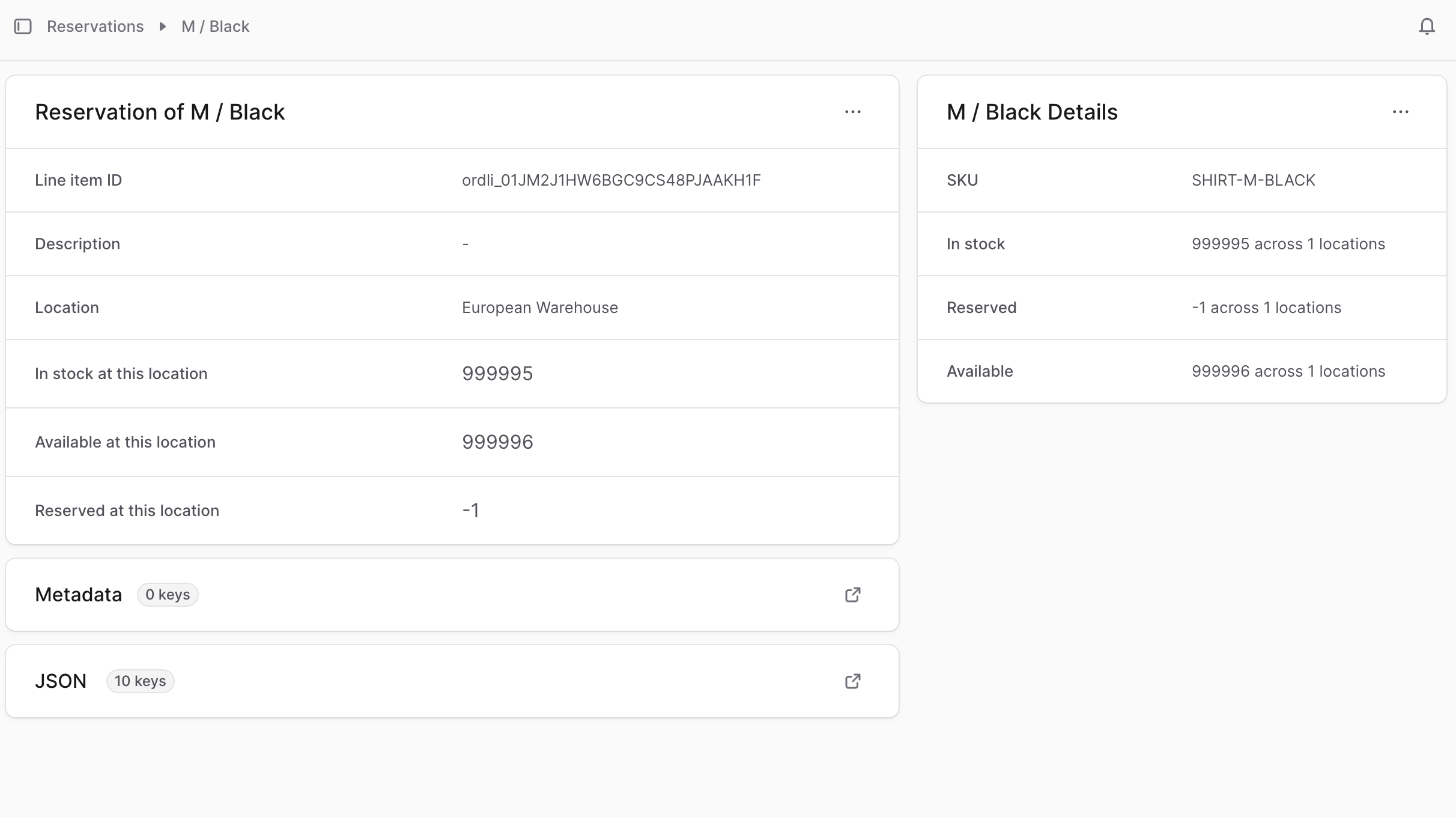
- Click the reservation you want to view.
This opens the reservation's details page.
Edit Reservation
To edit a reservation:
- Go to Inventory → Reservations.
- Find the reservation you want to edit and click the three-dot menu in its row.
- Choose Edit from the dropdown.
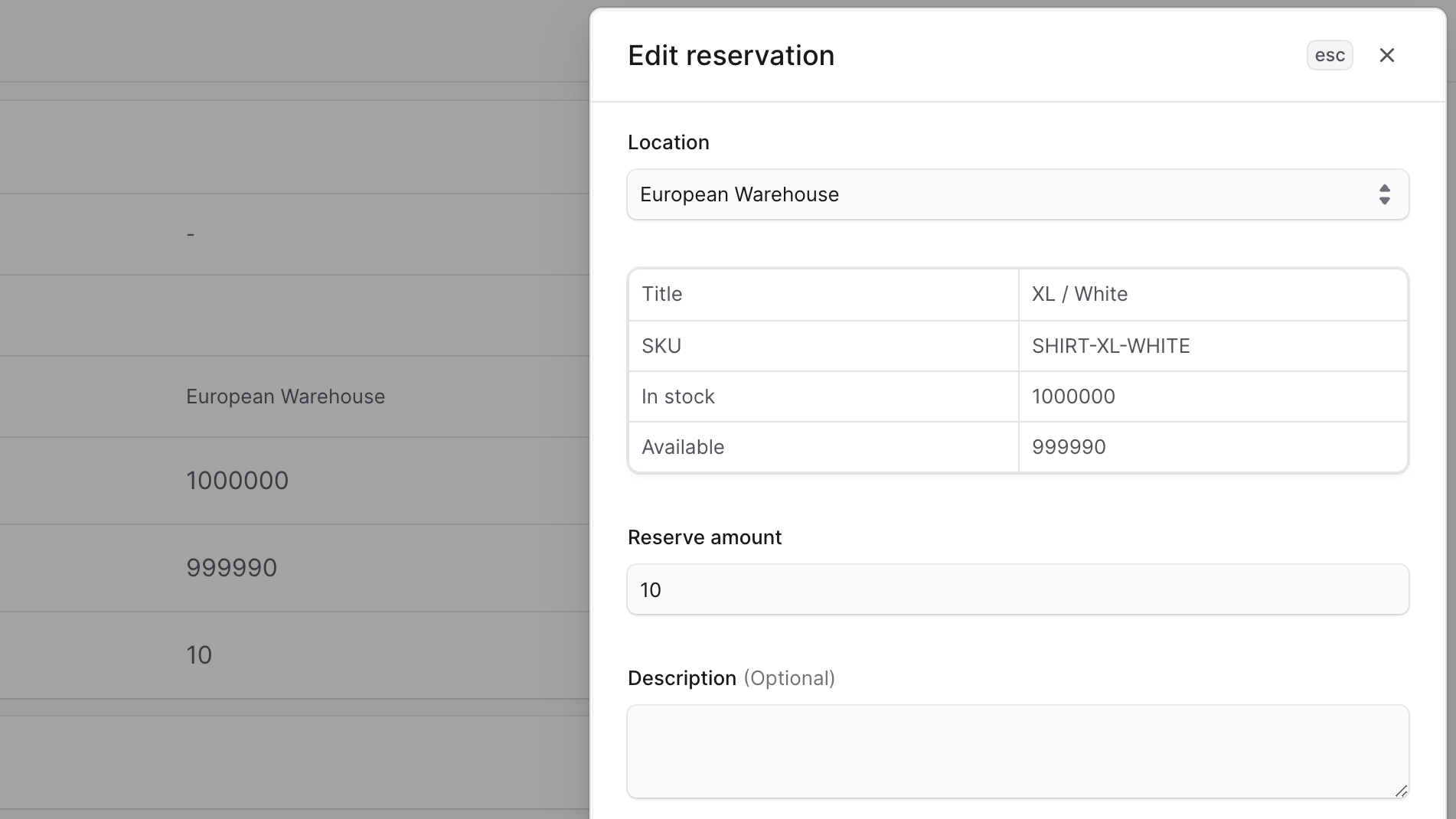
- In the side window that opens, edit the reservation's location, reserved quantity, and description.
- When you're done, click Save.
Edit Reservation Metadata
Metadata is custom data that can be associated with the reservation in key-value pairs. This is usually used by developers for custom integrations or to store additional information about the reservation.
To edit the reservation's metadata:
- Go to the reservation's details page.
- Click the arrow icon in the Metadata section.
- In the side window that opens:
- Manage the key-value pairs in the table.
- To add a new row of key-value pairs before or after a row:
- Hover over the row and click the three-dot menu at its end.
- Choose Insert row above or Insert row below from the dropdown.
- To delete a row of key-value pairs:
- Hover over the row and click the three-dot menu at its end.
- Choose Delete row from the dropdown.
- When you're done, click Save.
Delete Reservation
Deleting a reservation is irreversible. If you delete a reservation created for an order, you may need to allocate the item in the order again.
To delete a reservation:
- Go to Inventory → Reservations.
- Find the reservation you want to delete and click the three-dot menu in its row.
- Choose Delete from the dropdown.
- Confirm by clicking Delete in the pop-up.