Manage Fulfillments
Learn about order fulfillments and how to manage them in the vendor dashboard, including creating fulfillments and marking them as shipped.
On this page
In this guide, you'll learn about order fulfillments and how to manage them, including how to create fulfillments and mark them as shipped.
Overview
A fulfillment represents the process of picking, packing, and shipping items to a customer. You can fulfill all items in an order at once, or fulfill them separately. Then, for each fulfillment, you create a shipment that can have a tracking number, and finally mark the fulfillment as delivered.
Fulfillment processes are handled by the fulfillment provider, such as UPS, associated with the shipping option that the customer chose during checkout. You can also use a different shipping option if necessary.
Fulfillments can also be created for order changes like item edits and exchanges.
Order Fulfillment Statuses
At the top of the order details page, you can see the fulfillment status of the order. The fulfillment status can be one of the following:
| Status | Description |
|---|---|
| Not fulfilled | No items in the order have been fulfilled yet. |
| Partially fulfilled | Some items in the order have been fulfilled. |
| Fulfilled | All items in the order have been fulfilled. |
| Partially shipped | Some fulfillments have been shipped. |
| Shipped | All fulfillments have been shipped. |
| Partially delivered | Some fulfillments have been delivered. |
| Delivered | All fulfillments have been delivered. |
| Partially returned | Some items have been returned. |
| Returned | All items have been returned. |
| Canceled | The fulfillment was canceled. |
| Requires action | Additional action is required to complete fulfillment. |
Create Fulfillment
To create a fulfillment for an order:
- Open the order's details page.
- Scroll down to the Unfulfilled Items section.
- Click the three-dot menu in the section's header.
- Choose Fulfill items from the dropdown.
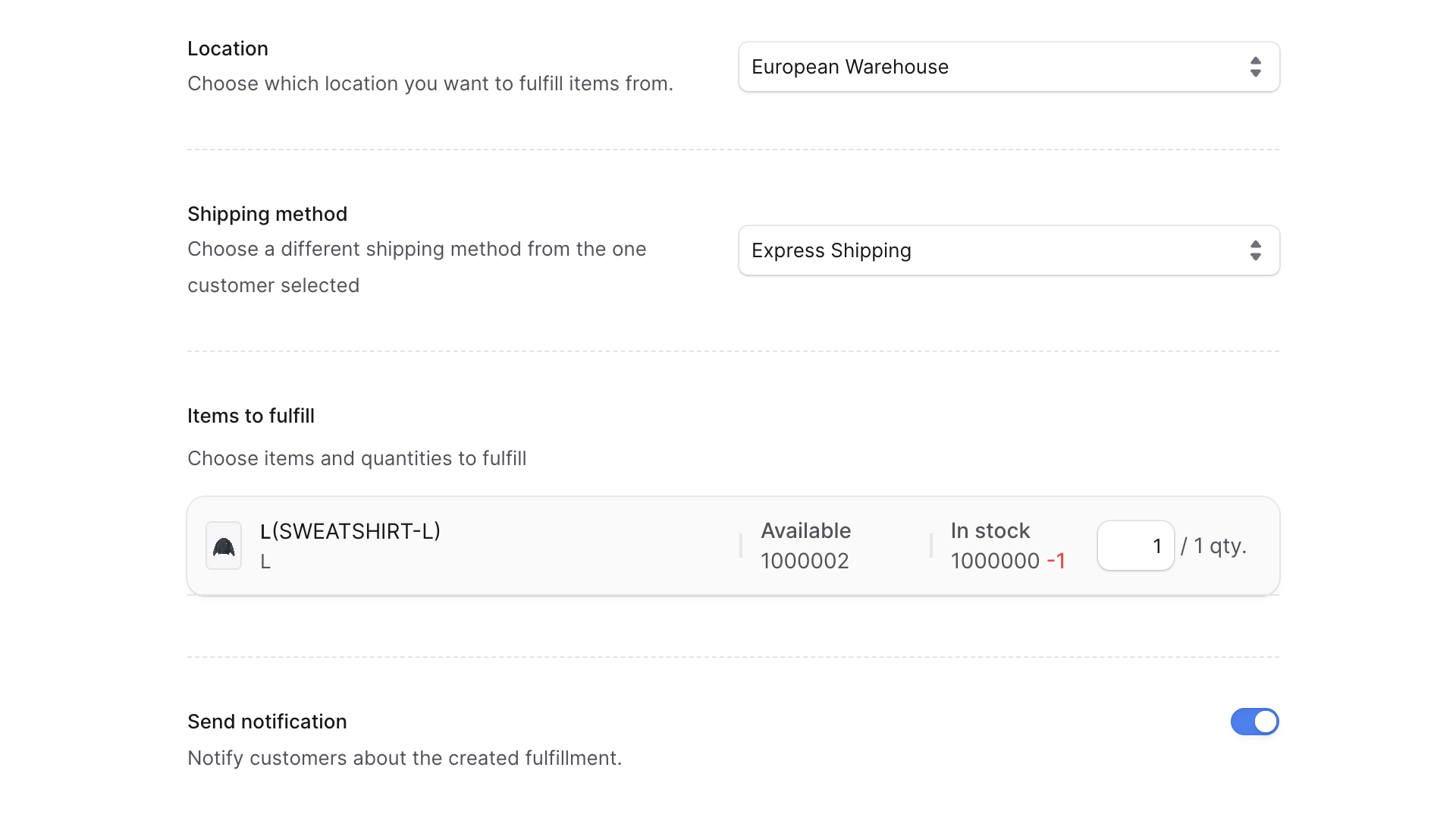
- In the form that opens:
- For Location, choose the location you want to fulfill the items from. By default, the location is set to that associated with the chosen shipping method.
- If you change the location, the available shipping methods will also change and that will impact which stock locations the items are fulfilled from. If the item doesn't have stock in the chosen location, the fulfillment will fail.
- For Shipping method, choose the shipping method to fulfill the items with. By default, the shipping method is set to that chosen by the customer during checkout.
- The shipping methods available are based on the location you choose. If you want to choose a shipping method that isn't available, you need to change the location first.
- If you choose a shipping method with a different price, the shipping total of the order is not changed.
- Under Items to fulfill, enter the quantity to fulfill for each item. This is also the quantity subtracted from the stock in the chosen location if inventory is managed for the variant.
- If you don't want to fulfill an item, change its quantity to 0.
- If you don't want the customer to receive a notification that a fulfillment has been created, uncheck the Send notifications toggle.
- For Location, choose the location you want to fulfill the items from. By default, the location is set to that associated with the chosen shipping method.
- Once done, click Create Fulfillment.
After creating the fulfillment, a new section is shown with the header Fulfillment #1, where #1 is the number of the fulfillment in the order. If there are no unfulfilled items, the Unfulfilled Items section is removed.
This can also change the order's fulfillment status to Partially Fulfilled or Fulfilled depending on the items fulfilled.
Add a Shipment to a Fulfillment
You can only add a shipment to a fulfillment if its shipping option isn't a pickup option.
After you create a fulfillment, you can add a shipment to it. A shipment can have a tracking number and marks the fulfillment as shipped.
Adding a shipment to a fulfillment is irreversible. You can't cancel the fulfillment or the order afterwards.
To add a shipment for a fulfillment:
- Open the order's details page.
- Scroll down to the fulfillment section. If you have more than one fulfillment, find the fulfillment you're looking for.
- Click Mark as shipped at the bottom of the section.
- In the form that opens:
- To add a tracking number, click Add tracking number. This will show the following optional fields:
- Tracking number: Enter the tracking number provided by the fulfillment provider.
- Tracking URL: Enter the URL where the customer can track the shipment.
- Label URL: Enter the URL to a label or receipt for the shipment.
- If you don't want the customer to receive a notification that the fulfillment has been shipped, uncheck the Send notifications toggle.
- To add a tracking number, click Add tracking number. This will show the following optional fields:
- Once you're done, click Save.
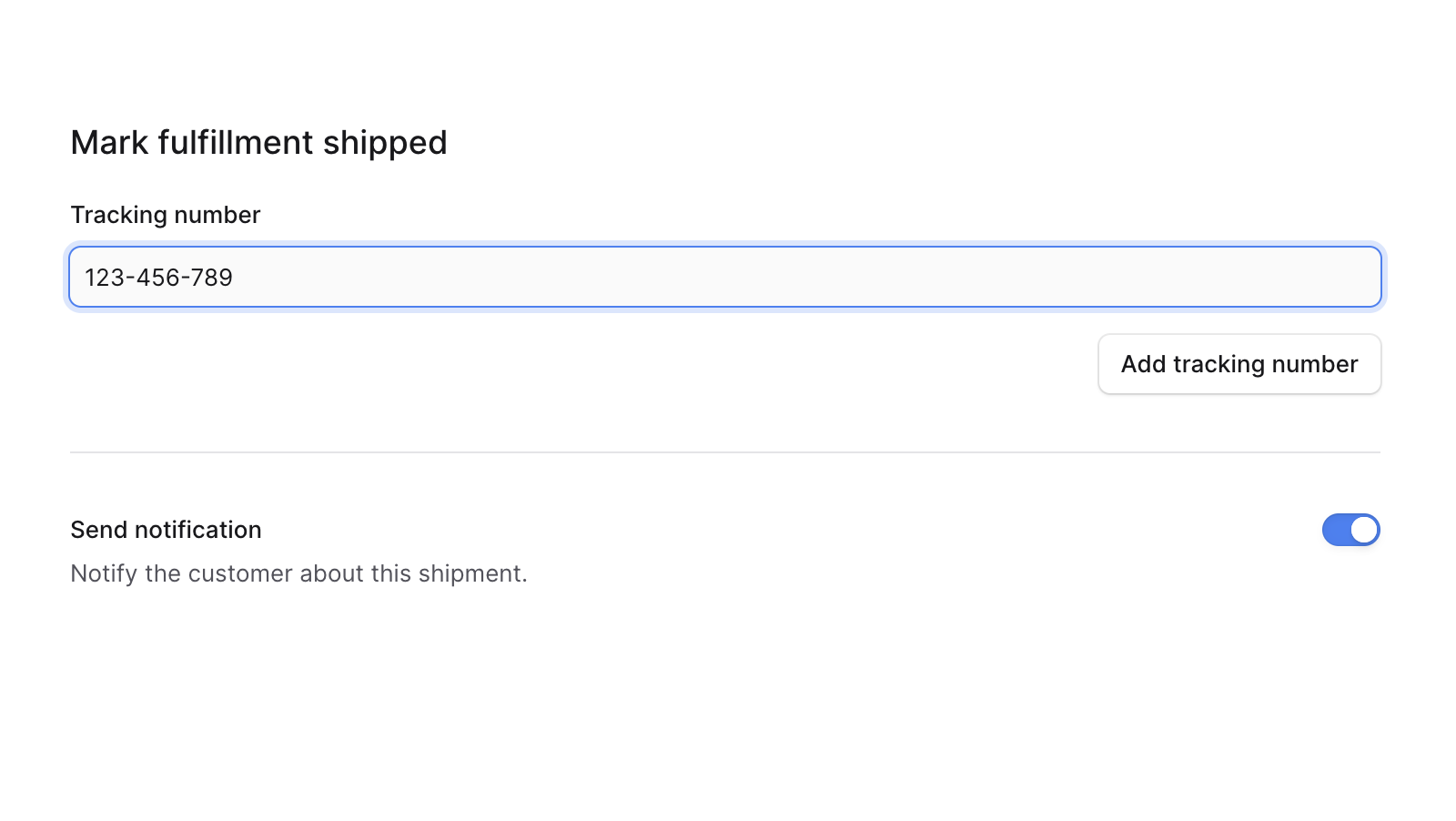
This changes the order's fulfillment status to Partially Shipped or Shipped depending on the items shipped.
Mark Fulfillment as Delivered
You can only mark a fulfillment as delivered if its shipping option isn't a pickup option.
You can mark a fulfillment as delivered, even if it hasn't been shipped. This can be useful if you deliver items to the customer using external methods.
Marking a fulfillment as delivered is irreversible. You can't cancel the fulfillment or the order afterwards, and you can't add shipments to the fulfillment.
To mark the fulfillment as delivered:
- Open the order's details page.
- Scroll down to the fulfillment section. If you have more than one fulfillment, find the fulfillment you're looking for.
- Click Mark as delivered at the bottom of the section.
- Confirm marking the fulfillment as delivered by clicking Continue in the pop-up.
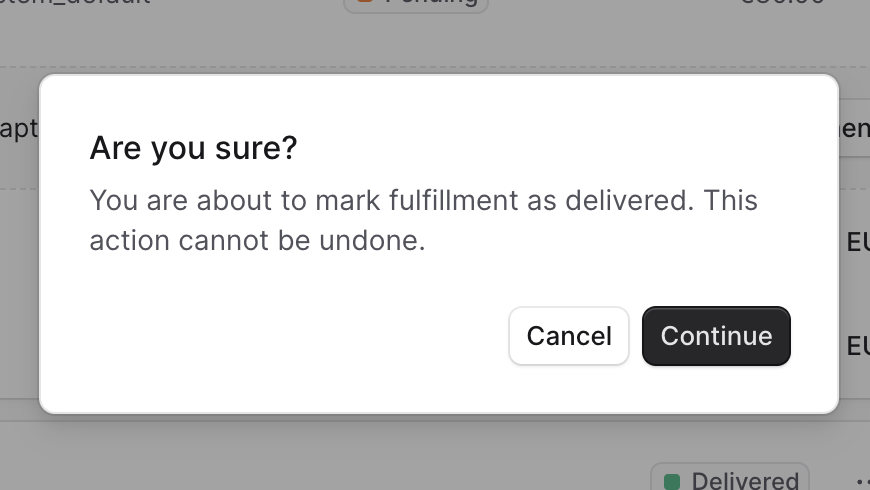
This changes the order's fulfillment status to Partially Delivered or Delivered depending on the items delivered.
Mark Fulfillment as Picked Up
If the fulfillment's shipping option is a pickup option, you can mark the fulfillment as picked up. This can be useful if the customer picks up the items in person.
Marking a fulfillment as picked up is irreversible. You can't cancel the fulfillment or the order afterwards.
To mark the fulfillment as picked up:
- Open the order's details page.
- Scroll down to the fulfillment section. If you have more than one fulfillment, find the fulfillment you're looking for.
- Click Mark as picked up at the bottom of the section.
- Confirm marking the fulfillment as picked up by clicking Continue in the pop-up.
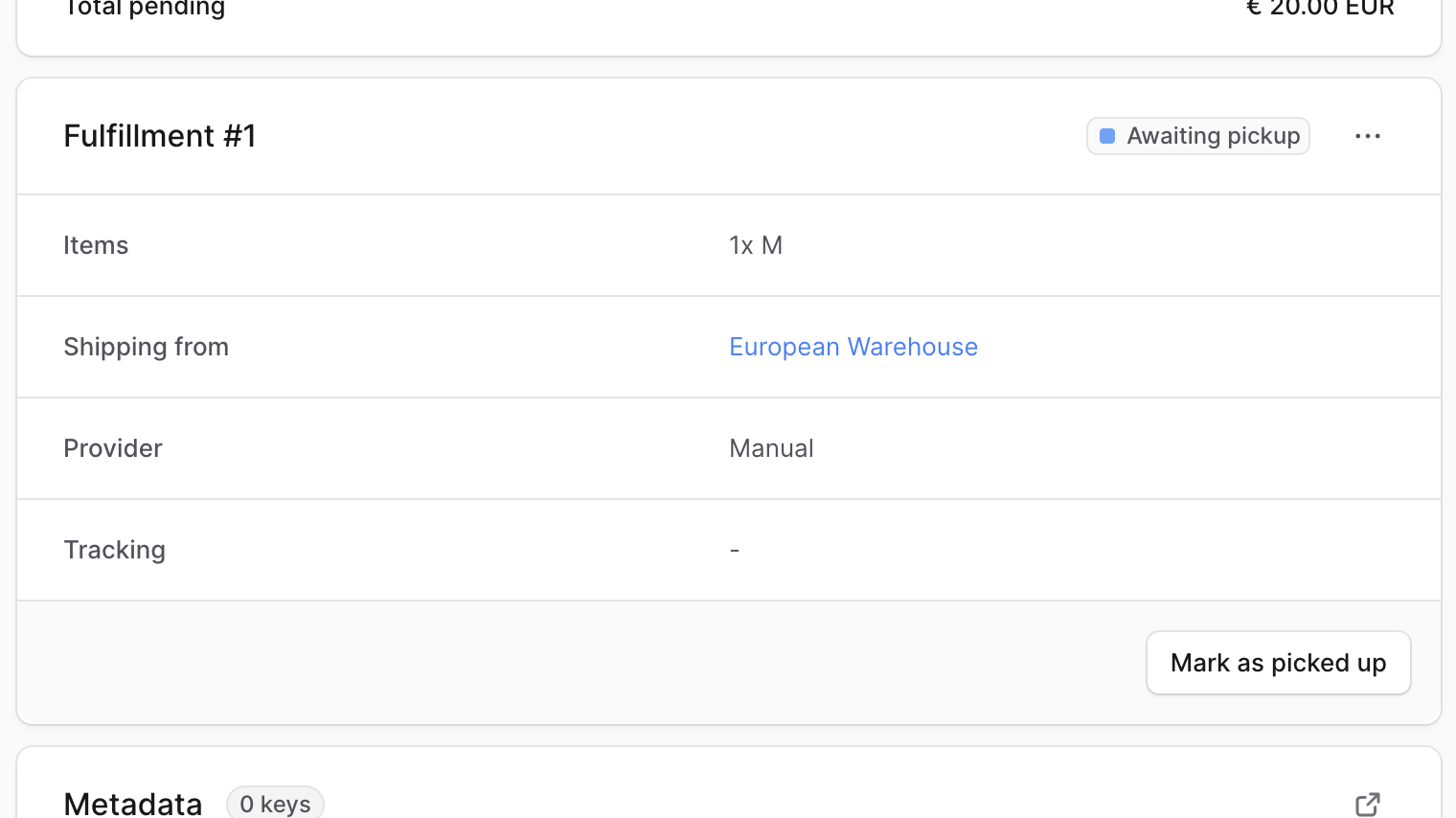
This changes the order's fulfillment status to Partially Delivered or Delivered depending on the items picked up.
Cancel a Fulfillment
You can cancel a fulfillment if you haven't shipped or marked it as delivered yet. This can be useful if you need to change the items fulfilled or if the customer cancels the order.
To cancel a fulfillment in an order:
- Open the order's details page.
- Scroll down to the fulfillment section. If you have more than one fulfillment, find the fulfillment you're looking for.
- Click the three-dot menu in the section's header.
- Choose Cancel from the dropdown.
- Confirm canceling the fulfillment by clicking Continue in the pop-up.
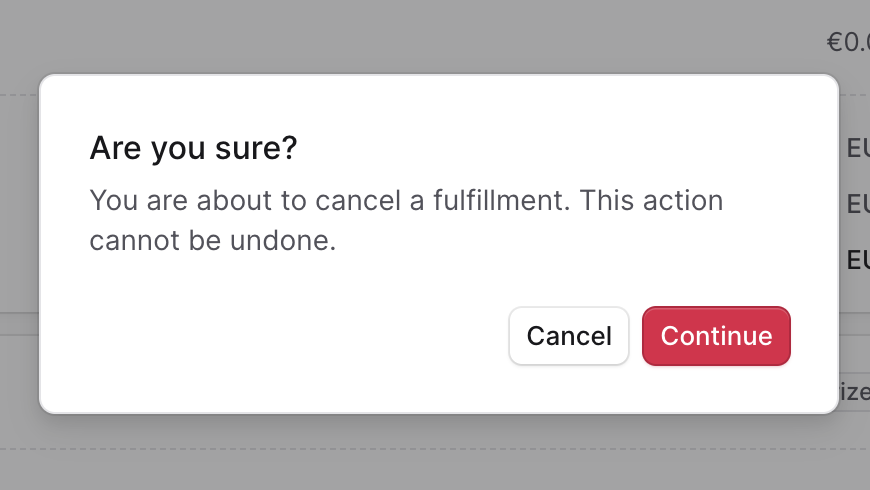
This changes the order's fulfillment status to Canceled. Also, the Unfulfilled Items section is shown again, and you can create a new fulfillment.