Workflow Executions
Learn how to view workflow executions in the vendor dashboard.
On this page
In this guide, you'll learn how to view workflow executions in the vendor dashboard.
This guide is primarily useful for developers and technical teams building and debugging customizations for your store.
What are Workflow Executions?
Workflows are a series of steps that perform a task. Your development team builds workflows in source code to implement custom commerce flows and features.
When a workflow is executed, its steps run in sequence to complete the task. If workflows are configured to store executions in the database, you can view executions and their details in the vendor dashboard. This is useful for debugging workflows and ensuring they run as expected.
View Workflow Executions
To view workflow executions, go to Settings → Workflows. There, you'll find a list of custom and platform workflows that have been executed and stored in the database. You can search through the list to find the one you're looking for.
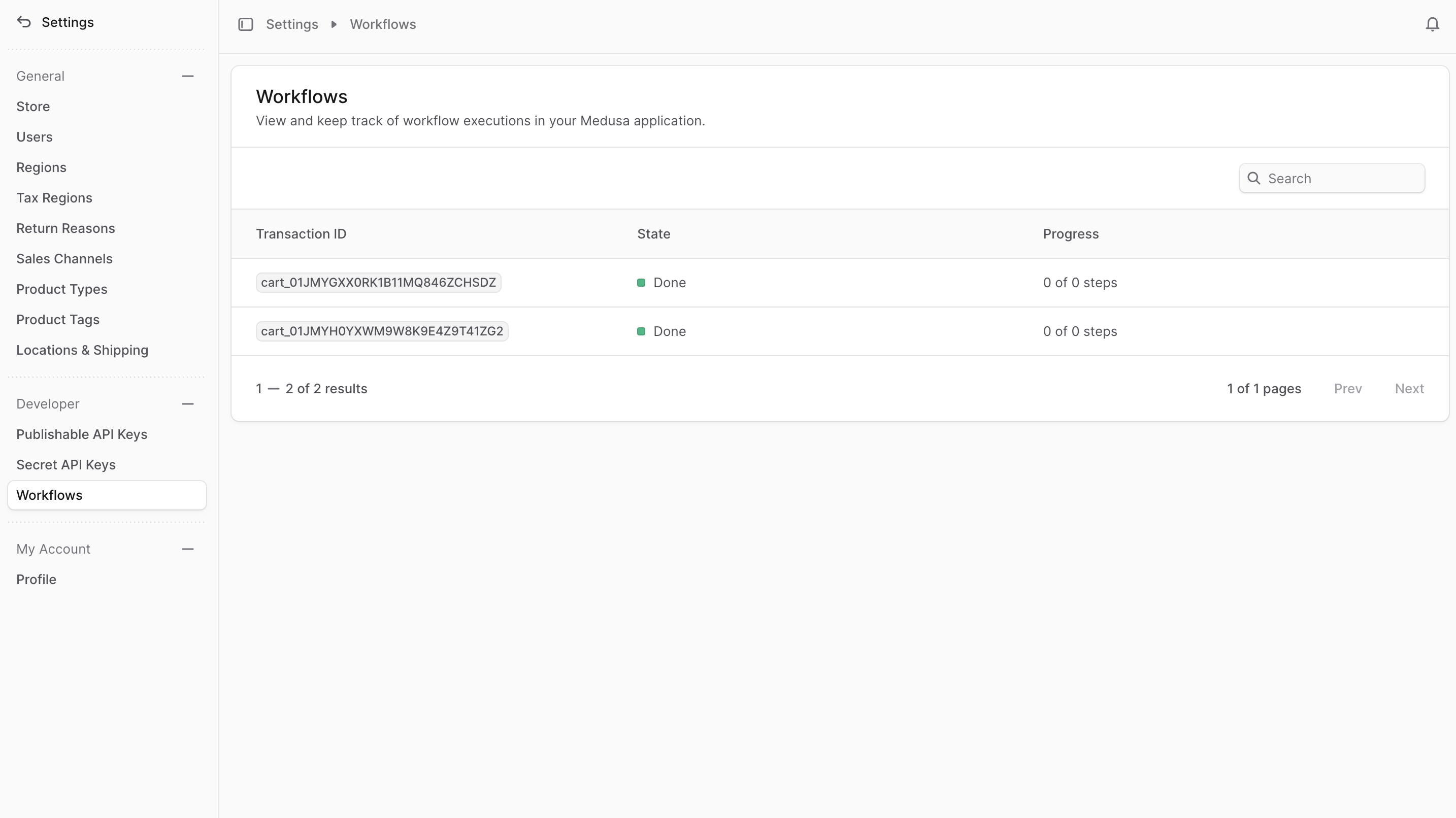
Workflow Execution Status
In the list, you can view the status of each workflow execution. A workflow execution's status can be:
| Status | Description |
|---|---|
| Not Started | The workflow has been executed, but its steps haven't been invoked yet. |
| Invoking | The workflow execution is currently running and invoking its steps. |
| Done | The workflow execution has completed successfully. |
| Failed | The workflow execution has failed. |
| Compensating | The workflow execution is compensating its steps after a failure. |
| Reverted | The workflow execution has been reverted, which occurs when the workflow runs as part of another workflow and the parent workflow fails. |
View Workflow Execution Details
To view a workflow execution's details:
- Go to Settings → Workflows.
- Click the workflow execution you want to view.
On the workflow execution's page, you'll find multiple sections containing the execution's details.
Summary Section
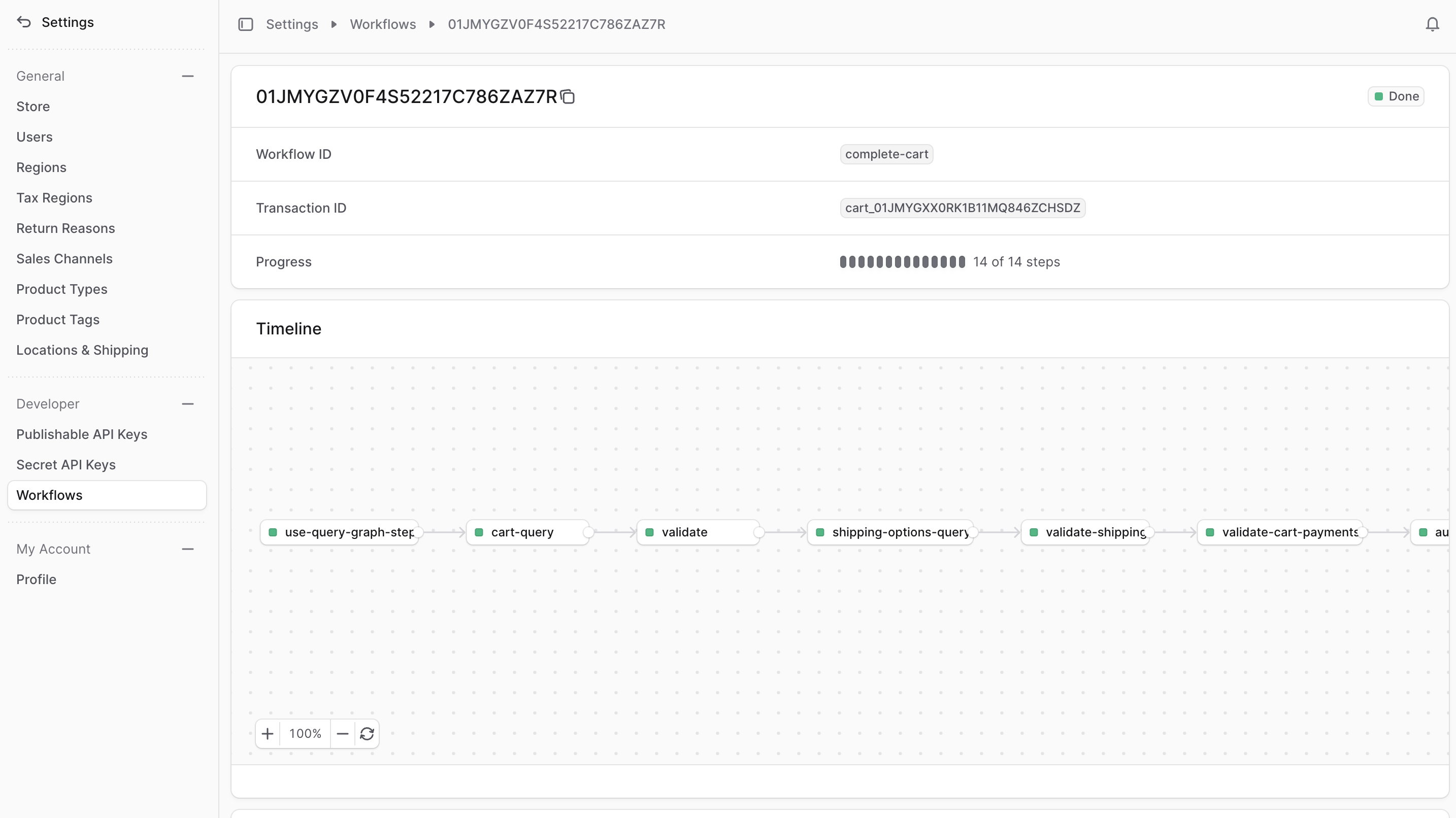
In the first section, you'll find a summary of the workflow execution, including:
- A badge at the top end of the section indicating the execution's status.
- The workflow's unique ID, which is specified when the workflow is created.
- The transaction ID, a unique identifier for the workflow execution. This is useful for debugging, tracking, and changing step statuses of long-running workflows.
- The workflow's progress, which shows a quick overview of the steps that have been executed.
Timeline
The timeline diagram shows the step-by-step execution of the workflow. You can zoom in and out, and drag to view the entire diagram. You can also click a step to view its execution details in the History section.
Step Status
In the timeline diagram, each step node has a small box whose color indicates the step's status:
| Color | Description |
|---|---|
| Orange | The step is currently being executed. |
| Green | The step has been executed successfully. |
| Red | The step has failed. |
| Gray | The step hasn't been executed yet, or it has been skipped. |
JSON
The JSON section lets you view the execution's details as a raw JSON object by clicking the arrow icon. This is useful for advanced debugging to see all details of the workflow execution.
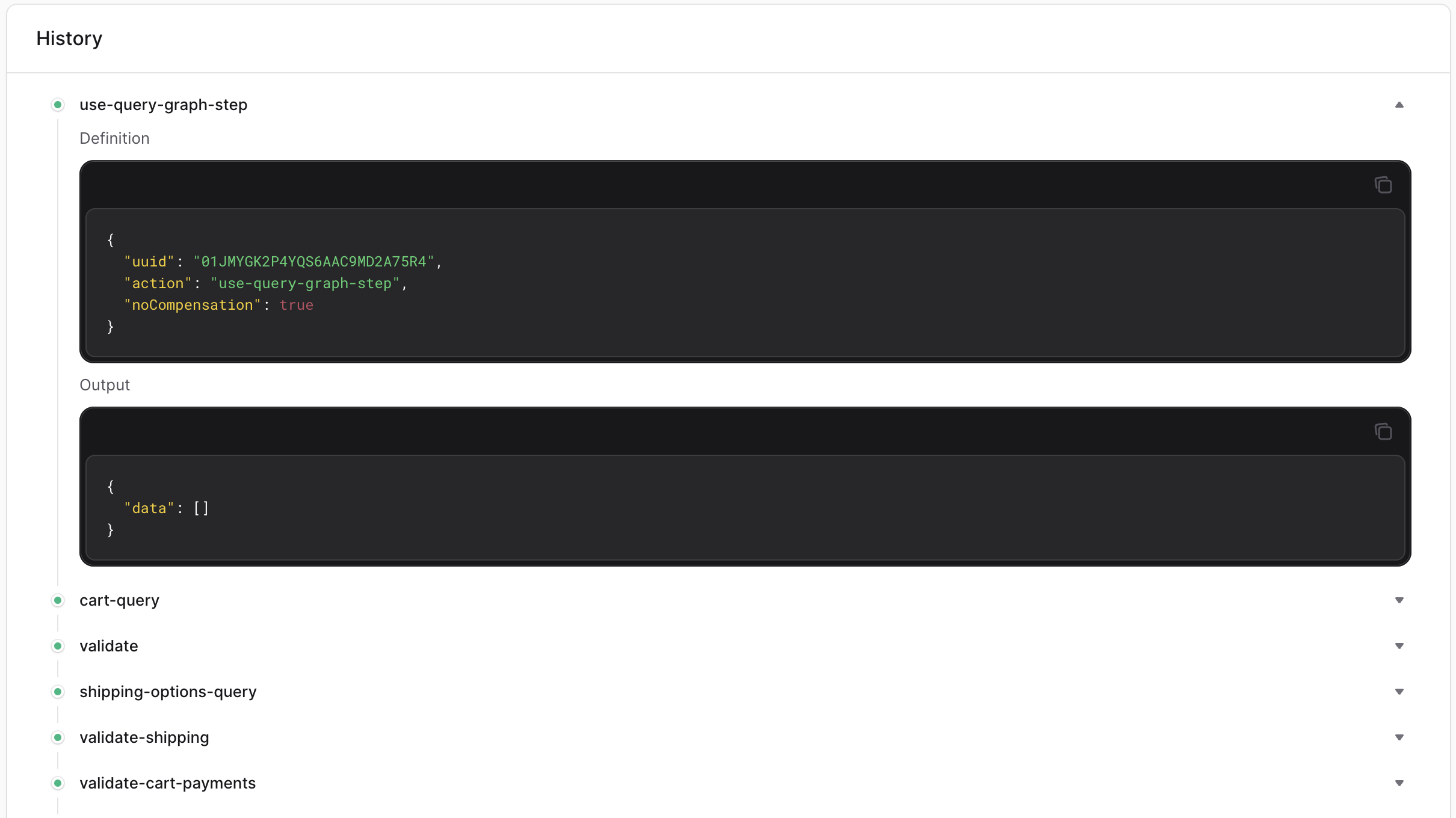
History
The History section shows the execution of the workflow's steps in order of execution. You can see each step's name with a dot reflecting its status as explained in Step Status.
If you click an executed step, you'll see its details, including:
- Definition — the step's configurations, such as its name, whether it has a compensation function, or whether it's asynchronous.
- Output — the result of the step's execution.
- Compensation Input — if the workflow failed and the step has a compensation function, the input the compensation function received.
- Error — if the step failed, the error message.