Manage Campaigns
Learn how to view and manage promotional campaigns in the vendor dashboard.
On this page
In this guide, you'll learn how to view and manage campaigns.
What is a Campaign?
A campaign is a collection of promotions related to specific marketing or sales goals. A campaign also gives you granular control over promotion usage, allowing you to set start and end dates, and budget limits that once exceeded, the promotions in the campaign can't be used anymore.
View Campaigns
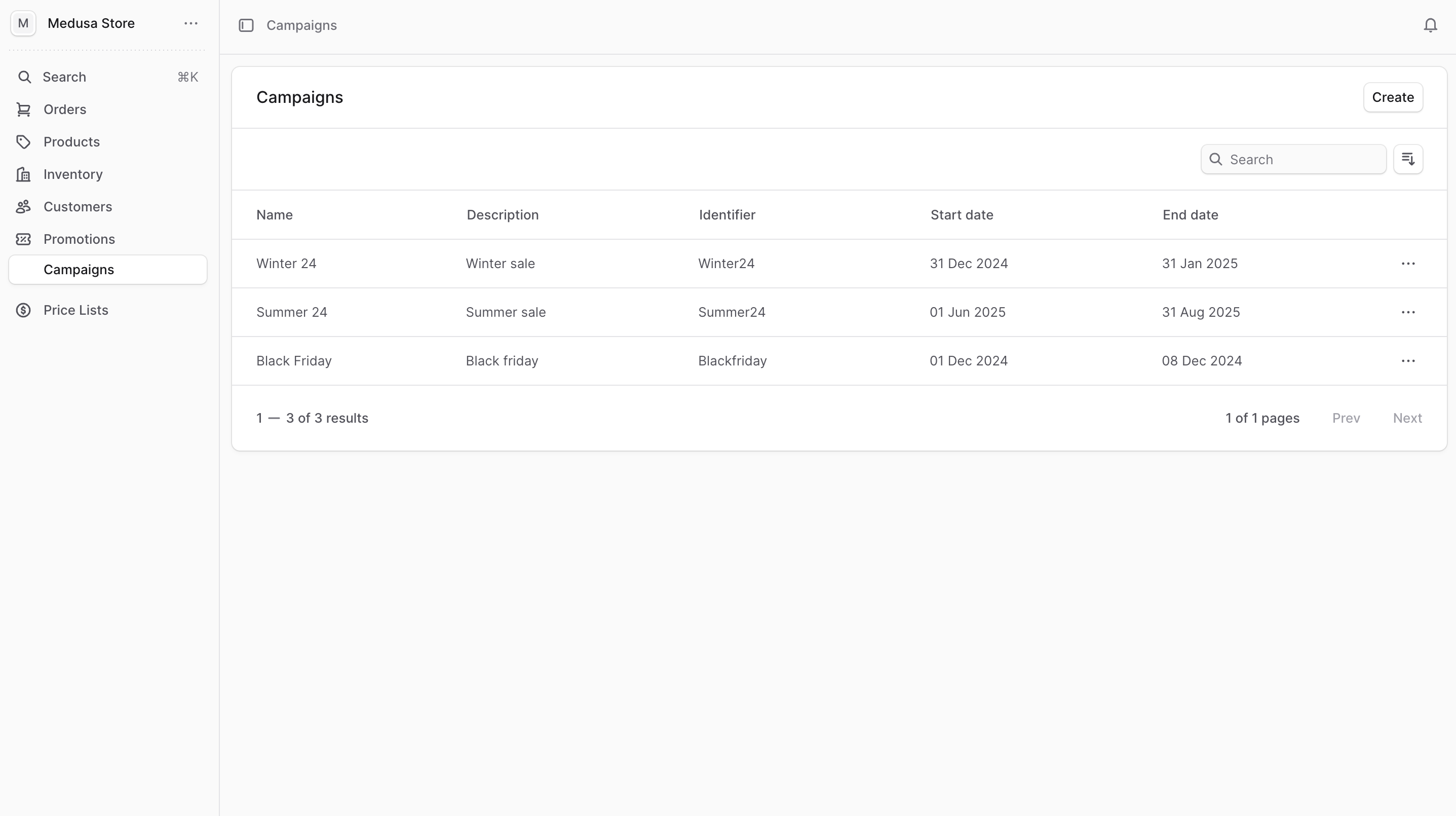
To view campaigns in your store, go to Promotions → Campaigns from the sidebar.
In the list, you can see campaign details such as the name, description, and identifier. You can also search, filter, and sort campaigns to find the specific item you are looking for.
Create Campaign
To create a campaign:
- Go to Promotions → Campaigns from the sidebar.
- Click Create in the main section's header.
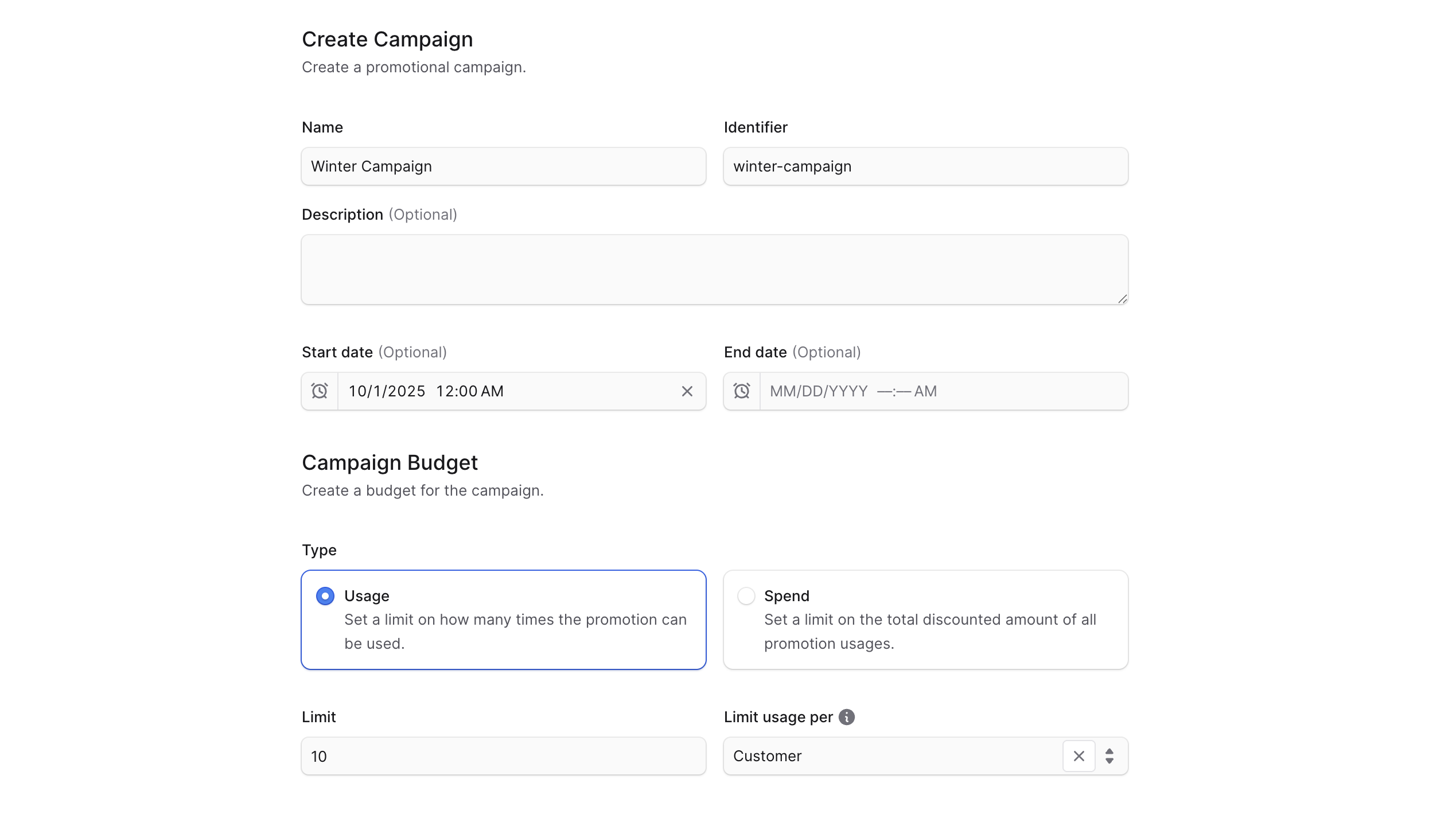
- In the form that opens:
- Enter the campaign's Name and Identifier.
- Optionally add a Description.
- Optionally set a Start date. Promotions in this campaign can only be used after this date.
- Optionally set an End date. Promotions in this campaign expire after this date.
- Set a campaign budget of one of the following types:
- Usage — How many times promotions in the campaign can be used. Once exceeded, the campaign and its promotions expire.
- Spend — The total amount that can be discounted by promotions in the campaign. Once exceeded, the campaign and its promotions expire. Not applicable to Buy X Get Y or Free Shipping promotions.
- If you chose Spend, select the Currency for the limit. Fixed-amount promotions added later must match this currency.
- In Limit, set the budget limit:
- For Usage, enter how many times promotions can be used.
- For Spend, enter the total discount amount allowed.
- If you chose Usage, optionally set Limit usage per:
- No selection — limit applies globally (e.g. 5 total uses across all customers).
- Customer — limit per customer identifier.
- Customer Email — limit per email address.
- When you're done, click Create.
View Campaign Details
To view a campaign's details:
- Go to Promotions → Campaigns from the sidebar.
- Click the campaign you want to view.
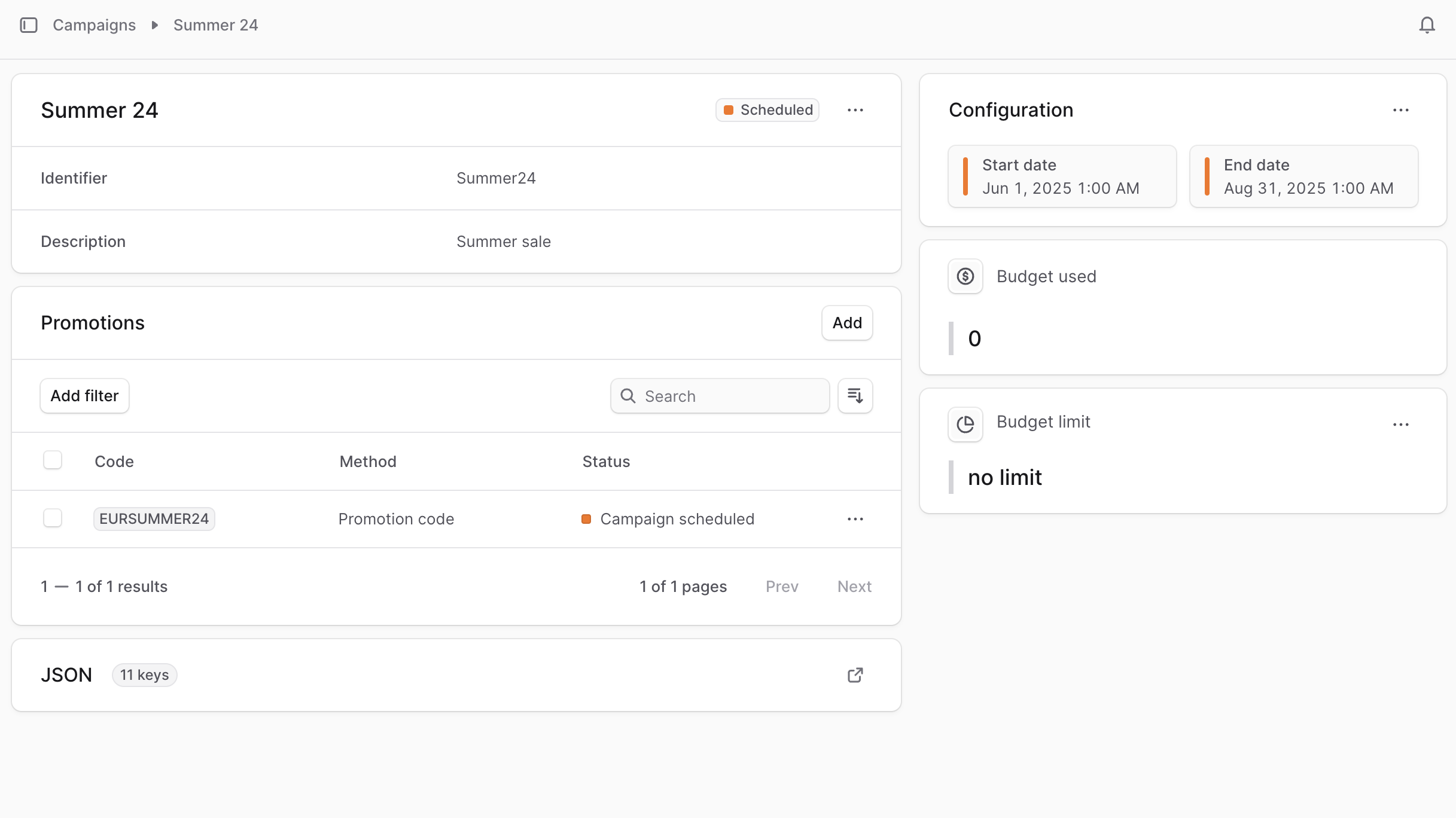
This opens the campaign's details page.
Campaign Statuses
In the first section's header, you can see the campaign's status:
| Status | Description |
|---|---|
| Scheduled | The campaign has a future start date and is not yet active. |
| Active | The campaign is currently running and its promotions can be used. |
| Expired | The campaign has ended or its budget limit was reached. |
Edit Campaign Details
To edit a campaign's details:
- Go to the campaign's details page.
- Click the three-dot menu in the first section's header.
- Choose Edit from the dropdown.
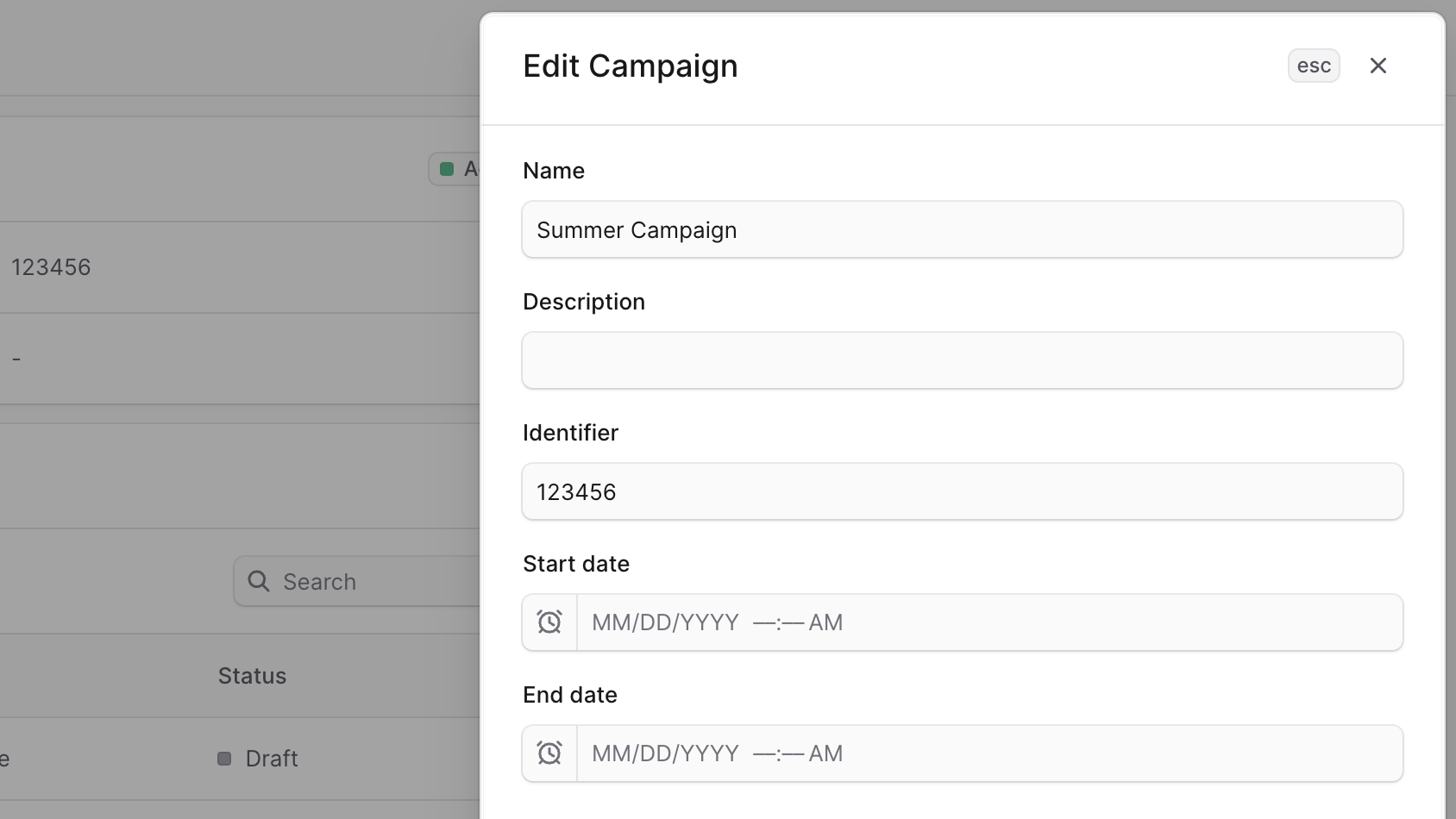
- In the side window that opens, edit the campaign's name, description, identifier, and start and end dates.
- When you're done, click Save.
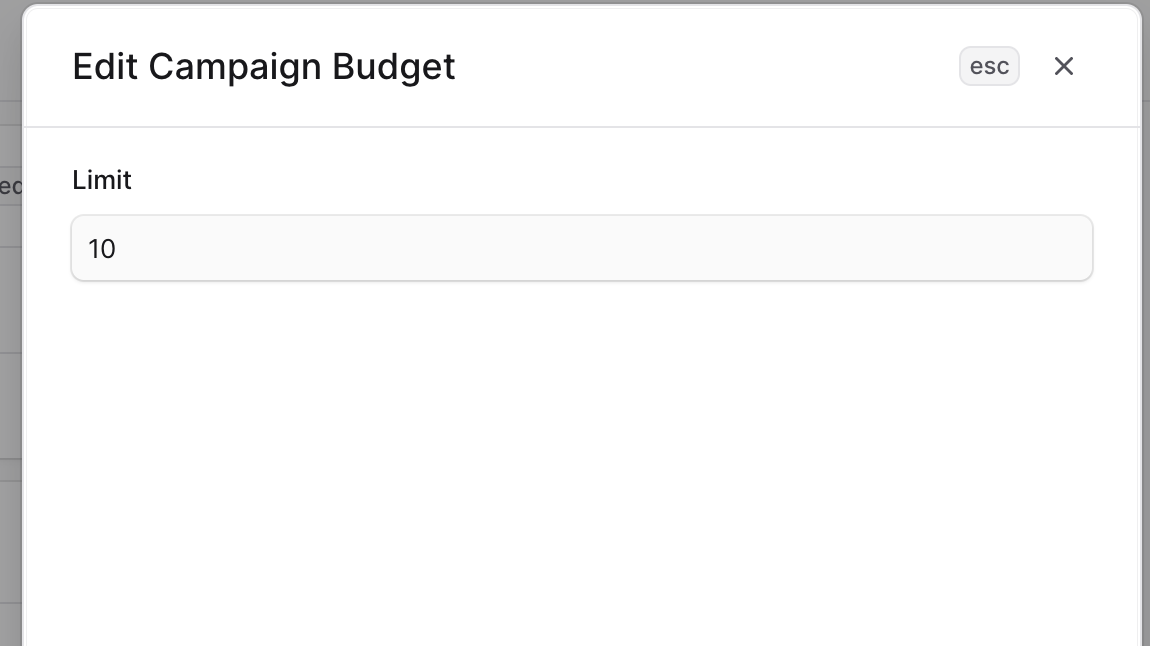
Edit Campaign Budget Limit
To edit a campaign's budget usage or spending limit:
- Go to the campaign's details page.
- Click the three-dot menu in the Budget Limit section header.
- Choose Edit from the dropdown.
- In the side window that opens, edit the budget limit.
- When you're done, click Save.
Information that Can't be Edited in Campaign
After creating a campaign, you can't edit:
- The campaign's budget type (usage or spend).
- The campaign's budget currency (if the type is spend).
- The campaign's budget Limit usage per condition (customer or customer email).
If you need to change any of this, either:
- Delete the campaign.
- Expire the campaign by setting an end date in the past.
Then create a new campaign with the correct information and add promotions to it.
Manage Promotions of Campaign
From the campaign's details page, you can manage which promotions belong to the campaign.
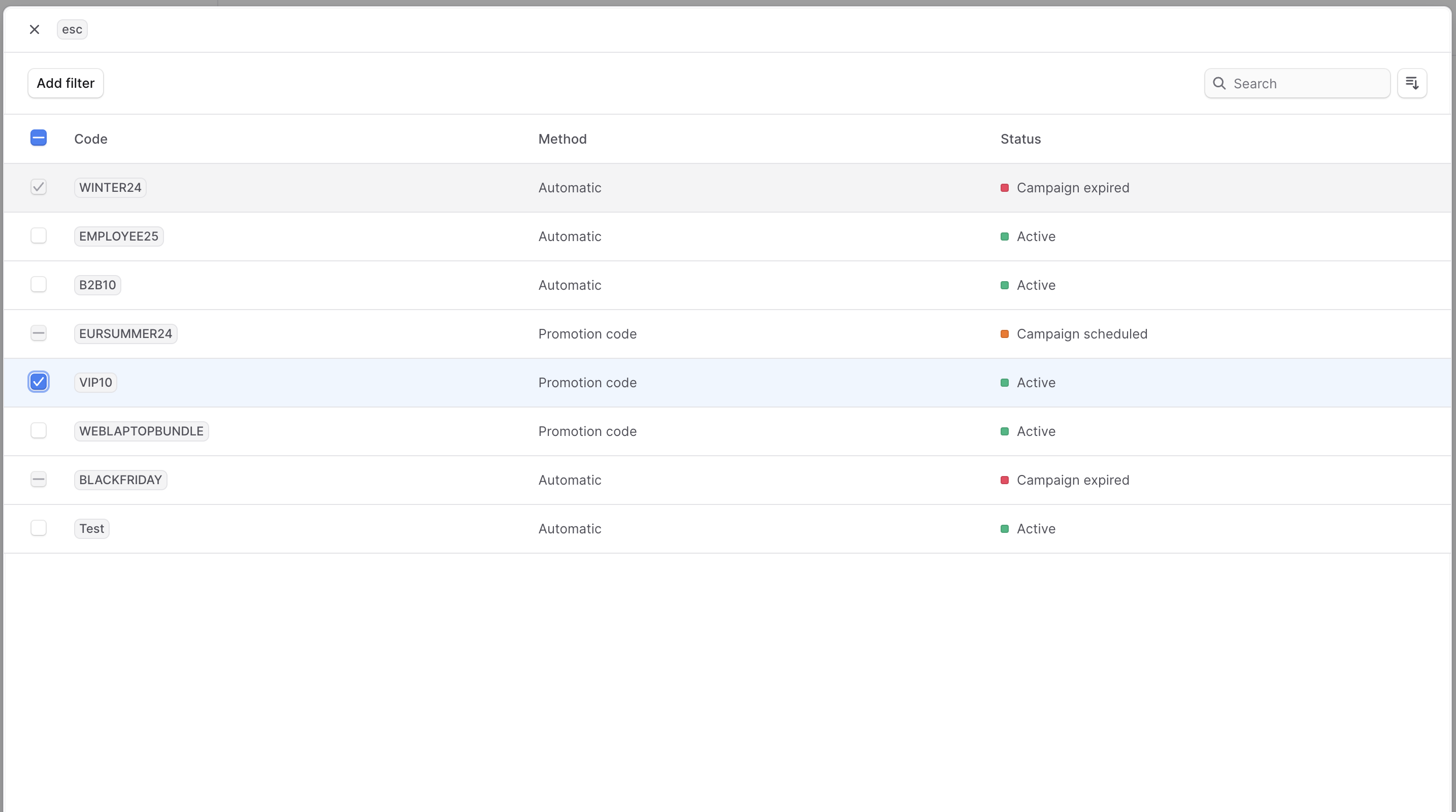
Add Promotions to Campaign
You can only add promotions that don't belong to another campaign.
To add promotions to a campaign:
- Go to the campaign's details page.
- Click Add in the Promotions section header.
- In the list that opens, check the promotions you want to add.
- When you're done, click Save.
Remove Promotions from Campaign
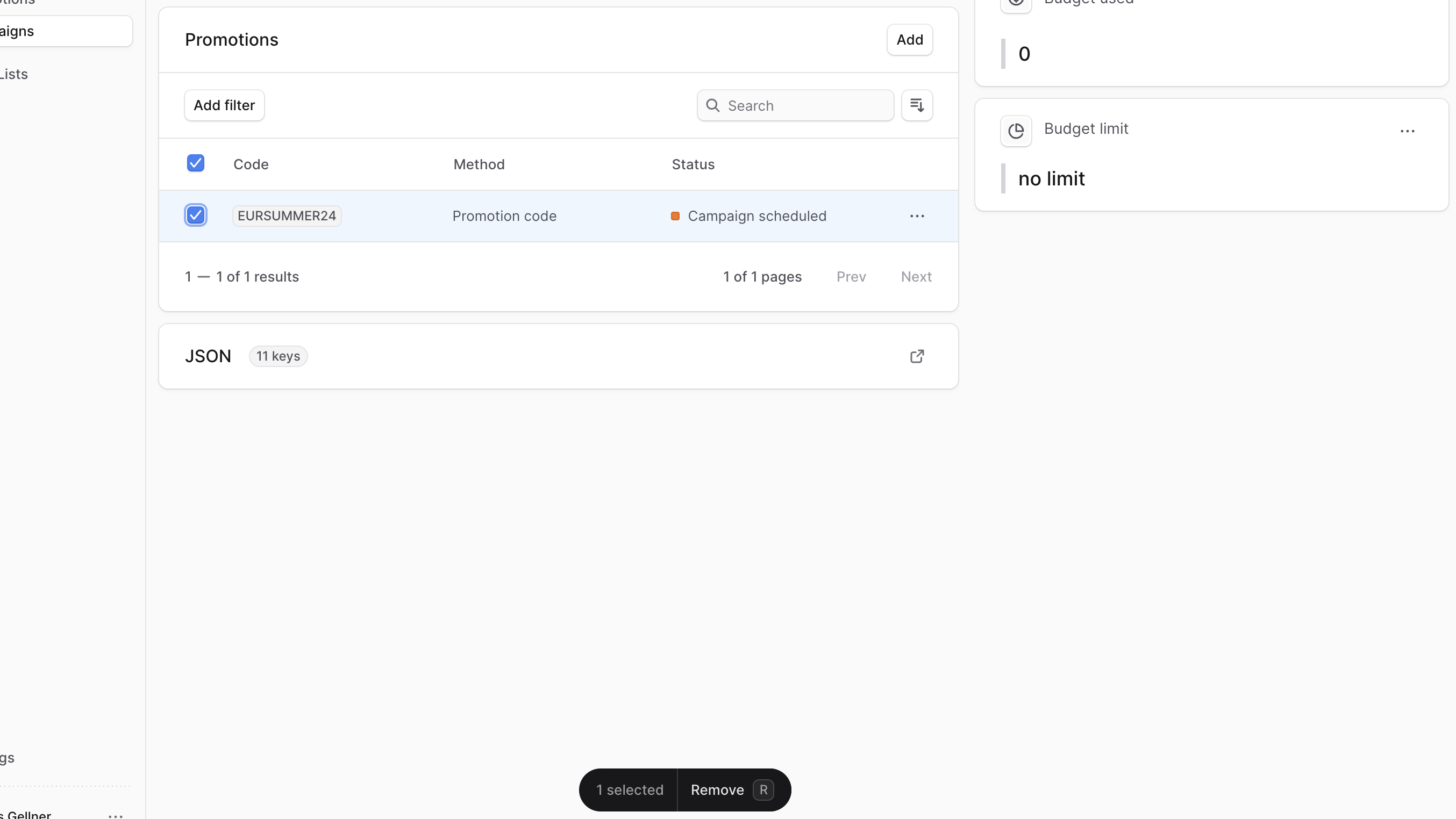
To remove promotions from a campaign:
- Go to the campaign's details page.
- In the Promotions section, check the promotions you want to remove.
- When you're done, either press R or click Remove at the bottom center of the page.
- Confirm by clicking Continue in the pop-up.
Delete Campaign
Deleting a campaign is irreversible. Deleting a campaign doesn't delete its promotions.
To delete a campaign:
- Go to the campaign's details page.
- Click the three-dot menu in the first section's header.
- Choose Delete from the dropdown.
- Confirm by clicking Delete in the pop-up.