Manage Claims
Learn what order claims are and how to create and manage them in the vendor dashboard.
On this page
In this guide, you'll learn what claims are, how to create them, and more.
Order Claims Overview
If a customer receives faulty or incorrect items for an order, you can create a claim. A claim allows you to either replace or return an item for a customer, then issue a refund.
Create a Claim
Changes made by a claim can't be canceled. Make sure to review the claim before confirming it.
You can create an order claim after the order's items have been delivered.
To create an order claim:
- Go to an order's details page.
- In the Summary section, click the three-dot menu in the section's header.
- Choose Create Claim from the dropdown.
- In the form that opens:
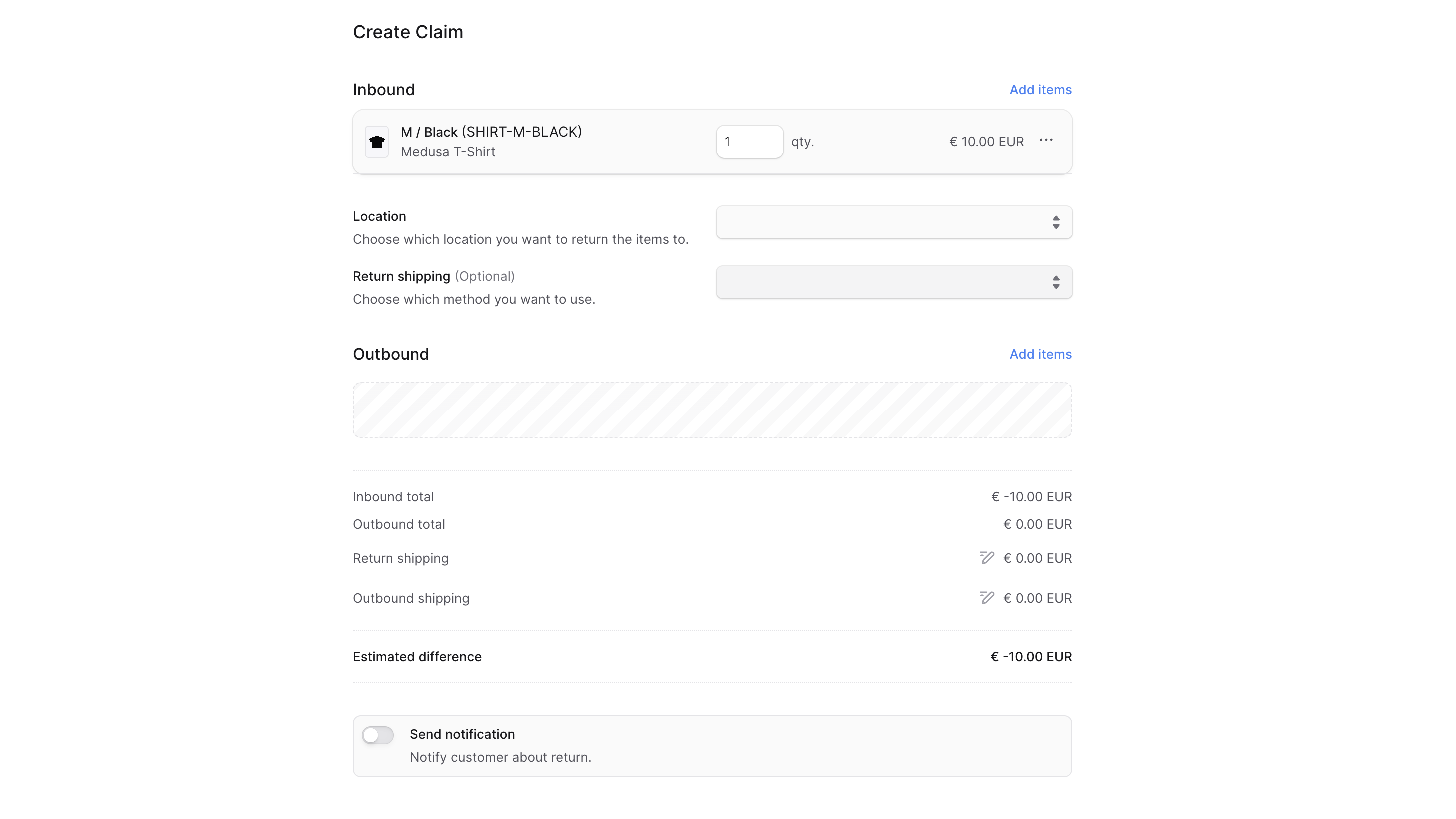
- To add items to be returned:
- Click Add items in the Inbound section.
- In the list that opens, check the items you want the customer to return.
- When you're done, click Save.
- You can then change the quantity to return or manage the item's details by clicking the three-dot menu next to it.
- For the inbound items:
- For Location, choose the location to return the items to.
- For Return Shipping, you can optionally choose the shipping method to return the items with.
- Choosing a return shipping method adds its cost to the claim total. You can modify the cost by clicking the edit icon next to the Return Shipping total, then entering the new cost.
- You can optionally add an outbound item to be sent to the customer in replacement:
- Click Add items in the Outbound section.
- In the list that opens, check the items you want to send to the customer.
- When you're done, click Save.
- You can then change the quantity to send or remove the item by clicking the three-dot menu next to it and choosing Remove from the dropdown.
- For outbound items, choose the shipping method used to send the items in the Outbound Shipping field.
- The shipping method's cost is added to the claim total. To edit its cost:
- Click the edit icon next to the Outbound Shipping total.
- Enter the new cost in the input shown.
- The shipping method's cost is added to the claim total. To edit its cost:
- If you want the customer to receive a notification that a claim has been created, check the Send notifications toggle.
- To add items to be returned:
- When you're done, click Confirm Claim, then confirm the action by clicking Continue in the pop-up.
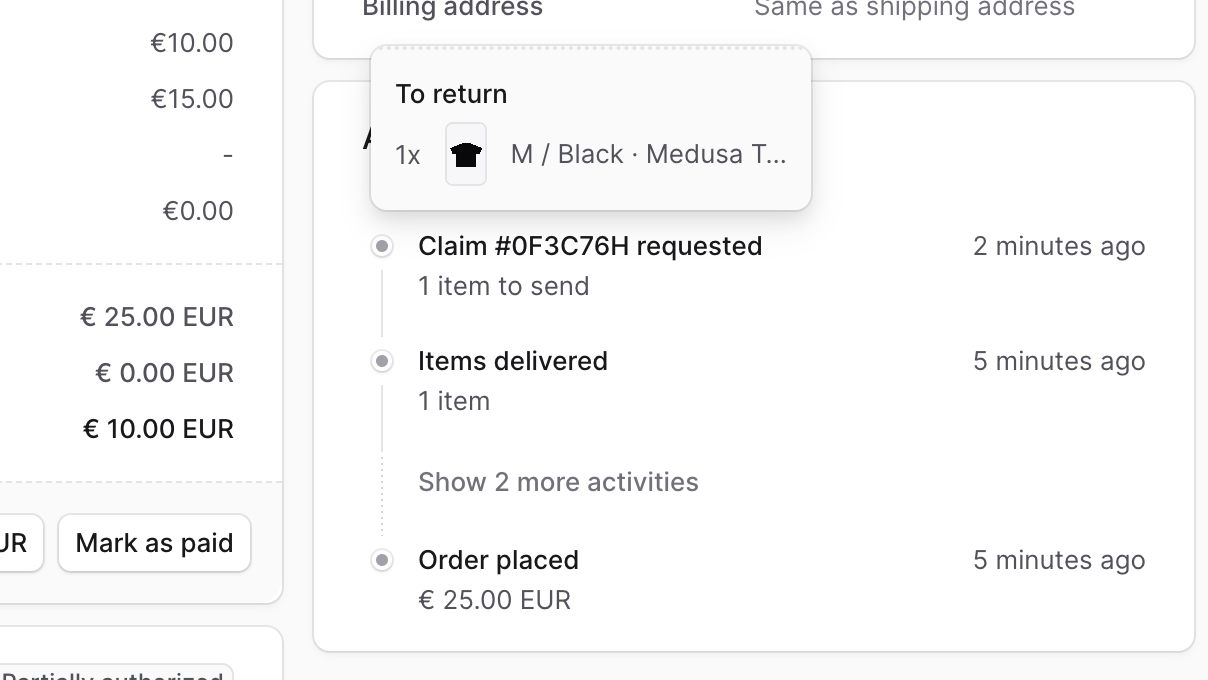
The claim will be created and you can see it in the Activity section of the order's details page. If you added outbound items, they will also be added to the Unfulfilled Items section.
Handle Outstanding Payment of a Claim
After creating a claim, you can check if there are any outstanding amounts (to be captured from the customer or returned) in the Summary section.
To handle outstanding amounts by refunding or capturing the payment, refer to Manage Payments.
Managing Returned Items in a Claim
The items to be returned from the customer as part of the claim can be managed similarly to a return. Once you receive the items from the customer, you can mark them as received as explained in Manage Returns.
Fulfill Outbound Items in a Claim
As mentioned earlier, the outbound items of a claim are added into the Unfulfilled Items section. To fulfill and deliver these items to the customer, refer to Manage Fulfillments.