Create a Price List
Learn how to create a price list in the vendor dashboard.
On this page
In this guide, you'll learn how to create a price list.
To create a price list:
- Go to Price Lists from the sidebar.
- Click Create in the main section's header.
This opens the form to create a price list, which is made up of three steps: Details, Products, and Prices.
Step 1: Details
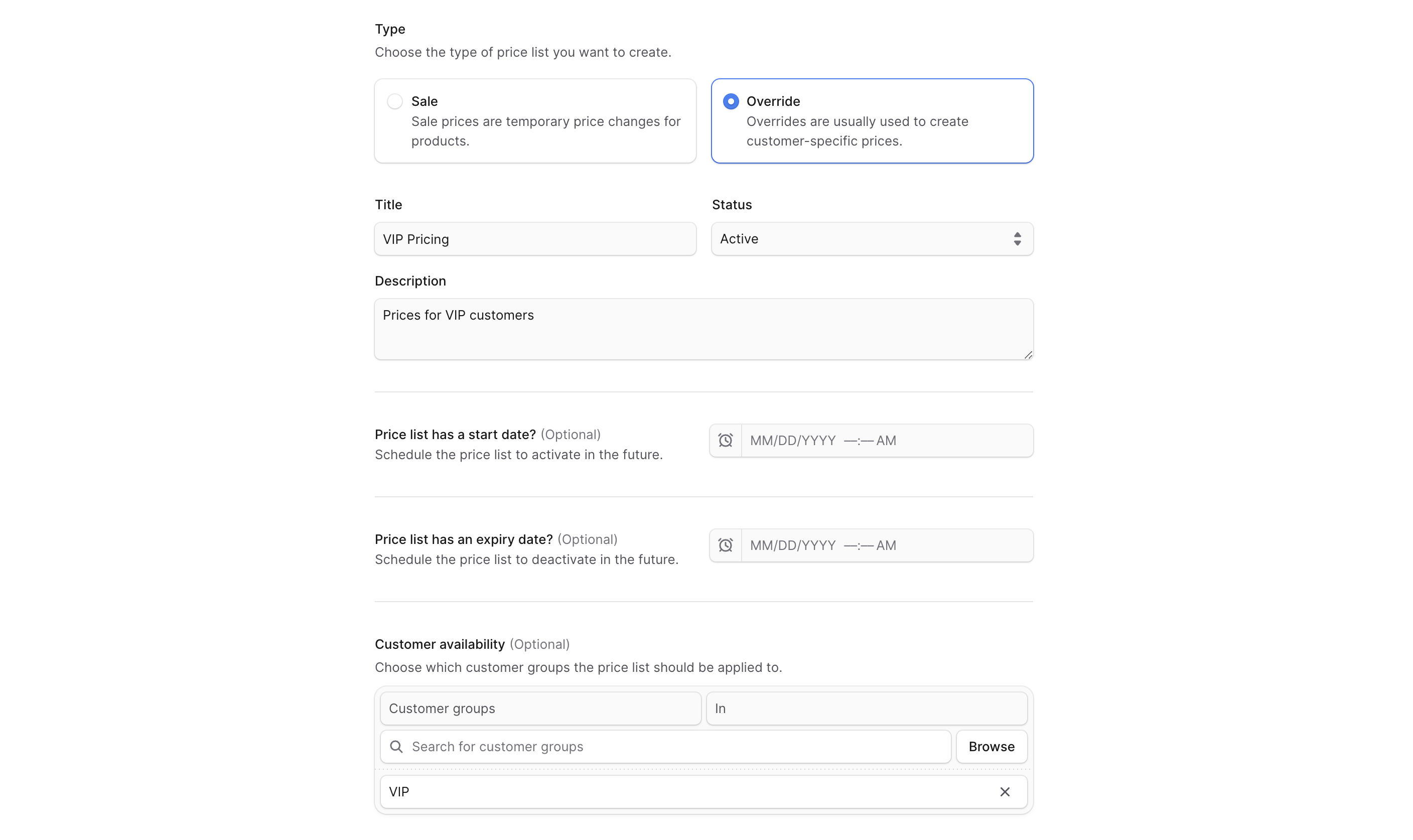
In the first step of creating a price list, enter the general information:
- For Type, choose either:
- Sale — Useful if you're creating a temporary sale on some products.
- Override — Useful if you're overriding prices permanently for a segment of customers.
- In Title, enter the price list's title.
- In Status, choose one of the following:
- Active — The price list is active and can be used. If you later set a start date, the price list will be active from that date.
- Draft — The price list is not active and can't be used.
- In Description, enter a description for your price list.
- If you want the price list to be active starting from a specific date, choose that date in Price list has a start date.
- If you want the price list to automatically expire after a specific date, choose that date in Price list has an expiry date.
- In Customer availability, specify the customer groups that this price list applies to. Customers in these groups will see the prices set in this price list. To choose customer groups:
- Click Browse.
- In the list that opens, check the customer groups to apply the price list to.
- When you're done, click Save.
- When you're done, click Continue to move to the next step.
Step 2: Products
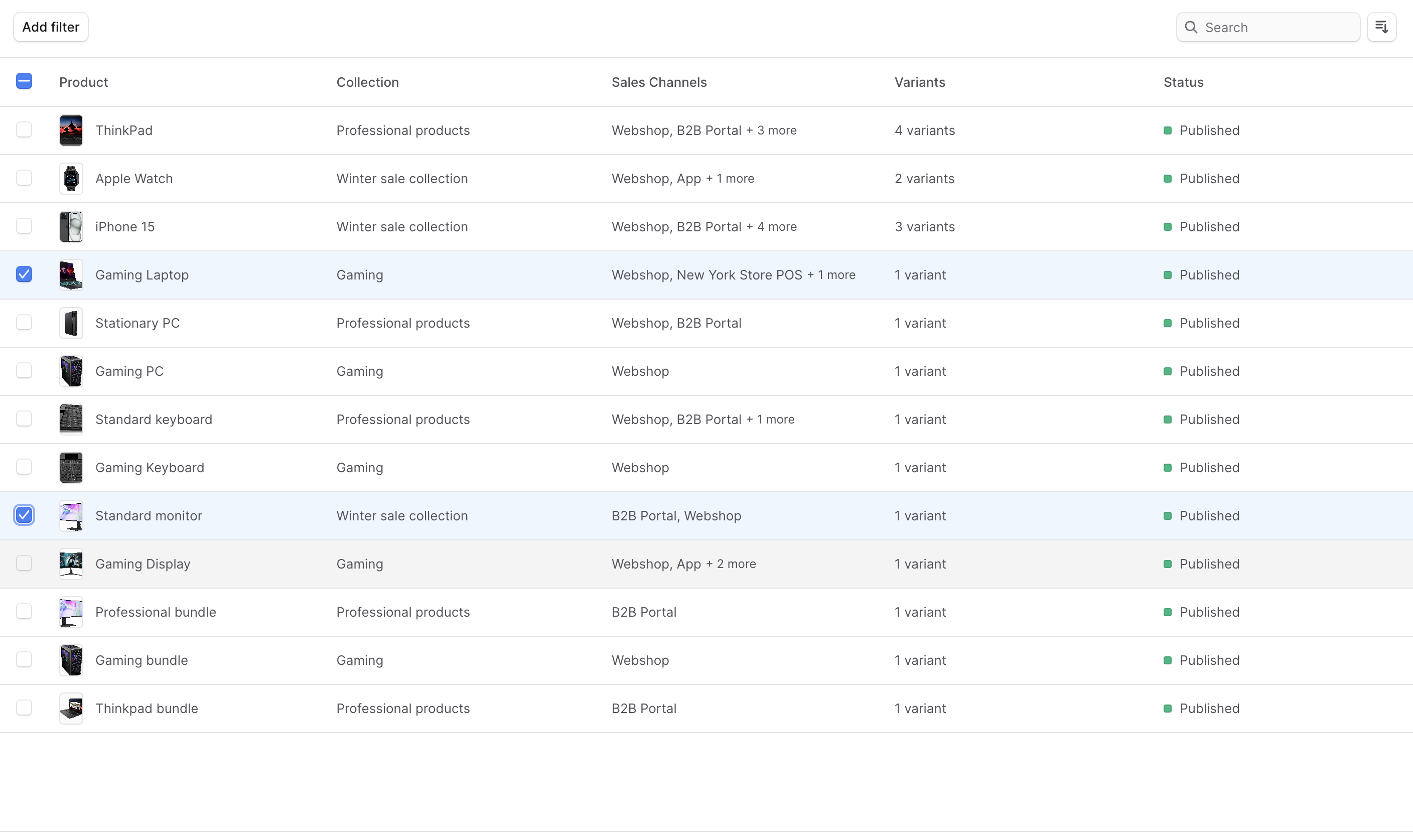
In the second step, choose the products you want to change prices for in the price list.
Check the products you want to include in the price list. You can search, filter, and sort the products to find the specific ones you are looking for.
When you're done, click Continue to go to the next step.
Step 3: Prices
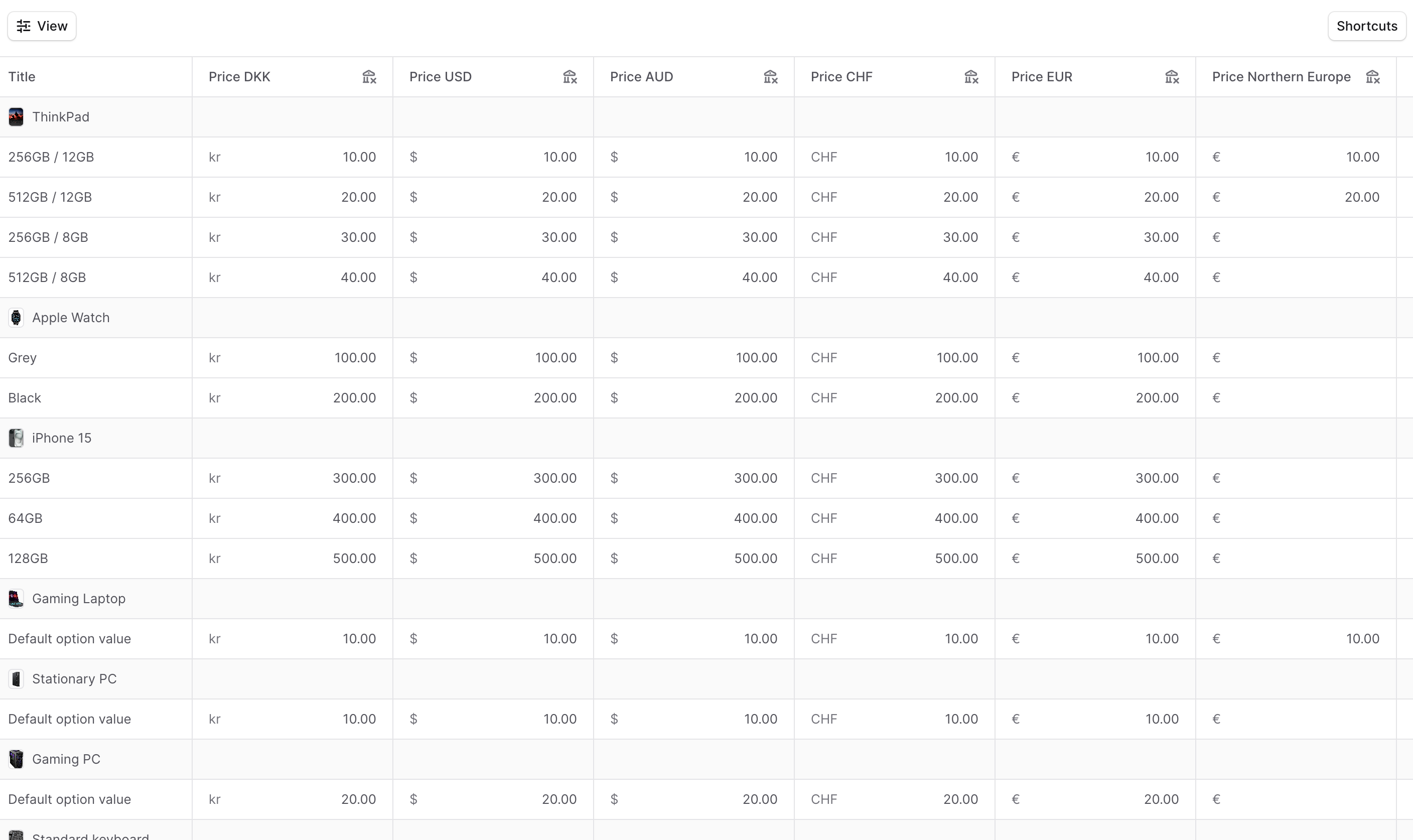
In the last step, use the Bulk Editor to enter the new prices for the variants of each product you selected. You can set the prices for every currency and region in your store.
Set Quantity-Based Prices
For each currency or region column in the Bulk Editor, you can set prices that apply only when a customer orders a specific quantity range. For example, you can offer a lower price when a customer orders ten or more units.
To set quantity-based prices for a variant:
- Click the cell of the currency or region you want to set quantity-based prices for.
- Click the expand icon next to a price cell in the Bulk Editor.
- In the form that opens, set one or more price tiers. To add a price tier, click Add Price.
- For each price tier, fill out the following fields:
- Product variant price — The price for this quantity range.
- Minimum cart quantity — The minimum order quantity for this price to apply.
- To set, click the + icon, then enter the minimum quantity in the field that appears.
- To remove, click the X icon next to the minimum quantity field.
- Maximum cart quantity — The maximum order quantity for this price to apply.
- To set, click the + icon, then enter the maximum quantity in the field that appears.
- To remove, click the X icon next to the maximum quantity field.
- Add as many price tiers as needed for different quantity ranges.
- When you're done, click Save to apply the quantity-based prices.
When you're done setting all prices, click Save to create the price list.
You can now manage the price list you created from the price list's details page.