Secret API Keys
Learn how to create and manage secret API keys in the vendor dashboard.
On this page
In this guide, you'll learn how to create and manage secret API keys in the vendor dashboard.
This guide is mainly useful for developers and technical teams building customizations for your store.
What is a Secret API Key?
A secret API key is an authentication token that allows you to access Admin APIs. You can pass it in request headers to send requests as an authenticated admin user. Do not expose secret API keys in client-side code or public repositories.
Ask your technical team how to pass the secret API key in request headers for your integration.
View Secret API Keys
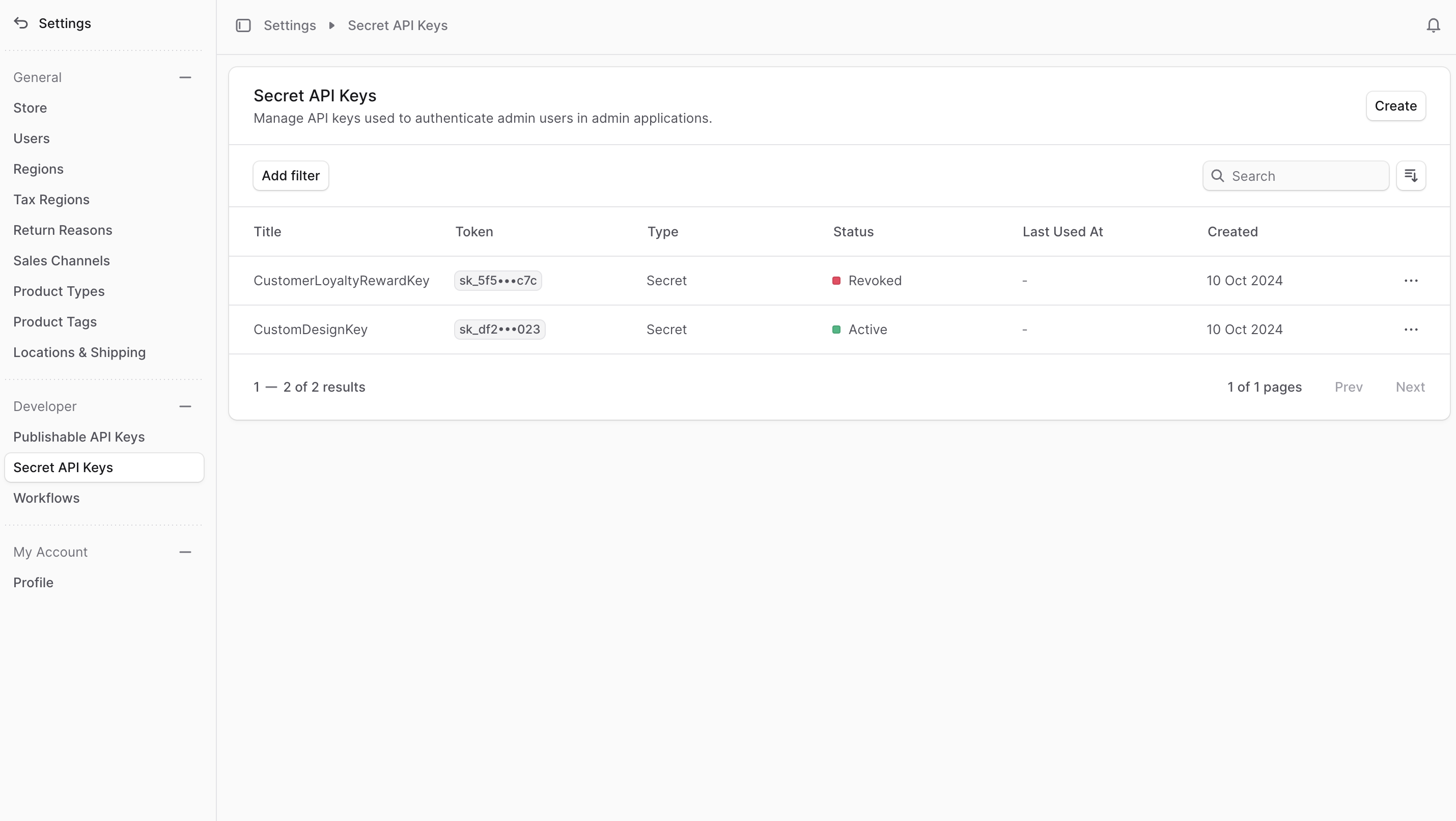
To view secret API keys for the currently logged-in user, go to Settings → Secret API Keys.
Here, you can see a list of all secret API keys for the logged-in user. You can also search, filter, and sort the API keys to find the one you are looking for.
Create Secret API Key
When you create a secret API key, you create it for the currently logged-in user.
To create a secret API key:
- Go to Settings → Secret API Keys.
- Click Create in the main section's header.
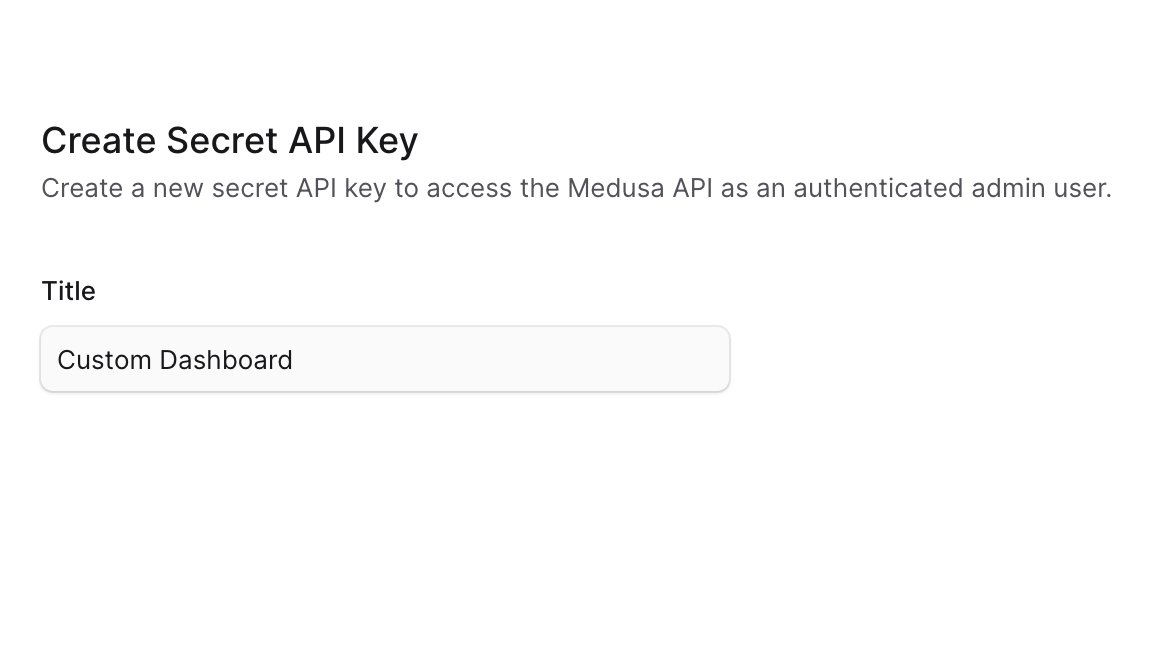
- In the form that opens, enter the secret API key's title.
- When you're done, click Save.
- You'll get a pop-up with the secret API key. Copy it and store it securely before closing the pop-up, as you won't be able to see it again.
View Secret API Key Details
To view the details of a secret API key:
- Go to Settings → Secret API Keys.
- Click a secret API key from the list.
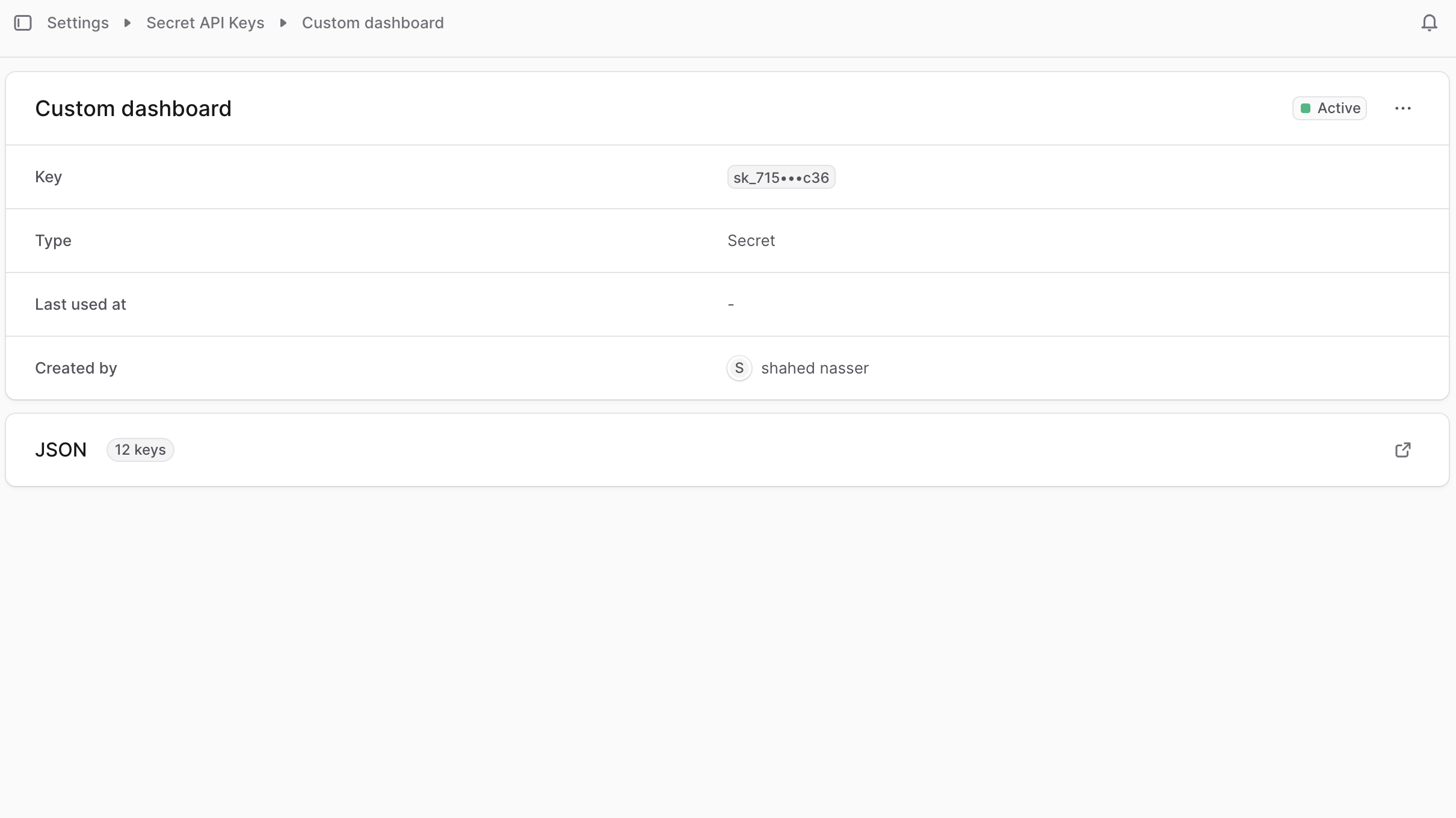
This opens the secret API key's details page where you can also manage the API key.
Secret API Key Status
You can see the status of the secret API key in the header of the first section on the details page. A secret API key's status can be:
| Status | Description |
|---|---|
| Active | The API key can be used in authenticated Admin API requests. |
| Revoked | The API key has been revoked and can no longer be used. |
Edit Secret API Key
To edit a secret API key:
- Go to the secret API key's details page.
- Click the three-dot menu in the first section's header.
- Choose Edit from the dropdown.
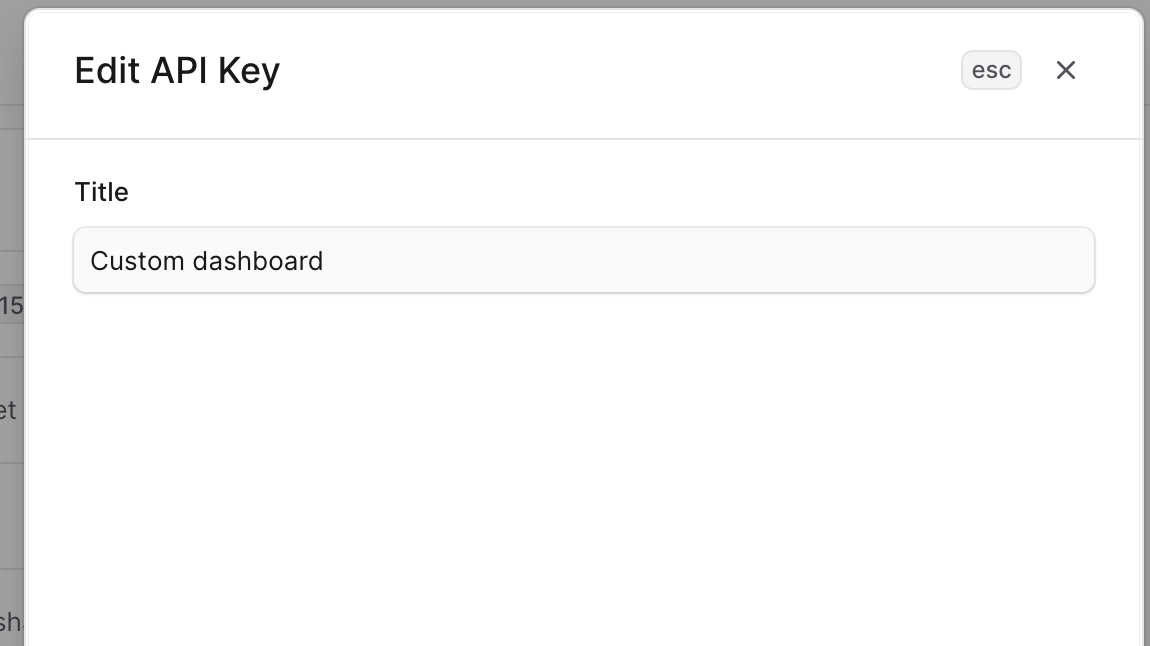
- In the side window that opens, edit the secret API key's title.
- When you're done, click Save.
Revoke Secret API Key
Revoking a secret API key is irreversible. You can't use the key in requests after revoking it or reactivate it.
To revoke a secret API key:
- Go to the secret API key's details page.
- Click the three-dot menu in the first section's header.
- Choose Revoke API key from the dropdown.
- Confirm by clicking Revoke API key in the pop-up.
Delete Secret API Key
Deleting a secret API key is irreversible.
You can only delete a secret API key after revoking it. To delete a secret API key:
- Go to the secret API key's details page.
- Click the three-dot menu in the first section's header.
- Choose Delete from the dropdown.
- Confirm by clicking Delete in the pop-up.