Create Promotion
Learn how to create a promotion of different types and configurations in the vendor dashboard.
On this page
In this guide, you'll learn how to create a promotion of different types and configurations.
To create a promotion:
- Go to Promotions.
- Click Create.
This opens the form to create a promotion, which is made up of three steps: Type, Details, and Campaign.
Step 1: Type
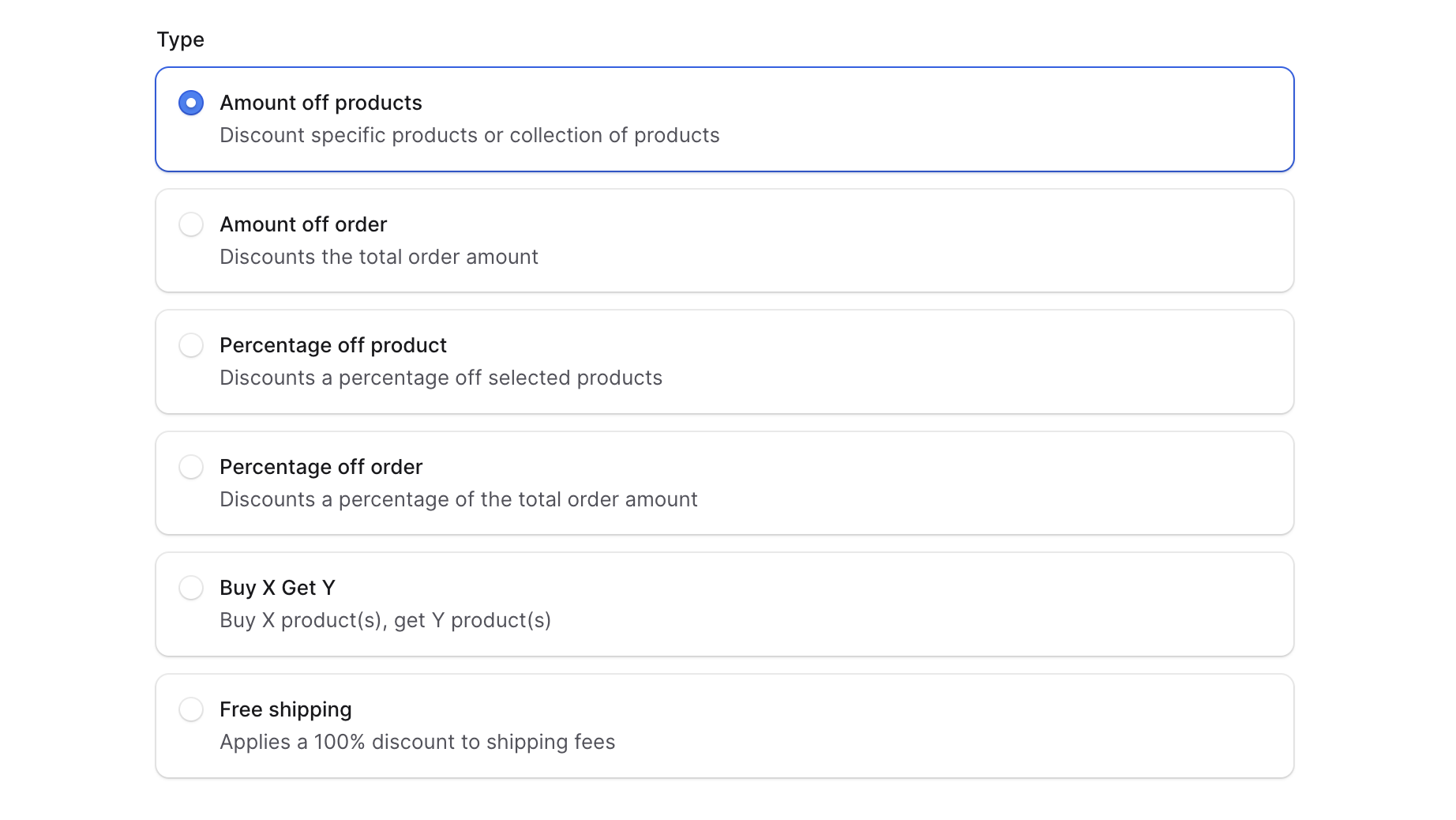
In the first step of creating a promotion, specify the promotion type:
- Amount off products — Discount a fixed amount on products matching custom and dynamic conditions.
- Amount off order — Discount a fixed amount from the total order amount.
- Percentage off product — Discount a percentage off products matching custom and dynamic conditions.
- Percentage off order — Discount a percentage off an order's total.
- Buy X Get Y — When the customer buys X quantity of a product, they get Y quantity for free. For example, buy 3 shirts get 1 for free.
- Free Shipping — Offer free shipping on orders that meet certain conditions.
Once you've selected the type, click Continue.
Step 2: Details
The fields in the details section differ based on the type you chose. Follow the section for the type you selected.
a. Amount off Products
If you chose Amount off Products, fill out the following in the Details step:
- For Method, choose how the promotion is applied:
- Promotion code — The customer must enter the code at checkout.
- Automatic — The promotion is applied automatically when the cart matches the conditions.
- For Status, choose Draft if customers shouldn't use the promotion yet, or Active otherwise.
- In Code, enter the promotion code without spaces. For example,
50OFF. - Does promotion include taxes controls when the promotion is applied. By default, the promotion applies before taxes. Enable this field to apply it after taxes.
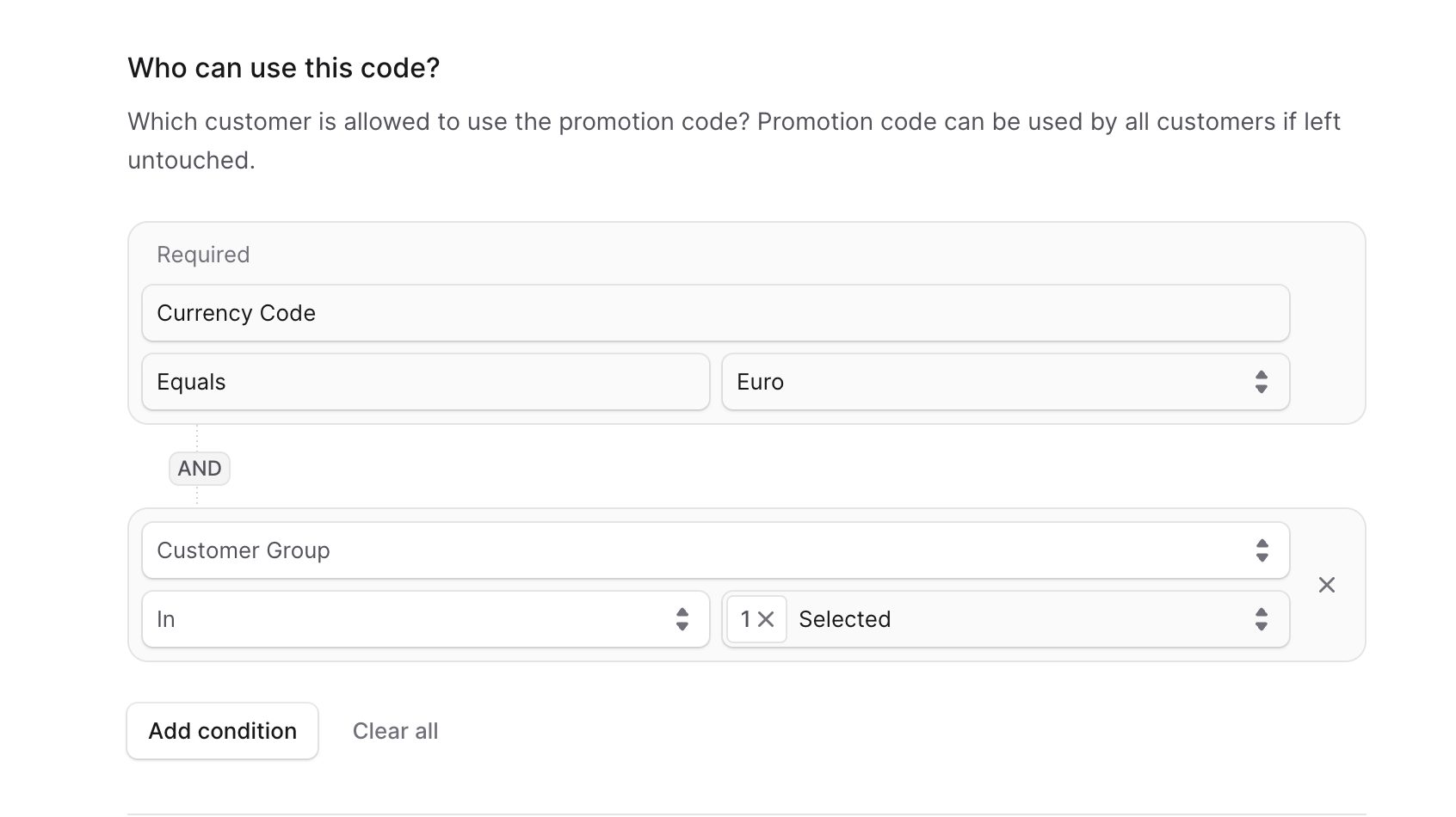
- In Who can use this code?, specify conditions for the customer's cart:
- Set the currency code the promotion applies to (required).
- Click Add condition for each custom condition:
- Attribute: Customer Group, Region, Country, or Sales Channel.
- Operator: In or Not In.
- Value: The attribute value.
- Example — VIP only: Attribute Customer Group, Operator In, Value VIP.
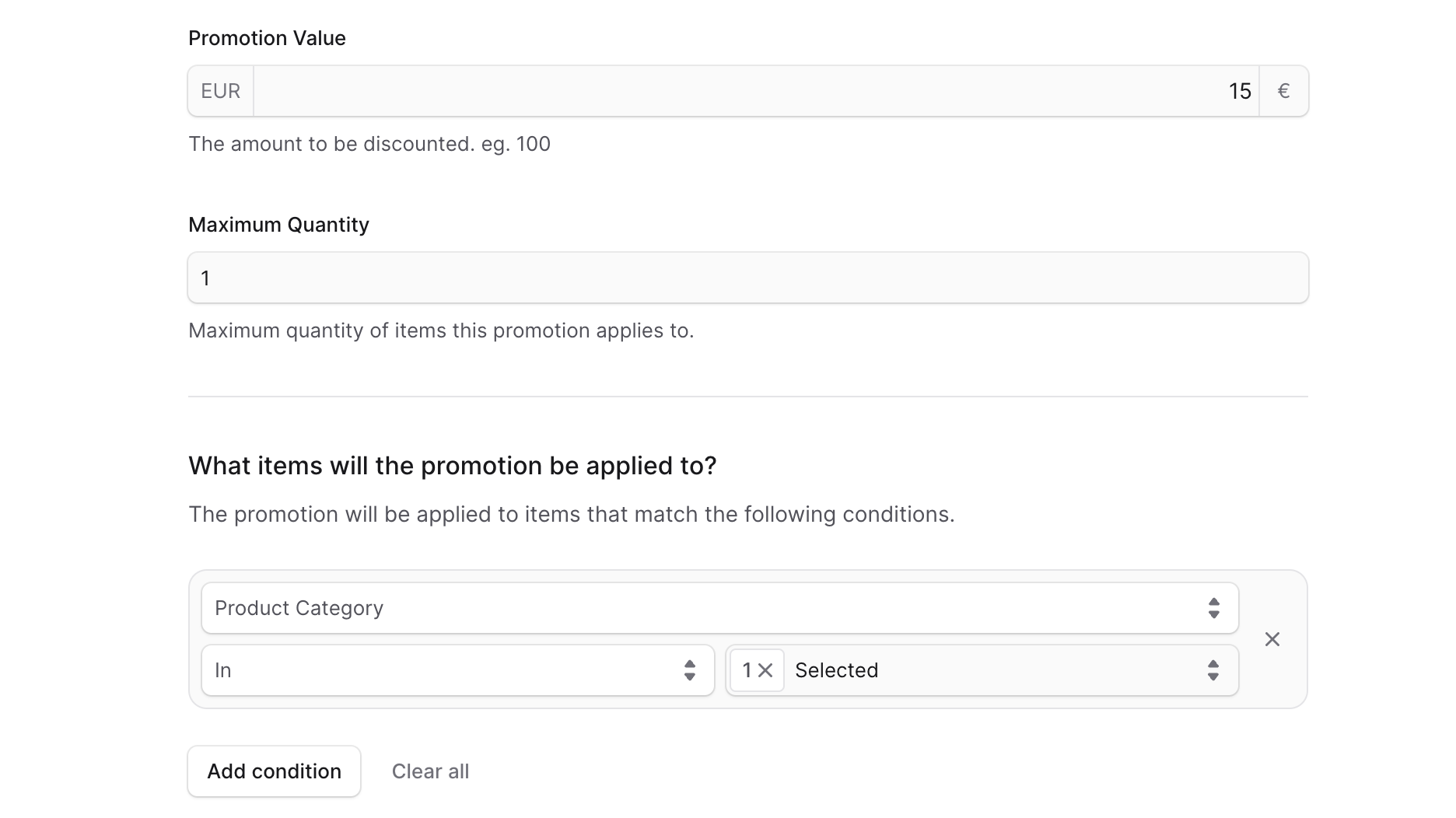
- In Promotion Value, set the amount discounted from applicable products.
- In Maximum Quantity, set the maximum line-item quantity the promotion applies to per applicable item.
- In Allocation, choose how the discount applies when multiple items qualify:
- Each — Applied to each applicable item.
- Once — Applied to a number of items determined by Maximum Quantity.
- In What items will the promotion be applied to?, specify cart items the promotion targets. Click Add condition for each:
- Attribute: Product, Product Category, Product Collection, Product Type, or Product Tag.
- Operator: In or Not In.
- Value: The attribute value.
- Example — Shirts category: Attribute Product Category, Operator In, Value Shirts.
- In Usage Limit, optionally set the maximum uses across all orders. Leave empty for unlimited use, or until a campaign limit applies. You can't change this after creation.
- Click Next to continue to Step 3: Campaign.
b. Amount off Order
If you chose Amount off Order, fill out the following in the Details step:
- Choose Method — Promotion code or Automatic.
- Choose Status — Draft or Active.
- Enter the Code without spaces.
- Configure Does promotion include taxes as needed.
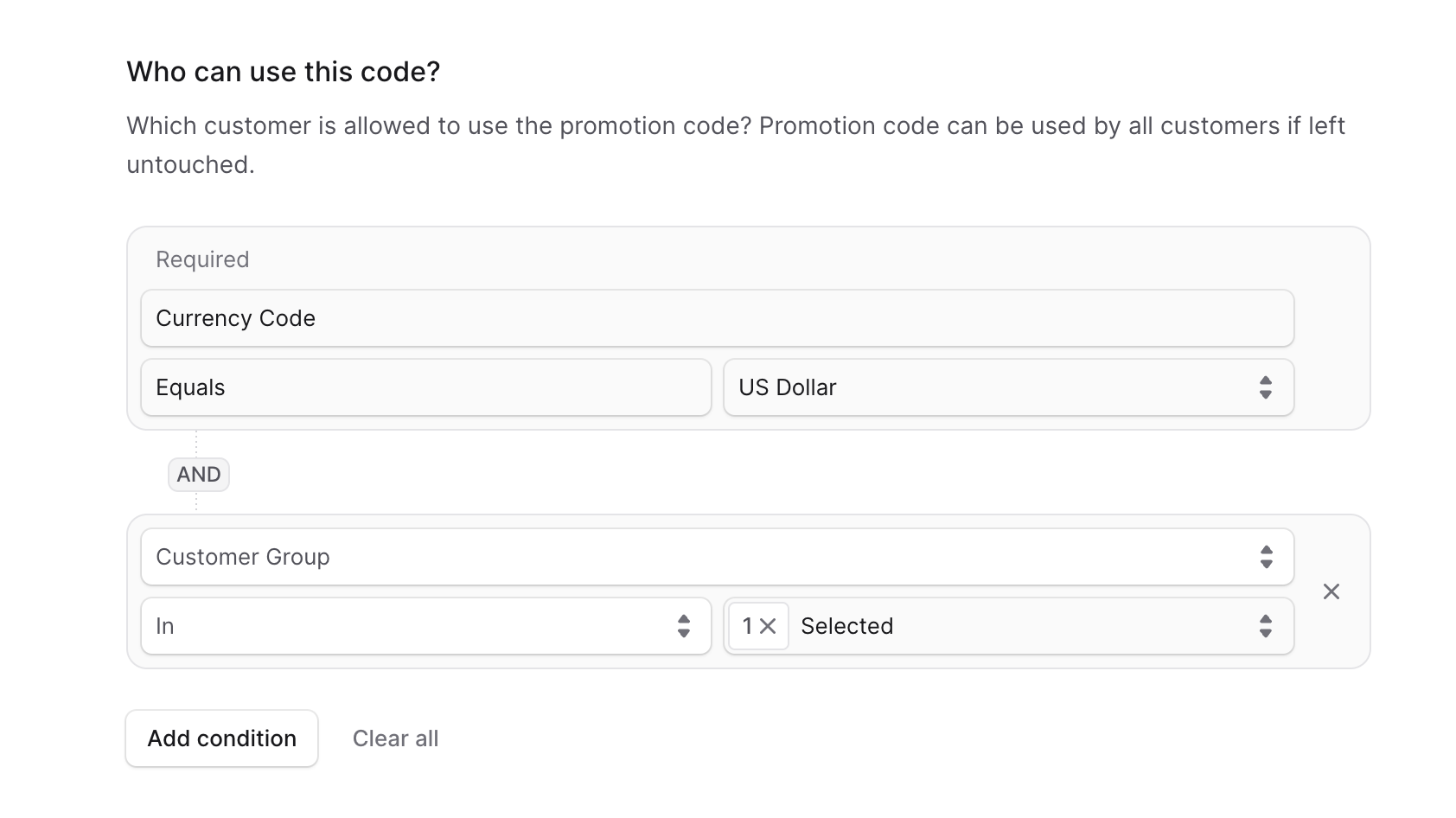
- In Who can use this code?, set the currency and add conditions (Customer Group, Region, Country, Sales Channel) using In or Not In operators.
- In Promotion Value, set the order discount amount.
- Optionally set Usage Limit (can't be changed after creation).
- Click Next to continue to Step 3: Campaign.
c. Percentage off Product
If any fields are not visible in your admin, contact your technical team.
If you chose Percentage off Product, fill out the following in the Details step:
- Choose Method — Promotion code or Automatic.
- Choose Status — Draft or Active.
- Enter the Code without spaces.
- Configure Does promotion include taxes as needed.
- In Who can use this code?, add conditions. Attributes include Customer Group, Region, Country, Sales Channel, and Currency Code.
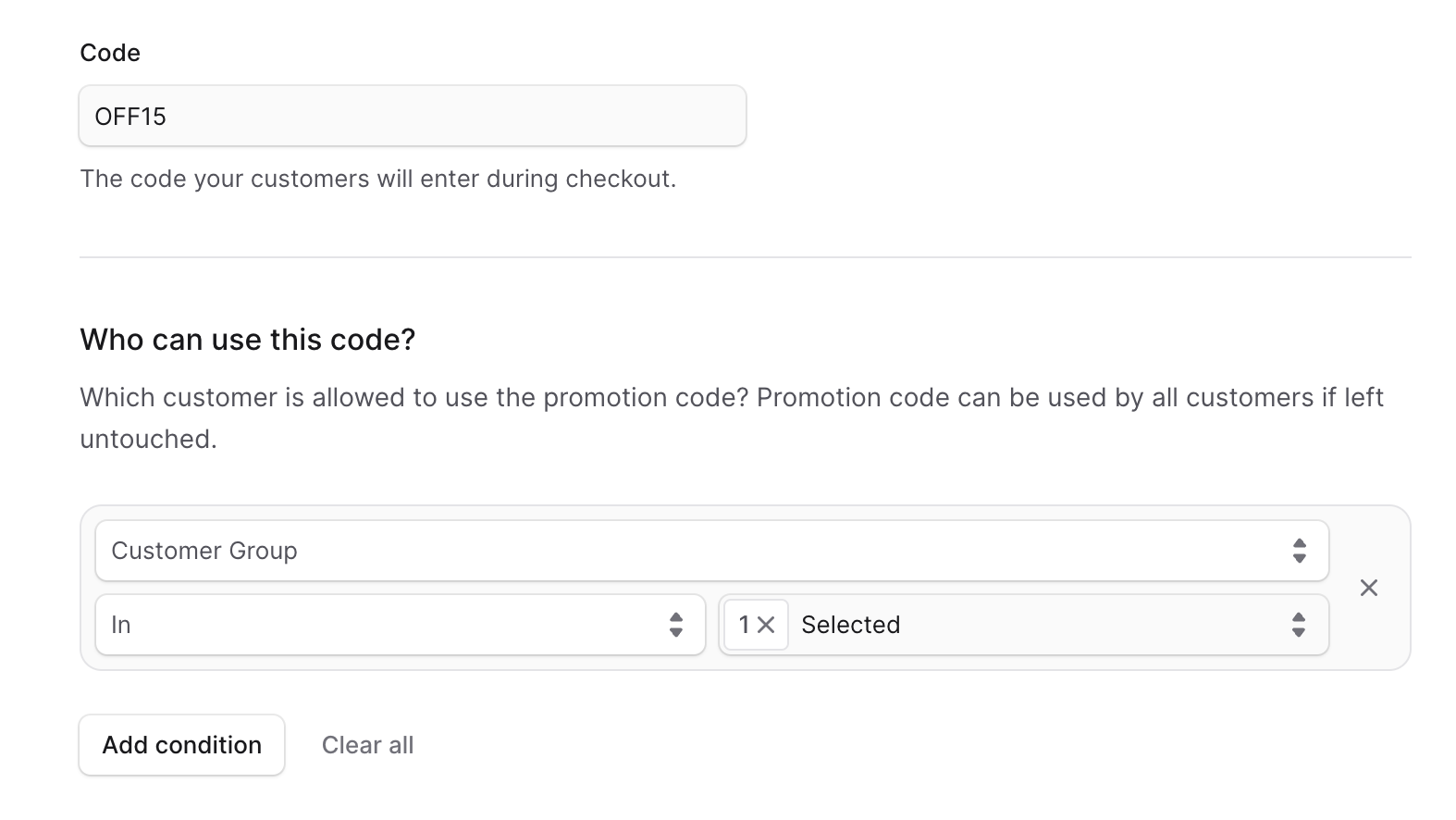
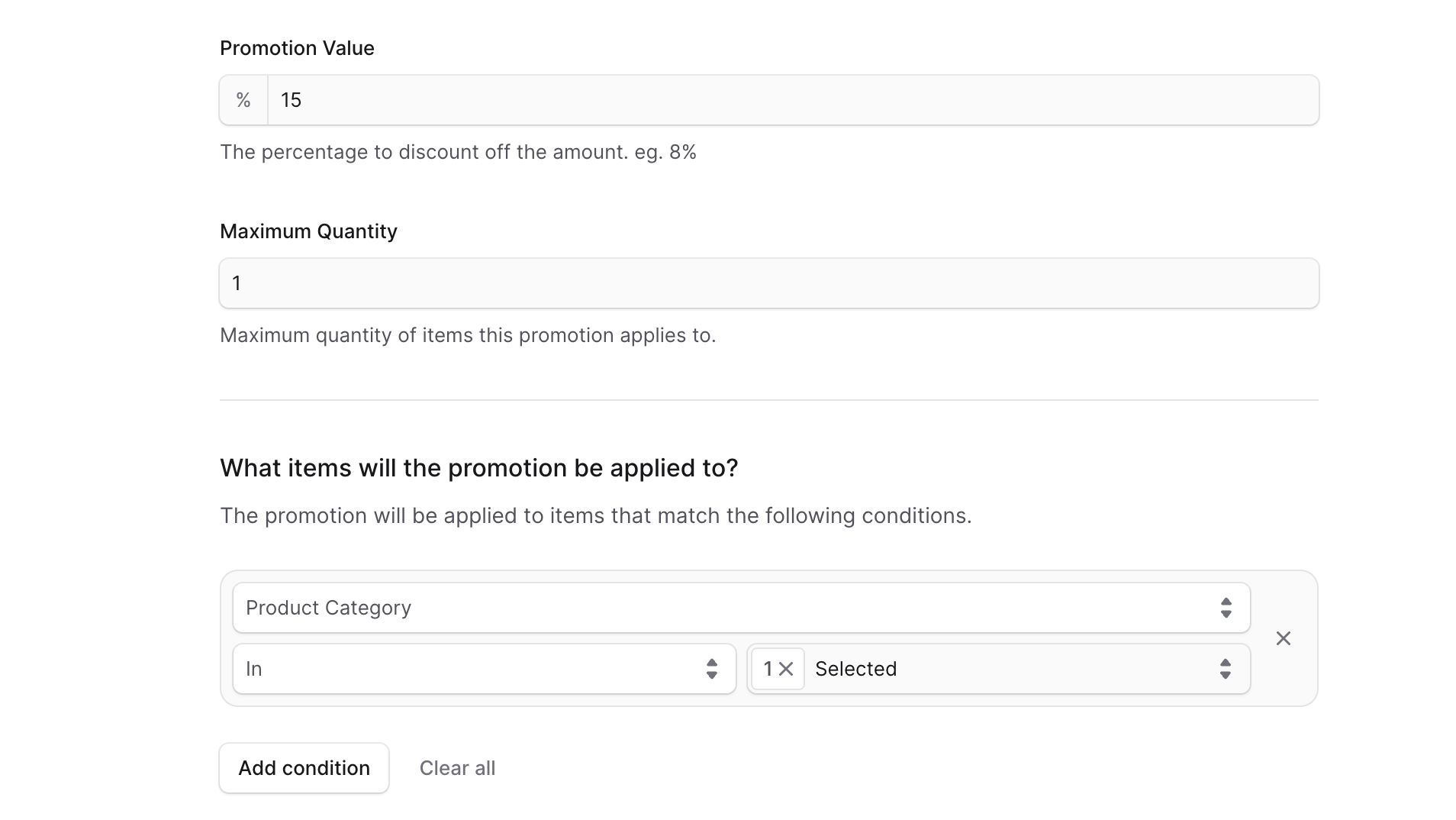
- In Promotion Value, set the percentage discounted from applicable products.
- In Maximum Quantity, set the max applicable quantity per item in the cart.
- In Allocation, choose Each or Once.
- In What items will the promotion be applied to?, add conditions for Product, Product Category, Product Collection, Product Type, or Product Tag.
- Optionally set Usage Limit.
- Click Next to continue to Step 3: Campaign.
d. Percentage off Order
If you chose Percentage off Order, fill out the following in the Details step:
- Choose Method — Promotion code or Automatic.
- Choose Status — Draft or Active.
- Enter the Code without spaces.
- Configure Does promotion include taxes as needed.
- In Who can use this code?, add conditions using Customer Group, Region, Country, Sales Channel, or Currency Code.
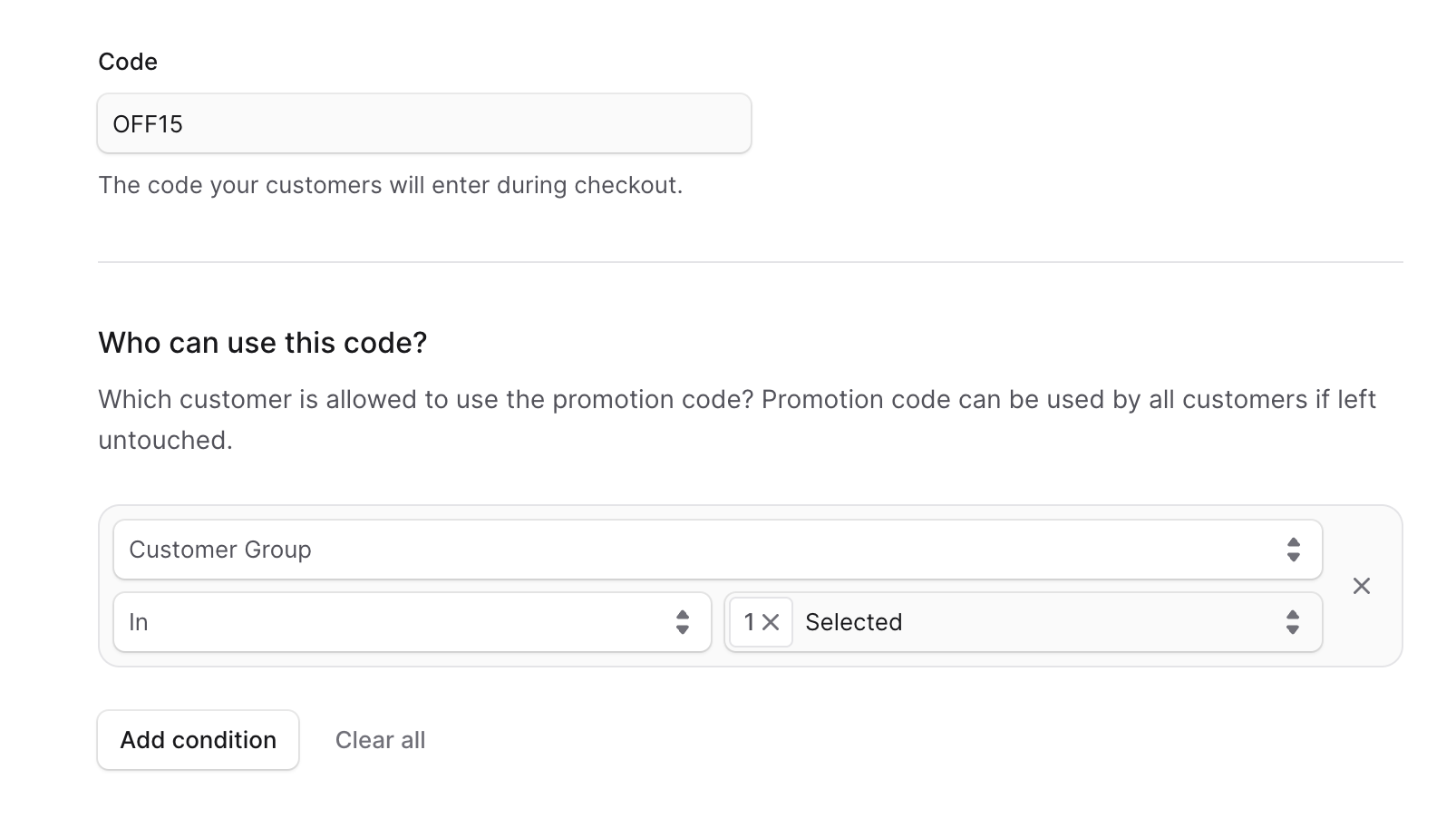
- In Promotion Value, set the percentage discounted from the order.
- Optionally set Usage Limit.
- Click Next to continue to Step 3: Campaign.
e. Buy X Get Y
If you chose Buy X Get Y, fill out the following in the Details step:
- Choose Method — Promotion code or Automatic.
- Choose Status — Draft or Active.
- Enter the Code without spaces. For example,
BUY3GET1. - In Who can use this code?, add conditions using Customer Group, Region, Country, Sales Channel, or Currency Code.
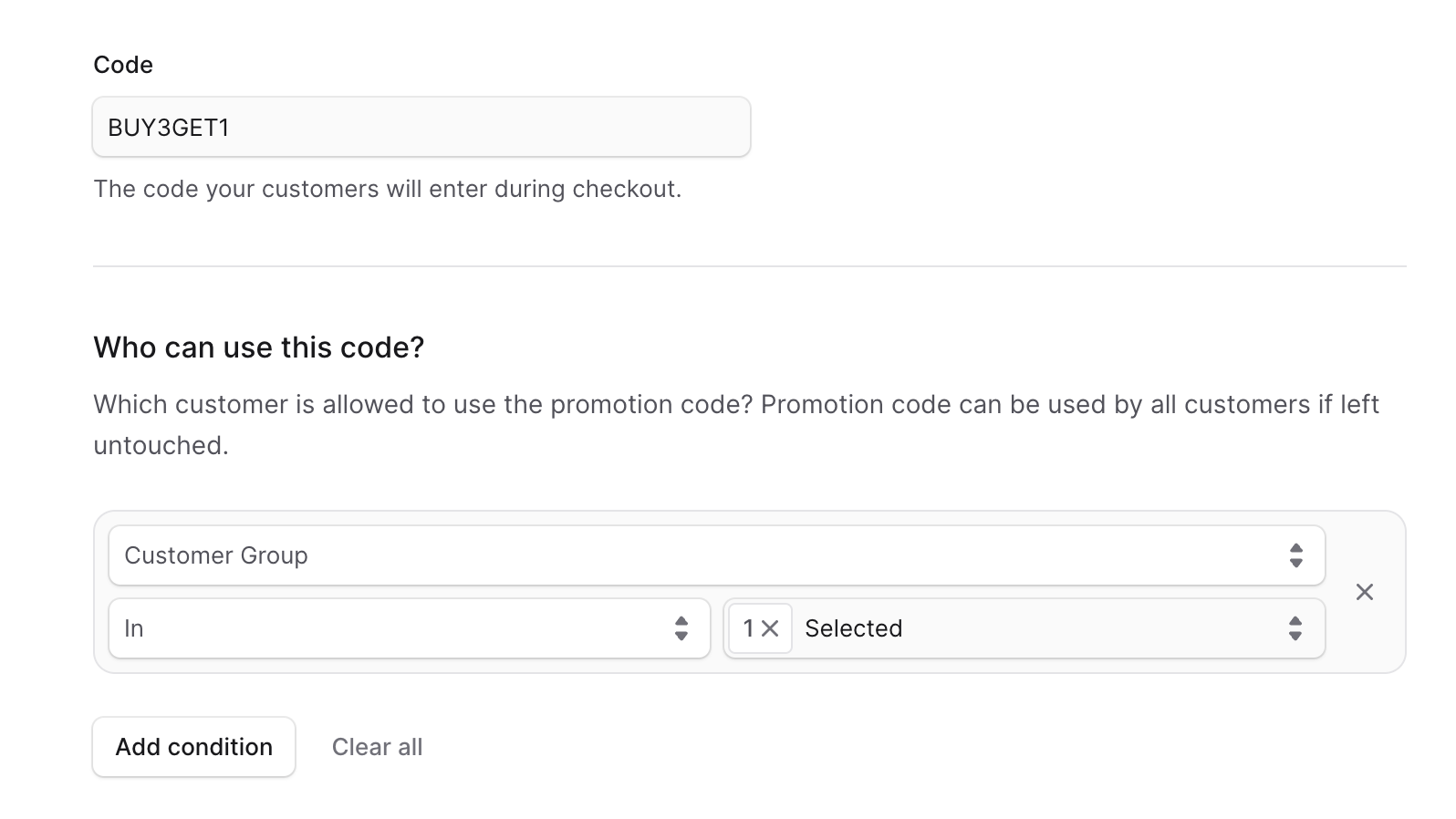
- In What needs to be in the cart to unlock the promotion?, configure the "Buy X" part:
- Set the minimum required quantity (e.g.
3for "buy 3"). - Set which products apply using Add condition (Product Category, Product Collection, Product Type, or Product Tag).
- Set the minimum required quantity (e.g.
- In What items will the promotion be applied to?, configure the "Get Y" part:
- Set the free quantity (e.g.
1for "get 1 free"). - Set which products the customer receives using Add condition.
- Set the free quantity (e.g.
- Optionally set Usage Limit.
- Click Next to continue to Step 3: Campaign.
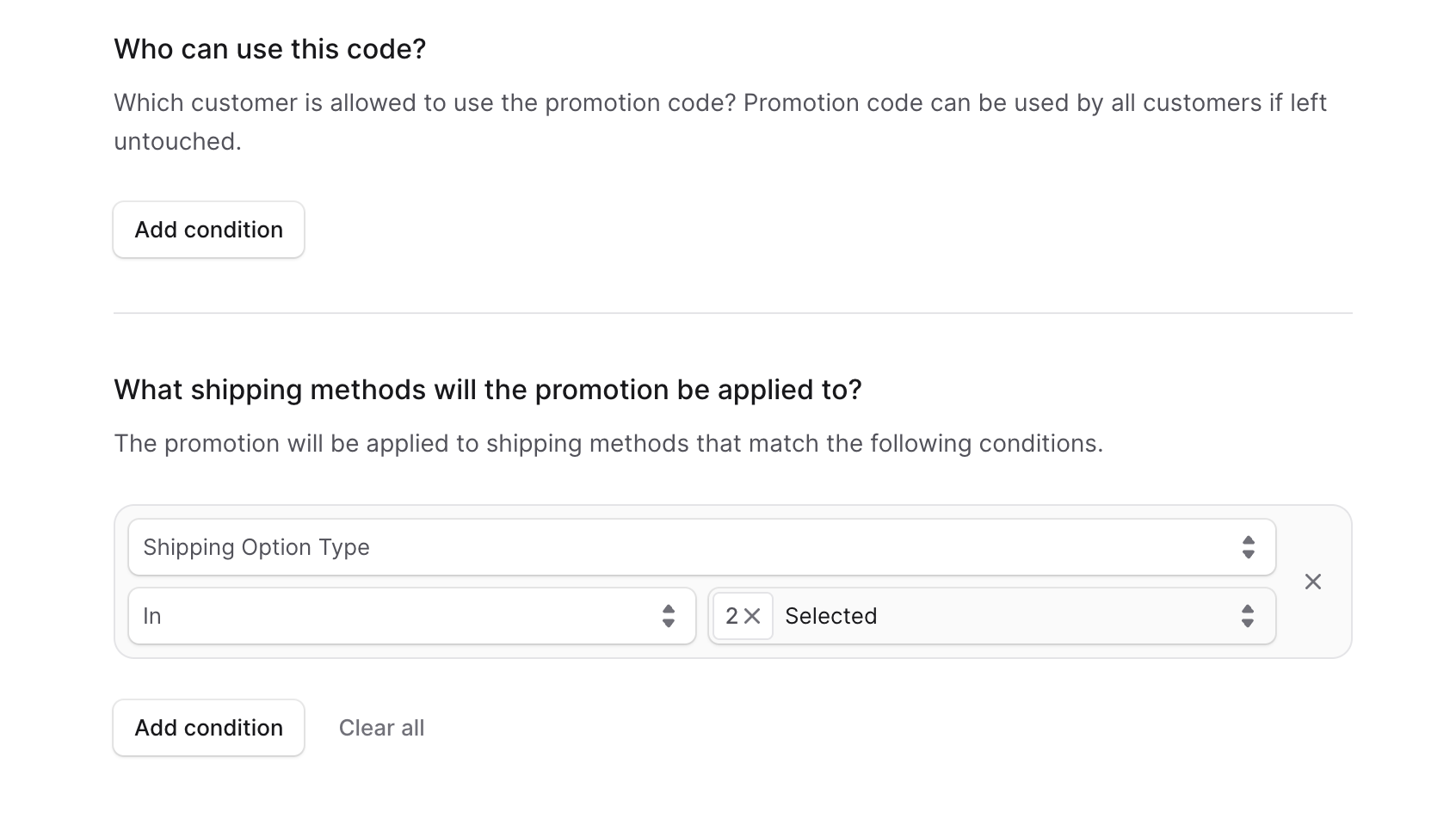
f. Free Shipping
If you chose Free Shipping, fill out the following in the Details step:
- Choose Method — Promotion code or Automatic.
- Choose Status — Draft or Active.
- Enter the Code without spaces. For example,
FREESHIPPING. - In Who can use this code?, add conditions using Customer Group, Region, Country, Sales Channel, or Currency Code.
- In What shipping methods will the promotion be applied to?, add conditions:
- Attribute: Shipping Option Type.
- Operator: In or Not In.
- Value: The shipping option type (e.g. Express).
- Optionally set Usage Limit.
- Click Next to continue to Step 3: Campaign.
Step 3: Campaign
Associate the promotion with a campaign to control budget, start date, and end date.
In the Campaign section, choose:
- Without Campaign — Create the promotion without a campaign.
- Existing Campaign — Select a campaign the promotion belongs to.
- New Campaign — Create a campaign and add the promotion to it.
Create Campaign
If you selected a new campaign, fill out:
- Name — The campaign name.
- Identifier — A custom identifier, useful for external system integration.
- Optionally enter a description and start/end dates.
- Start date: promotions can be used after this date.
- End date: promotions can't be used after this date.
- Under Campaign budget, set limits that expire the campaign:
- Usage — How many times promotions in the campaign can be used.
- Spend — Total amount that can be discounted (disabled for Buy X Get Y and Free Shipping types).
- Limit — The budget limit for the chosen type.
- Limit usage per (optional, Usage type only):
- No selection — limit applies globally.
- Customer — limit per customer identifier.
- Customer Email — limit per email address.
- Click Save.
You can now manage the promotion from the Promotions list, or learn more about Campaigns.