Manage Draft Order
Learn how to manage draft order details in the vendor dashboard.
On this page
In this guide, you'll learn how to manage draft order details in the vendor dashboard.
View Draft Order Details
To view the details of a draft order:
- Go to Orders → Drafts.
- Click the draft order you want to view.
This opens the draft order's details page, which is divided into several sections.
Summary Section
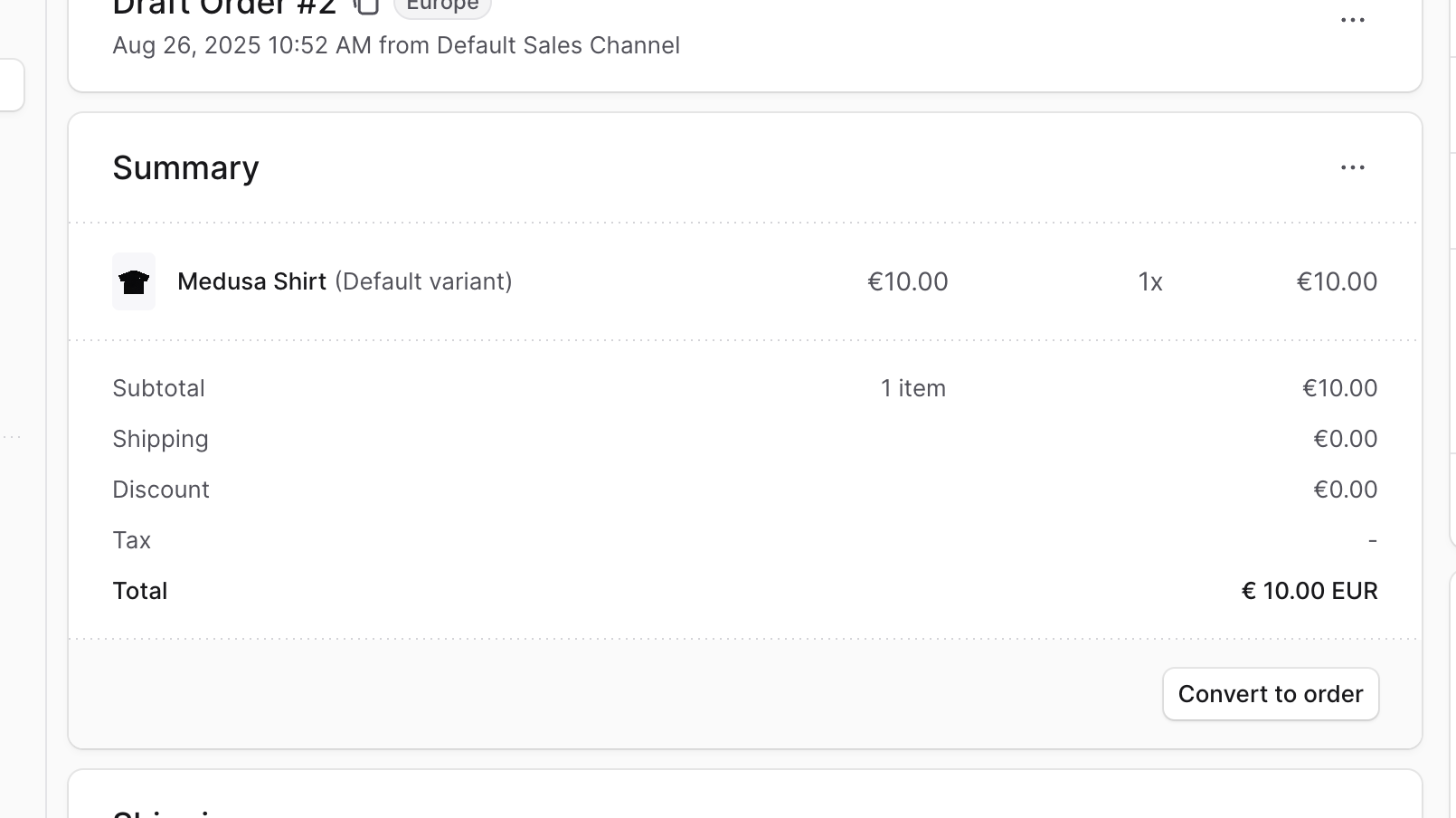
The Summary section includes a summary of the items the customer purchased, as well as totals related to taxes, shipping, and more. Use this section to get a quick overview of the draft order, convert it to a regular order, or manage its items.
Customer Section
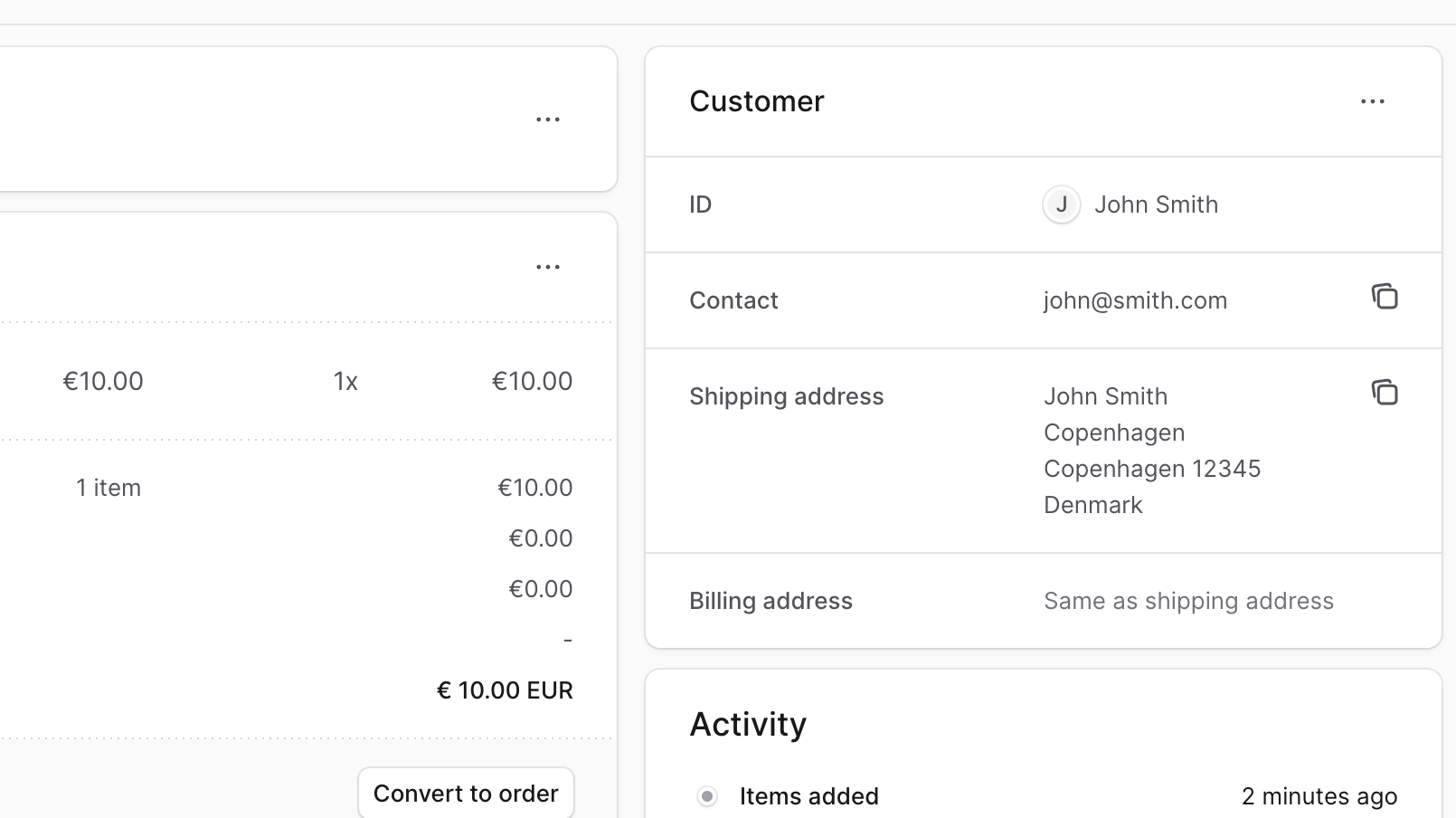
The Customer section shows the customer's details, including their contact information and shipping address. Use this section to view and edit the customer's details pertaining to the order.
Activity Section
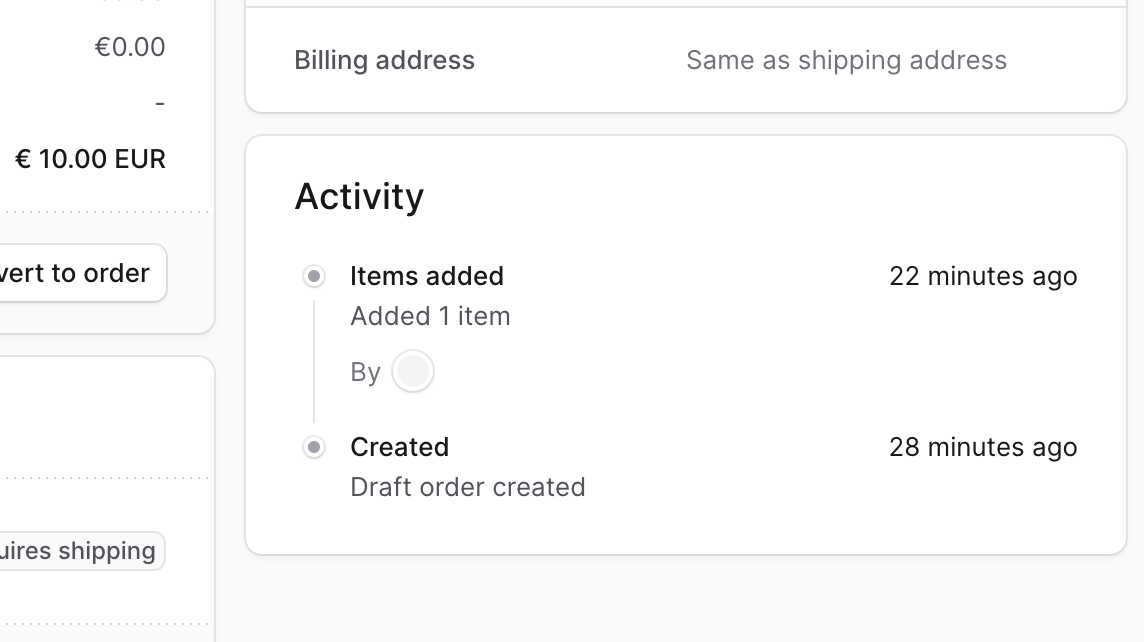
The Activity section of the draft order details page shows a summary of the changes made to the draft order, including updates to items and shipping methods.
Shipping Section
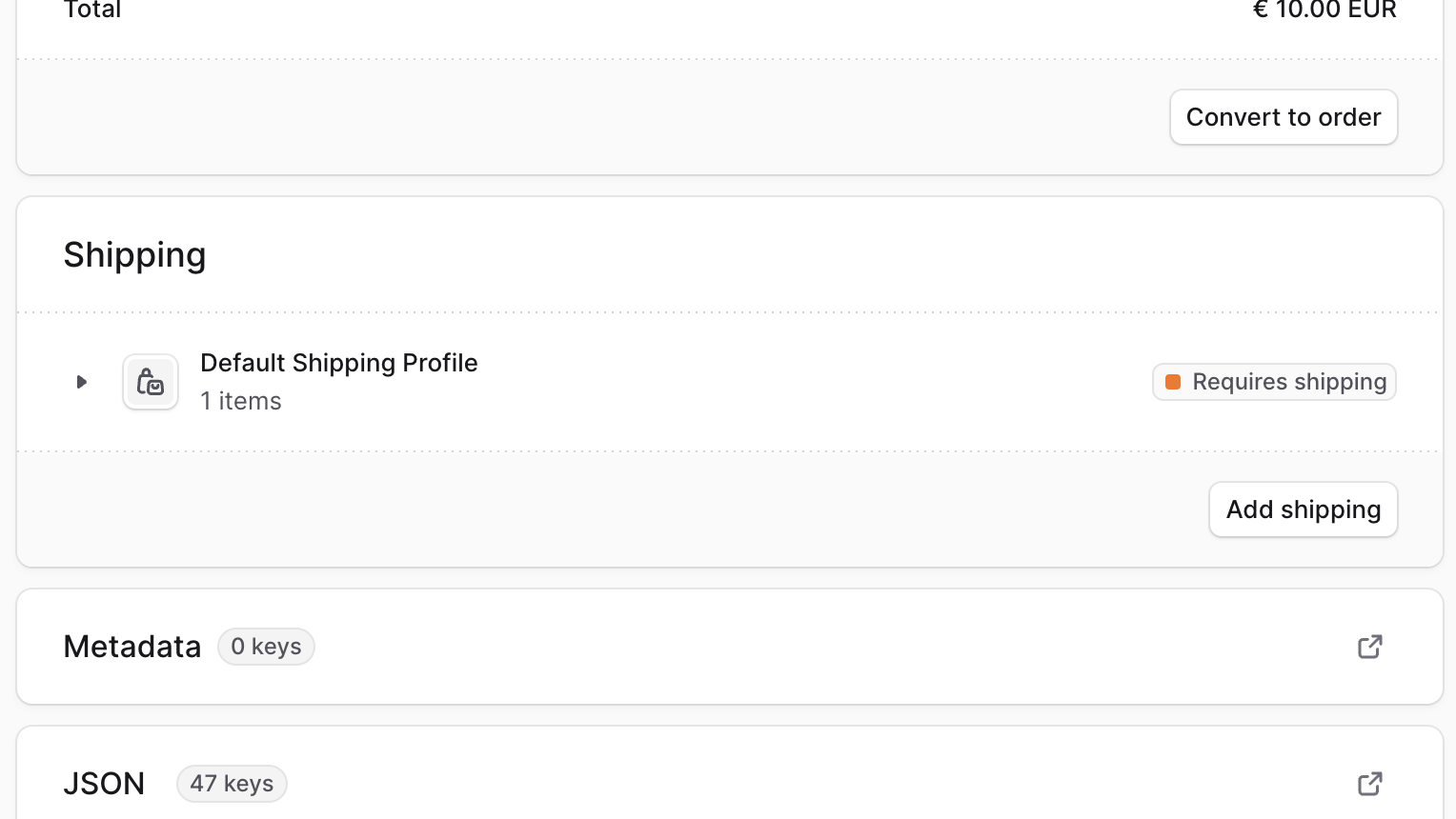
The Shipping section shows the draft order's shipping details, including the shipping methods chosen for each shipping profile associated with the draft order's items. Use this section to view and manage the shipping methods for the draft order.
Metadata Section
The Metadata section allows you to view and manage custom metadata associated with the draft order. Metadata can be useful for storing additional information about the order that is not covered by the default fields.
JSON Section
The JSON section is useful for developers to view the raw order data in JSON format. Developers can use this section to debug and troubleshoot issues related to the order.
To view the JSON structure, click the expand icon.
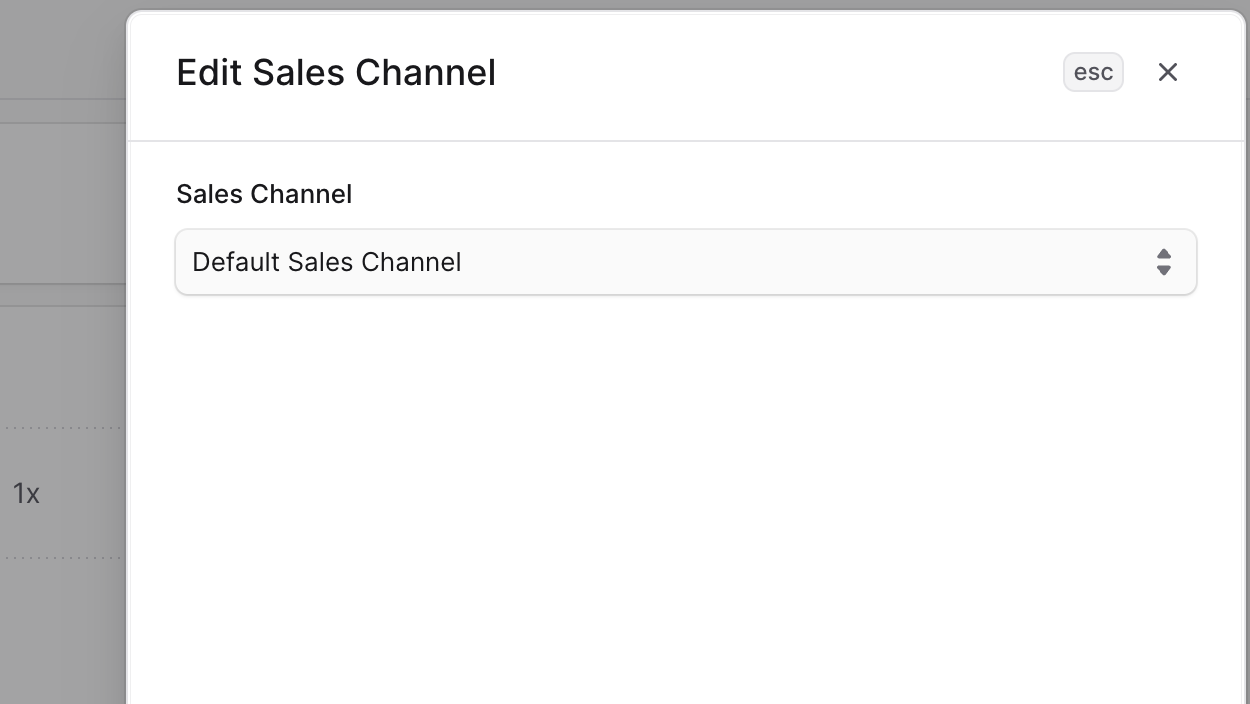
Edit Draft Order's Sales Channel
To edit the sales channel of a draft order:
- Go to the draft order's details page.
- In the first section displaying the order's number and region, click the three-dot menu in the draft order's row.
- Select Edit sales channel from the dropdown menu.
- In the side window that opens, select the new sales channel from the dropdown.
- Click Save.
Manage Draft Order's Items
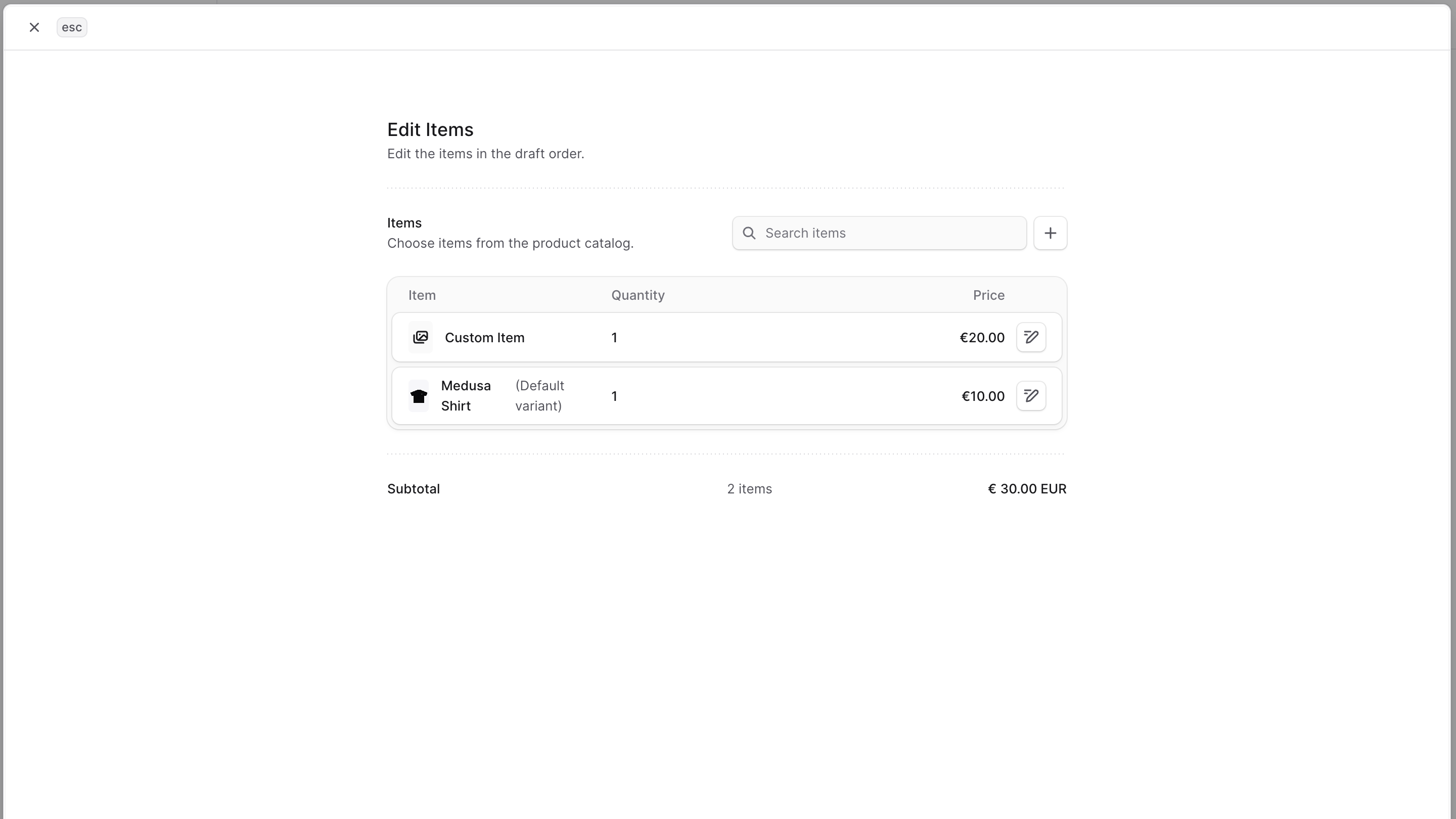
To add, edit, or remove items from a draft order:
- Go to the draft order's details page.
- Click the three-dot menu in the Summary section's header.
- Select Edit items from the dropdown menu.
- In the form that opens:
- To add an item, click the + button in the Items section's header. From the dropdown, you can either choose:
- Add items — Add existing product variants to the draft order. This opens the product variant selection window.
- Add custom item — Add a custom item that's only available in this draft order. This opens a form to enter the item's title, price, and quantity.
- To edit an existing item, click the edit button in the item's row. This allows you to change the item's quantity and price.
- To remove an item, click the edit button in the item's row, then set the item's quantity to zero. This removes the item from the draft order.
- To add an item, click the + button in the Items section's header. From the dropdown, you can either choose:
- When you're done, click Save.
The items in the Summary section will be updated accordingly.
Manage Draft Order's Promotions
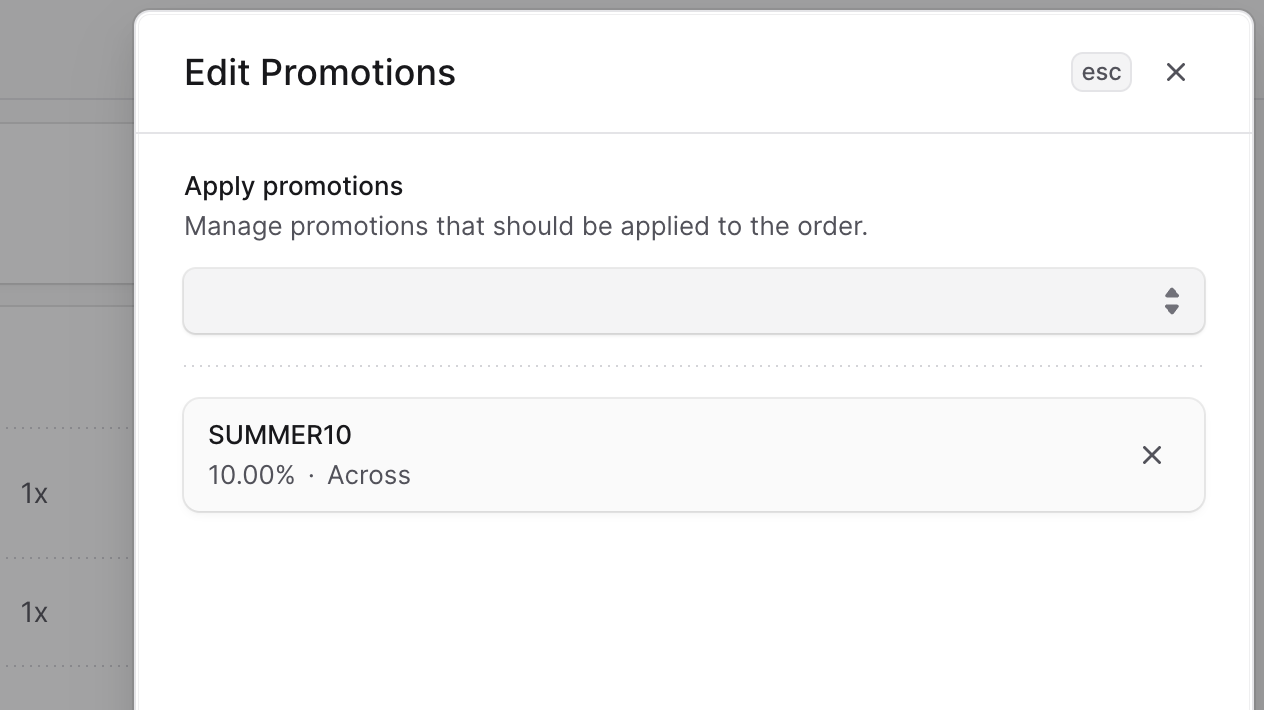
To add or remove promotions applied to the draft order:
- Go to the draft order's details page.
- Click the three-dot menu in the Summary section's header.
- Select Edit promotions from the dropdown menu.
- In the side window that opens:
- To add a promotion, choose it from the dropdown menu.
- To remove a promotion, click the X icon next to the promotion you want to remove.
- When you're done, click Save.
The Summary section will be updated accordingly with the discount changes.
Manage Draft Order's Shipping Methods
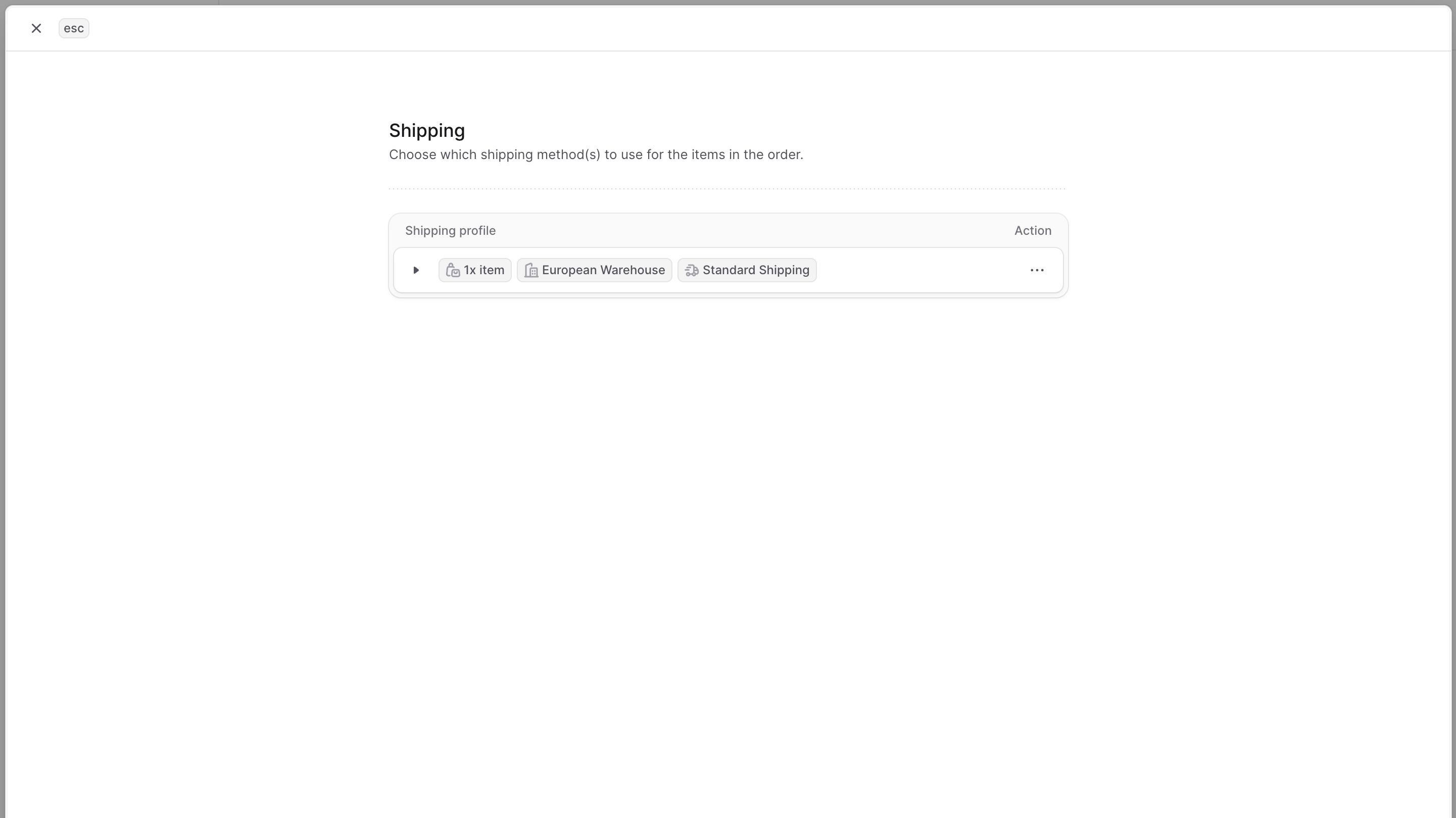
To manage the shipping methods of a draft order:
- Go to the draft order's details page.
- In the Shipping section, click Add shipping or Edit shipping.
- In the form that opens, manage the shipping methods of every shipping profile:
- To add a shipping option, click Add shipping option for the shipping profile.
- In the form that opens, set the following information:
- Location — Choose the location to ship the items from. This affects the available shipping options.
- Shipping option — After choosing a location, select a shipping option from that location that will be used to ship the items.
- Custom amount (optional) — Override the price of the shipping option with a custom amount.
- Items to ship — This section only shows which items this shipping option ships. You cannot edit this section.
- When you're done, click Add.
- To edit the shipping option of a shipping profile, click the three-dot menu in the shipping option's row and choose Edit shipping option. You can edit the location, shipping option, and custom amount.
- To remove a shipping option from the draft order, click the three-dot menu in the shipping option's row and choose Remove shipping option.
- When you're done managing the shipping methods, click Save.
The Shipping section will be updated accordingly.
Manage Draft Order's Customer Details
Transfer Draft Order to Another Customer
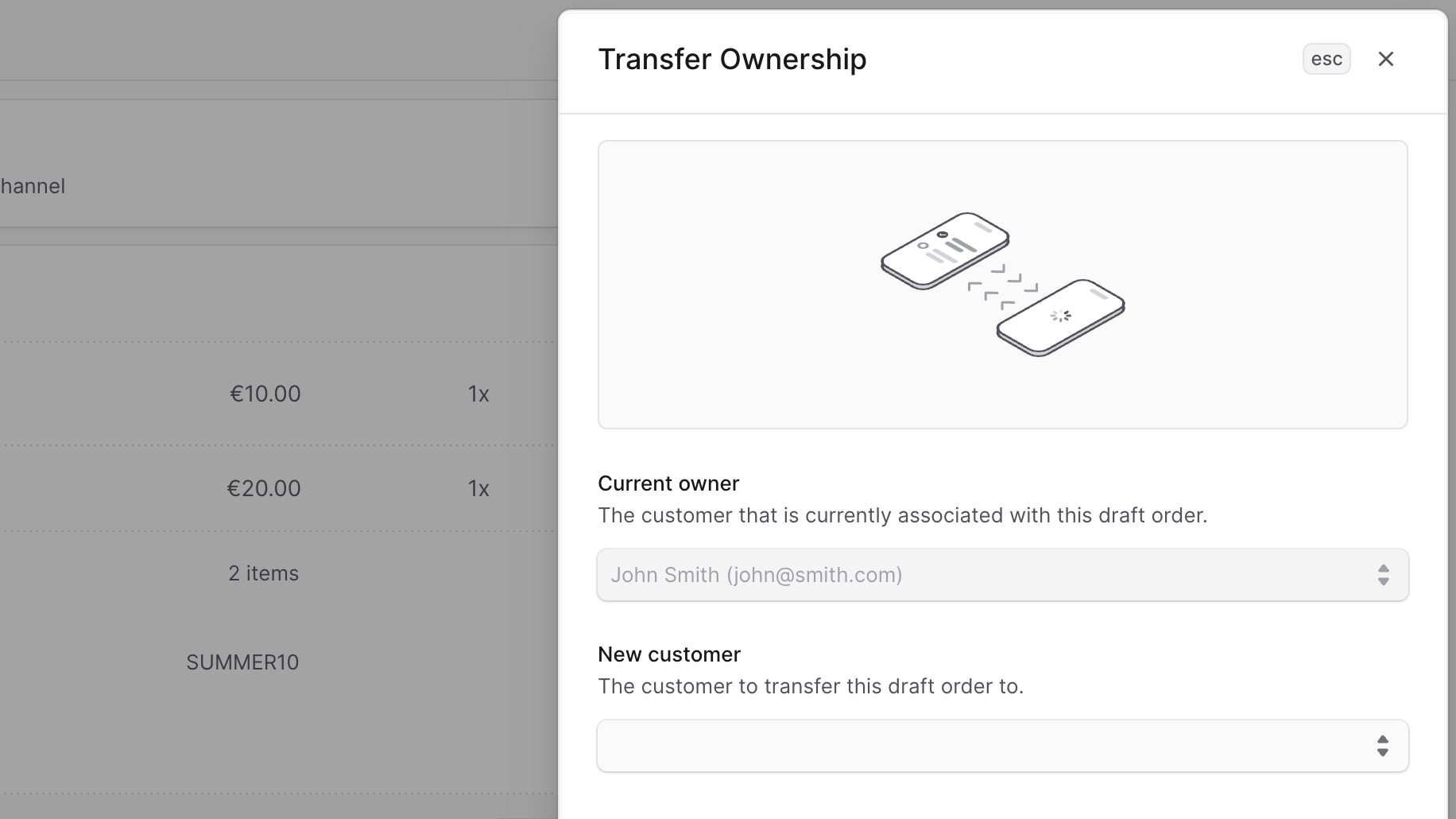
If you've associated the draft order with a customer in your store, you can transfer the draft order to another existing customer.
To transfer the draft order to another customer:
- Go to the draft order's details page.
- Click the three-dot menu in the Customer section's header.
- Choose Transfer ownership from the dropdown menu.
- In the side window that opens, choose the customer to transfer the draft order to in New customer.
- When you're done, click Save.
Edit Email
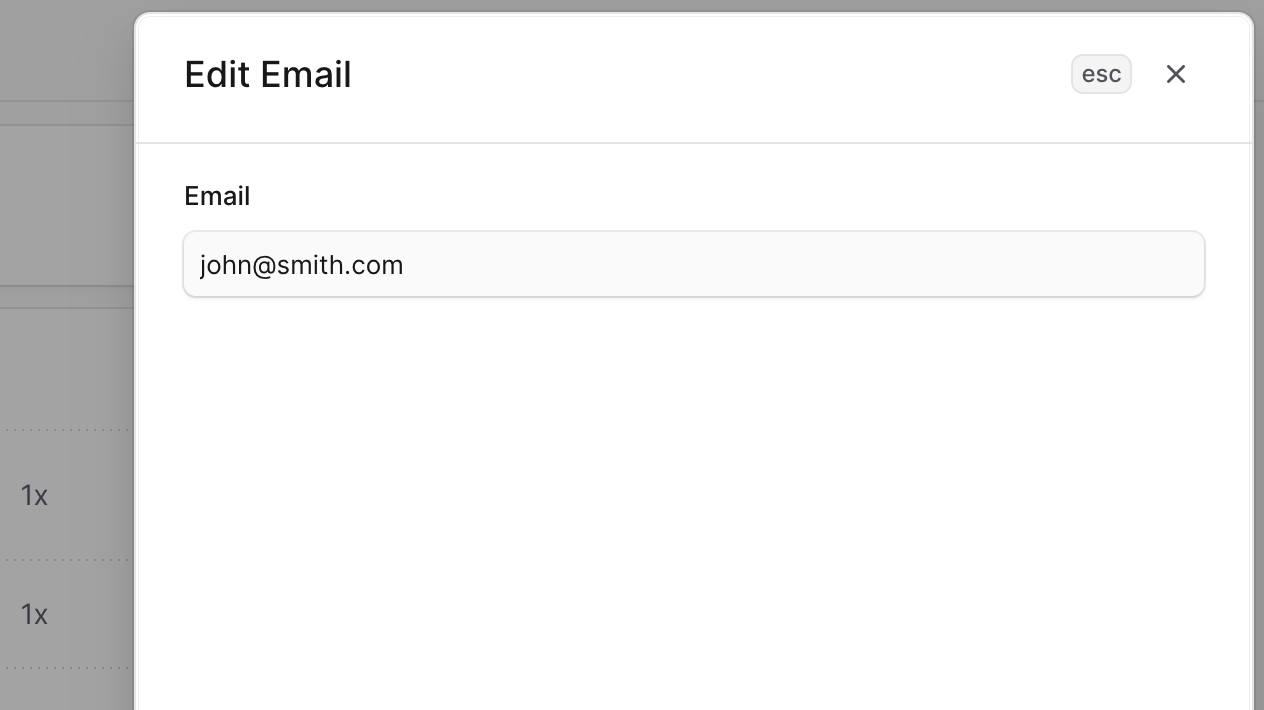
The draft order has an associated email address that is used to send order updates to the customer.
To edit the email address associated with a draft order:
- Go to the draft order's details page.
- Click the three-dot menu in the Customer section's header.
- Choose Edit email from the dropdown menu.
- In the side window that opens, enter the new email address in Email.
- When you're done, click Save.
Updates related to the order will be sent to the new email address.
Edit Draft Order's Shipping Address
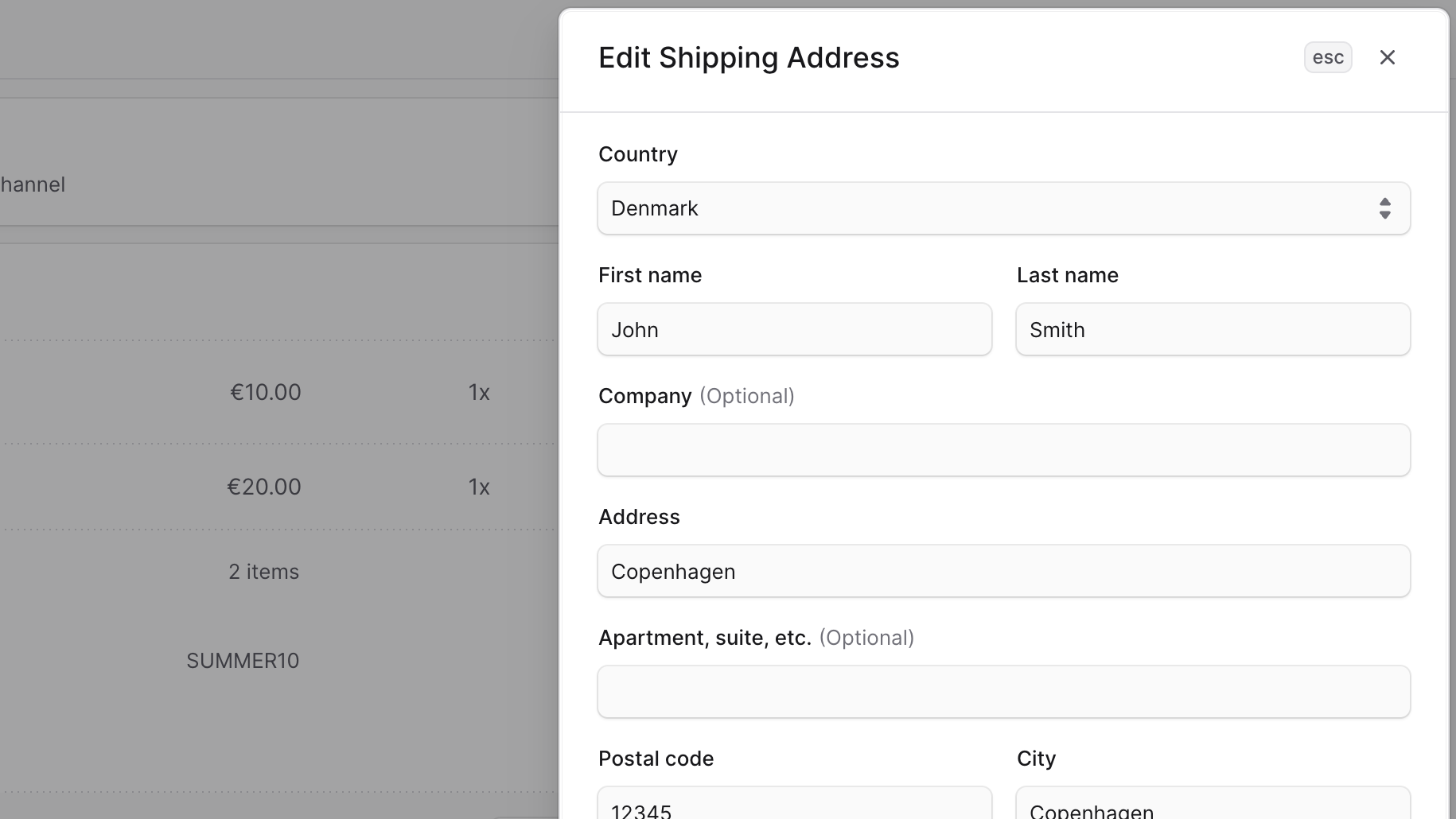
To edit the shipping address used for a draft order:
- Go to the draft order's details page.
- Click the three-dot menu in the Customer section's header.
- Choose Edit shipping address from the dropdown menu.
- In the side window that opens, update the shipping address details, including the country, first and last names, company, address lines, city, state, postal code, and phone number.
- When you're done, click Save.
Edit Draft Order's Billing Address
To edit the billing address used for a draft order:
- Go to the draft order's details page.
- Click the three-dot menu in the Customer section's header.
- Choose Edit billing address from the dropdown menu.
- In the side window that opens, update the billing address details, including the country, first and last names, company, address lines, city, state, postal code, and phone number.
- When you're done, click Save.
Manage Draft Order's Metadata
Metadata is custom data that can be associated with the draft order in key-value pairs. This is usually used by developers for custom integrations or to store additional information about the draft order.
When the draft order is converted to an order, the metadata will be carried over to the order.
To edit the draft order's metadata:
- Click the arrow icon in the Metadata section.
- In the side window that opens:
- Manage the key-value pairs in the table.
- To add a new row of key-value pairs before or after a row:
- Hover over the row and click the three-dot menu at its end.
- Choose Insert row above or Insert row below from the dropdown.
- To delete a row of key-value pairs:
- Hover over the row and click the three-dot menu at its end.
- Choose Delete row from the dropdown.
- When you're done, click Save.
Convert Draft Order to Regular Order
Once you're done managing the draft order and it is ready to be processed, you can convert it to a regular order.
This action can't be undone. If you convert the draft order to a regular order by mistake, you can cancel the order.
To convert the draft order to a regular order:
- Go to the draft order's details page.
- In the Summary section, click Convert to order.
- Confirm converting the draft order by clicking Confirm in the pop-up.
You'll then be redirected to the order's details page. Learn more in the Manage Details guide.
Delete Draft Order
Deleting a draft order is irreversible.
To delete a draft order:
- Go to the draft order's details page.
- In the first section displaying the order's number and region, click the three-dot menu.
- Choose Delete draft order from the dropdown menu.