Manage Promotions
Learn how to view, edit, and delete promotions in the vendor dashboard.
On this page
In this guide, you'll learn how to manage promotions.
View Promotion's Details
To view a promotion's details:
- Go to Promotions from the sidebar.
- Choose the promotion from the list.
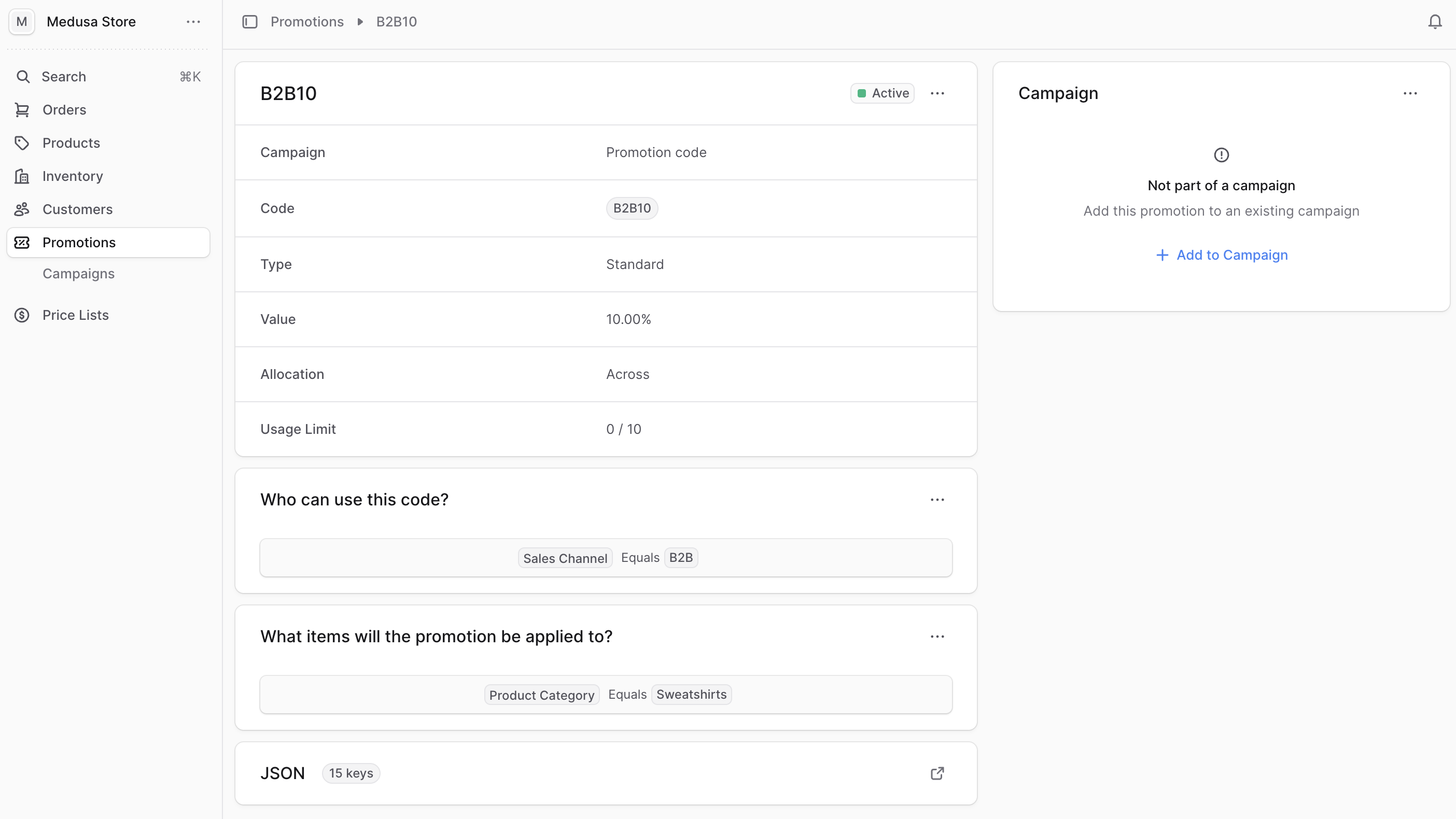
This opens the promotion's details page. The sections on the details page may differ based on the promotion's type.
Promotion Statuses
A promotion's status is shown in the promotions list and in the first section's header on the details page. The status can be one of the following:
| Status | Description |
|---|---|
| Draft | The promotion is not available to customers yet. |
| Active | The promotion can be used when its conditions are met. |
| Inactive | The promotion was expired or disabled and can no longer be used. |
Promotion Limits
In the summary section of the promotion's details page, you can see the usage limit of the promotion, if set during creation. This is the maximum number of times the promotion can be used across all orders.
A promotion's usage can also be limited by:
- The campaign's usage limit, if the promotion is part of a campaign. This is the maximum number of times all promotions in the campaign can be used across all orders. You can set this limit when creating a campaign.
- The per-customer usage limit, if the promotion is part of a campaign. This is the maximum number of times a single customer can use promotions in a campaign across all their orders. You can set this limit when creating a campaign.
Once any of the promotion's limits are reached, the promotion can't be used anymore. For example, if a promotion has a usage limit of 10 and is part of a campaign with a usage limit of 50, the promotion can only be used 10 times even if the campaign's limit hasn't been reached yet.
Edit Promotion's Details
If any fields are not visible in your admin, contact your technical team.
To edit a promotion's general details:
- Go to the promotion's details page.
- Click the three-dot menu in the first section's header.
- Choose Edit from the dropdown.
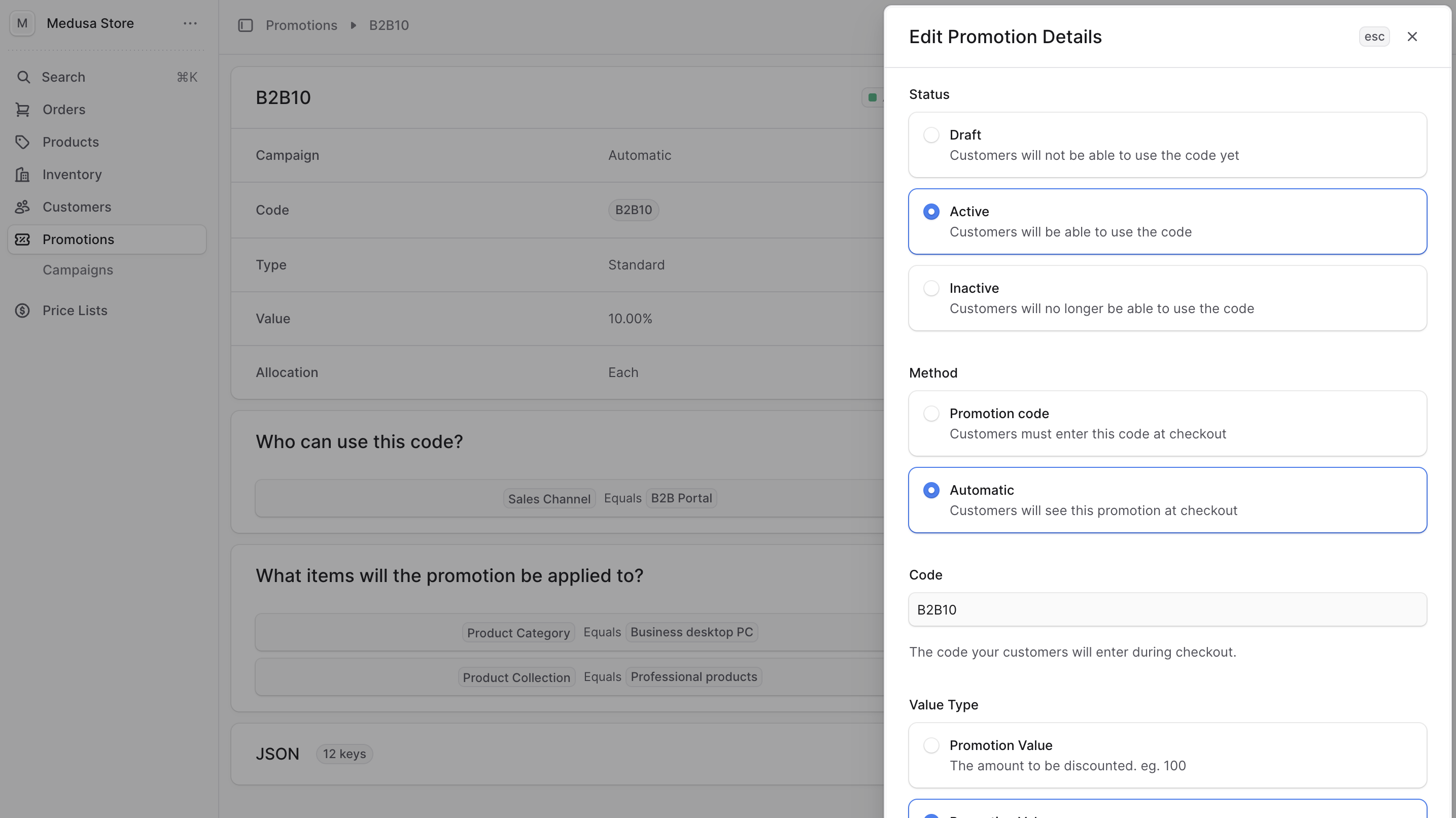
- In the side window that opens:
- Change the promotion's status to Draft, Active, or Inactive. Inactive is useful if the promotion was originally active but you want to expire it.
- Edit the promotion's method (manual or automatic) and code.
- Based on the promotion's type, change how the amount is discounted and the discounted amount.
- Based on the promotion's type, change how the promotion is applied:
- Each — The discount is applied to each applicable item in the cart.
- Across — The discount is applied across all applicable items in the cart.
- Once — The discount is applied to a specific number of applicable items, determined by the Maximum Quantity field.
- For Amount off order, only Across is available.
- Edit the maximum quantity of applicable items the promotion applies to in the cart.
- When you're done, click Save.
Edit Who Can Use the Promotion
To edit who can use the promotion:
- Go to the promotion's details page.
- Click the three-dot menu in the Who can use this code? section header.
- Choose Edit from the dropdown.
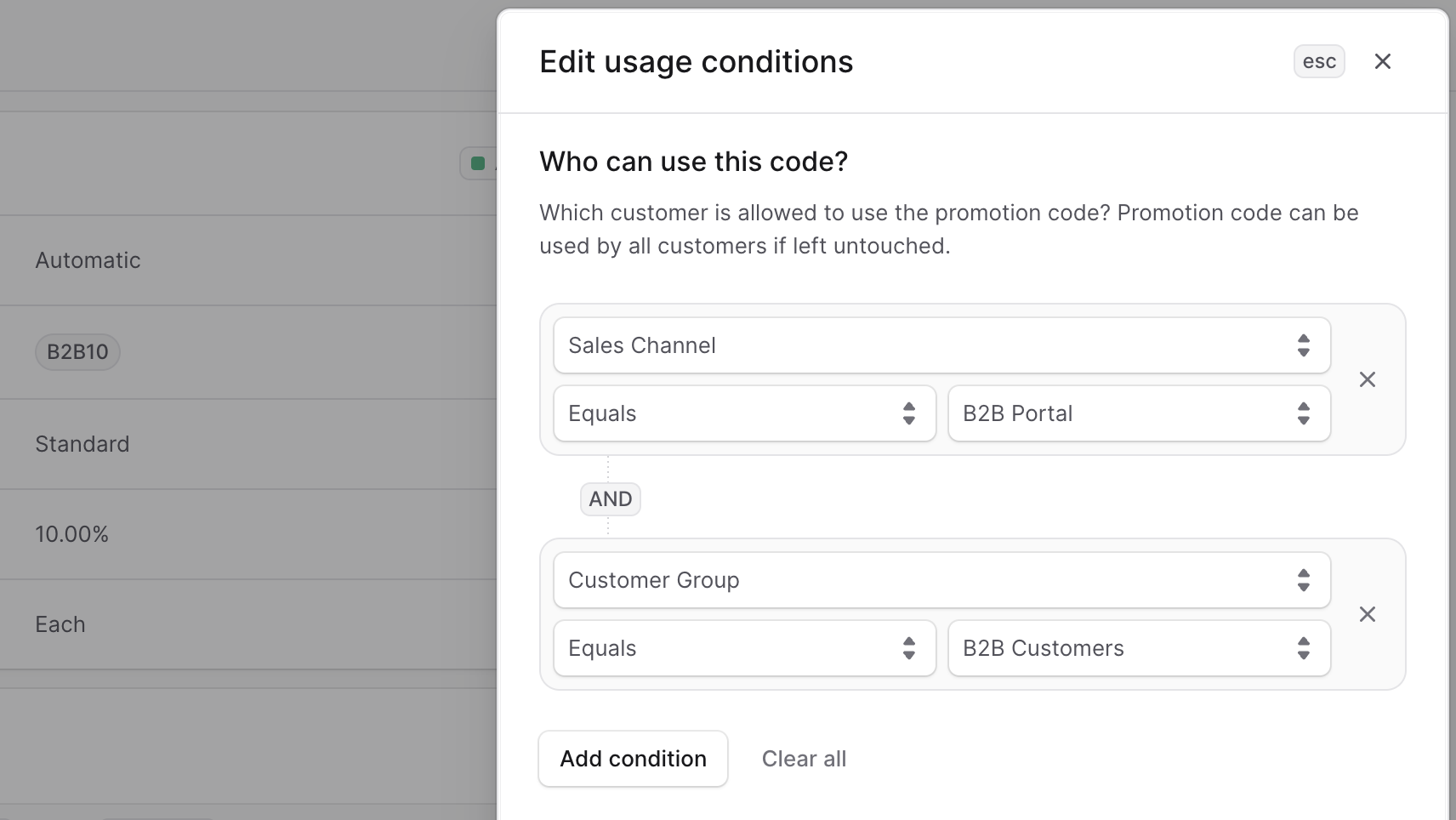
- In the side window that opens, edit existing conditions or add new ones with Add condition. For each condition:
- Attribute: Customer Group, Region, Country, Sales Channel, or Currency Code.
- Operator: In or Not In.
- Value: The attribute value.
- Example — B2B only: Attribute Customer Group, Operator In, Value B2B.
- When you're done, click Save.
Edit the Items the Promotion Applies To
For Buy X Get Y promotion types, this section lets you edit which items the customer gets for free. To edit the items the customer must buy, see Edit Buy X Promotion Condition.
To edit the items the promotion applies to:
- Go to the promotion's details page.
- Click the three-dot menu in the What items will the promotion be applied to? section header.
- Choose Edit from the dropdown.
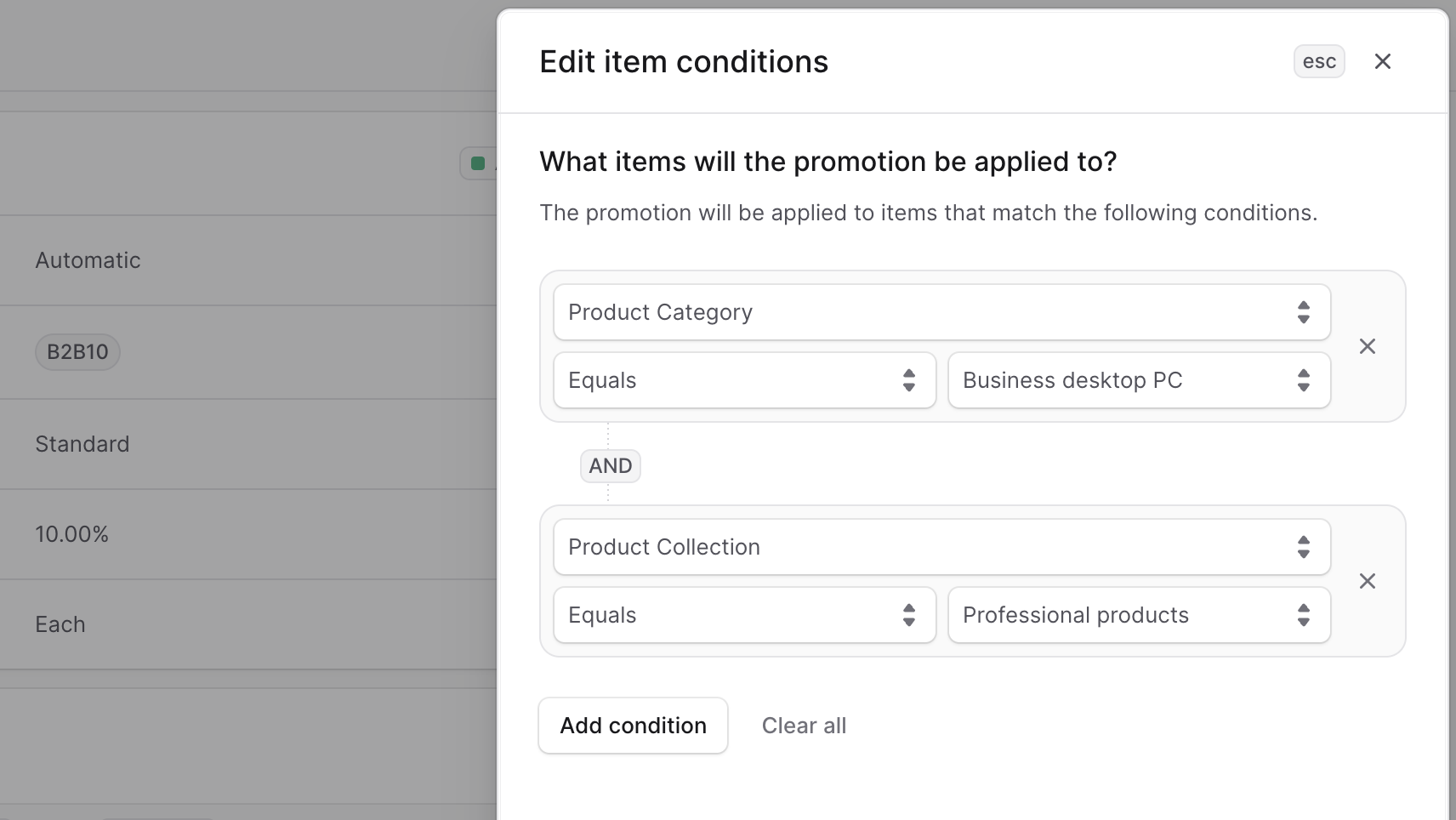
- In the side window that opens, edit existing conditions or add new ones with Add condition. For each condition:
- Attribute: Product, Product Category, Product Collection, Product Type, or Product Tag.
- Operator: In, Equals, or Not In.
- Value: The attribute value.
- Example — Business desktop PC category: Attribute Product Category, Operator In or Equals, Value Business desktop PC.
- When you're done, click Save.
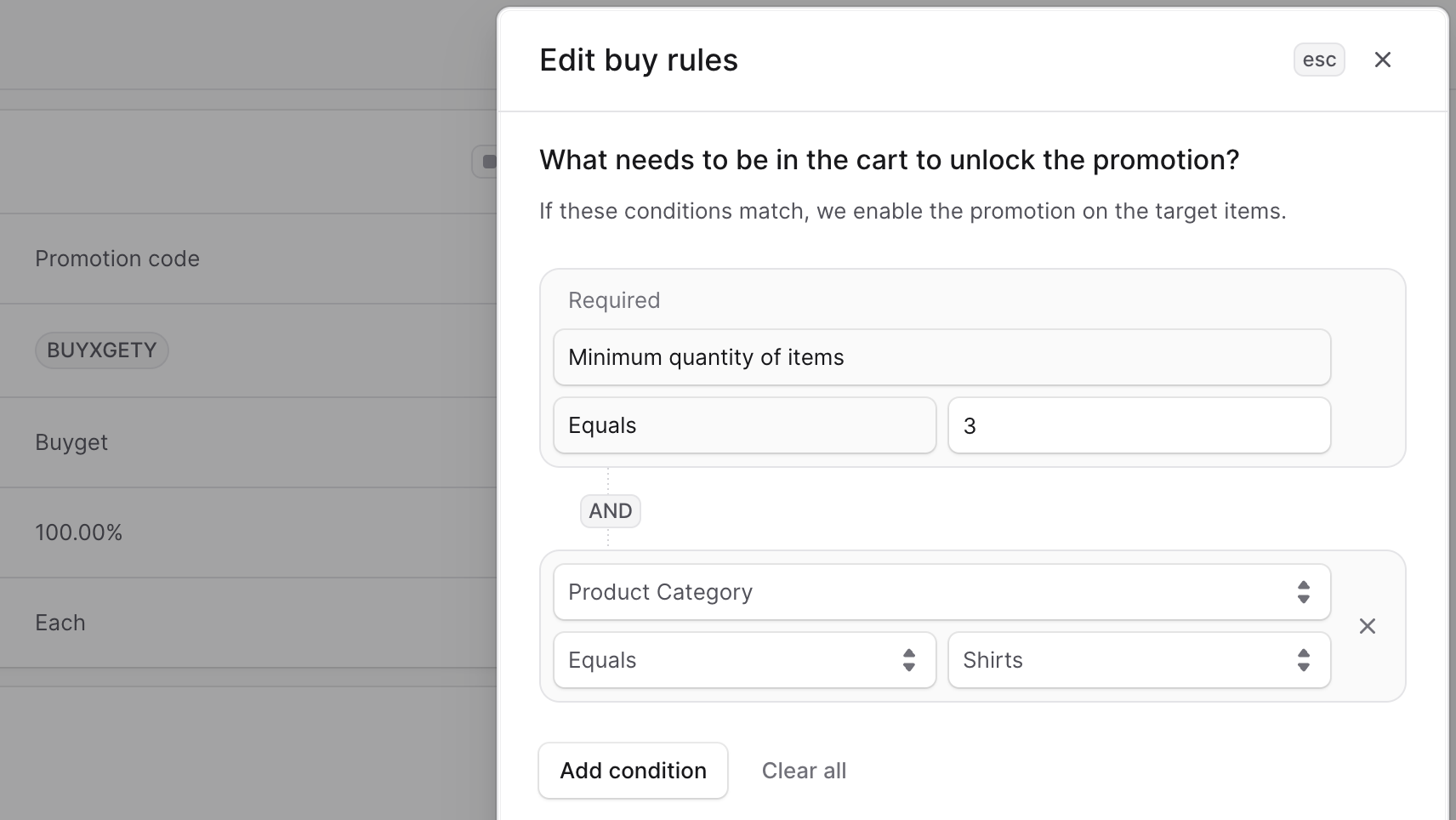
Edit Buy X Promotion Condition
For Buy X Get Y promotion types, you can edit the "Buy X" part of the promotion. For example, change "Buy 3 shirts to get 1 for free" to "Buy 2 shirts to get 1 for free".
To edit the items the customer gets for free, see Edit the Items the Promotion Applies To.
To edit the "Buy X" part:
- Go to the promotion's details page.
- Click the three-dot menu in the What needs to be in the cart to unlock the promotion? section header.
- Choose Edit from the dropdown.
- In the side window, edit the minimum required quantity and existing conditions, or add new ones with Add condition:
- Attribute: Product, Product Category, Product Collection, Product Type, or Product Tag.
- Operator: In, Equals, or Not In.
- Value: The attribute value.
- When you're done, click Save.
Edit the Shipping Methods the Promotion Applies To
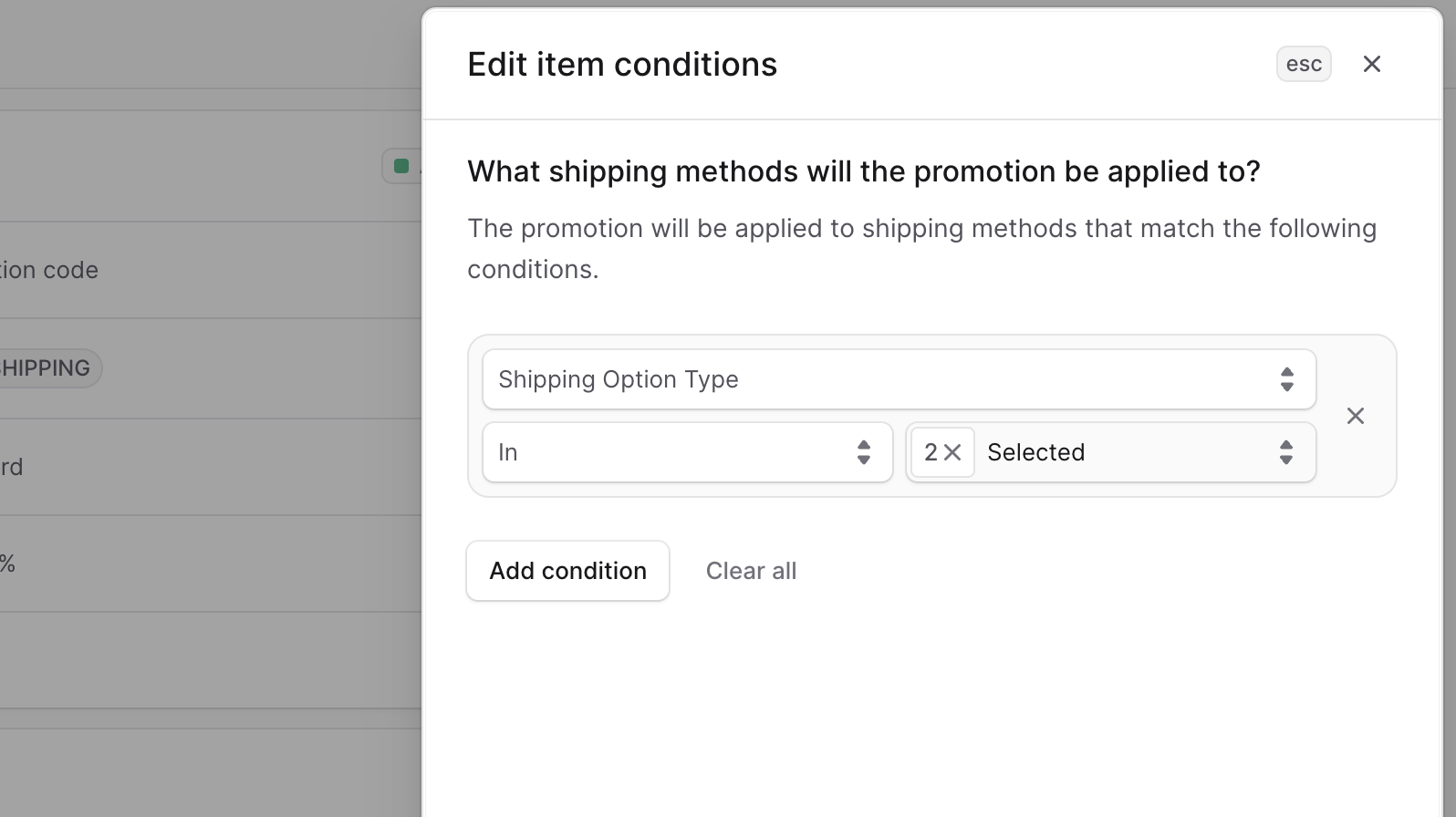
For Free Shipping promotions, you can edit the conditions for when the promotion applies to a cart's shipping methods.
To edit the shipping methods the promotion applies to:
- Go to the promotion's details page.
- Click the three-dot menu in the What shipping methods will the promotion be applied to? section header.
- Choose Edit from the dropdown.
- In the side window, edit or add conditions with Add condition:
- Attribute: Shipping Option Type.
- Operator: In or Not In.
- Value: The shipping option type.
- When you're done, click Save.
Add Promotion to Campaign
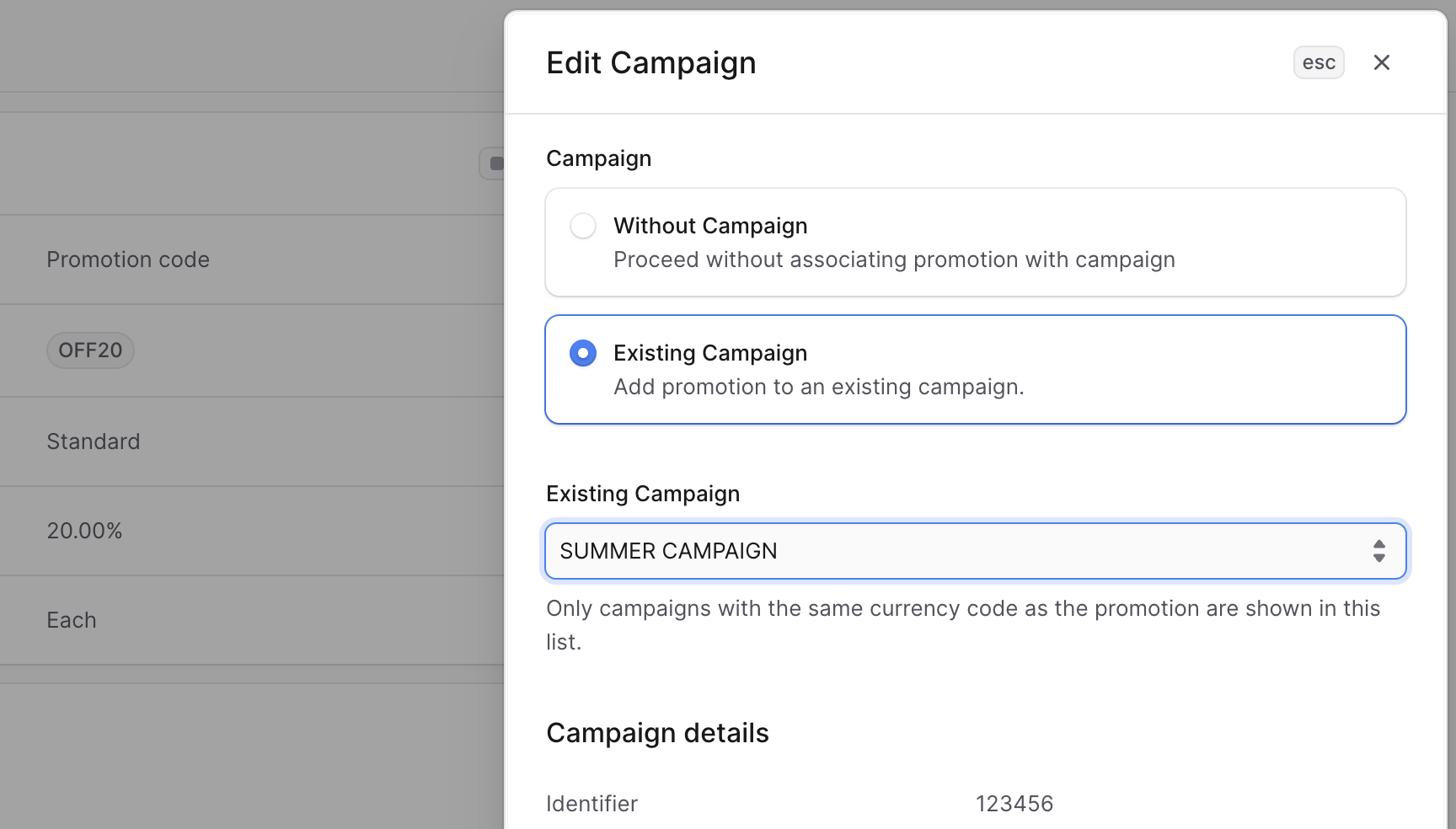
If you created a promotion without a campaign, you can add it to an existing campaign from its details page.
To add a promotion to a campaign:
- Go to the promotion's details page.
- Click Add to Campaign in the Campaign section header.
- In the side window that opens:
- Select Existing Campaign.
- Choose the campaign from the dropdown. For fixed-amount promotions, only campaigns whose budget uses the same currency are shown.
- When you're done, click Save.
Change Promotion's Campaign
You can change the campaign a promotion belongs to, or remove it from a campaign.
To change a promotion's campaign:
- Go to the promotion's details page.
- Click the three-dot menu in the Campaign section header.
- Choose Edit from the dropdown.
- In the side window that opens:
- To remove the promotion from its campaign, select Without Campaign.
- To change campaigns, select Existing Campaign and choose a campaign from the dropdown.
- When you're done, click Save.
Delete Promotion
Deleting a promotion is irreversible.
To delete a promotion:
- Go to the promotion's details page.
- Click the three-dot menu in the first section's header.
- Choose Delete from the dropdown.
- Confirm by entering the promotion's code and clicking Delete in the pop-up.