Manage Users
Learn how to view, edit, and delete users in the vendor dashboard.
On this page
In this guide, you'll learn how to manage users in your store.
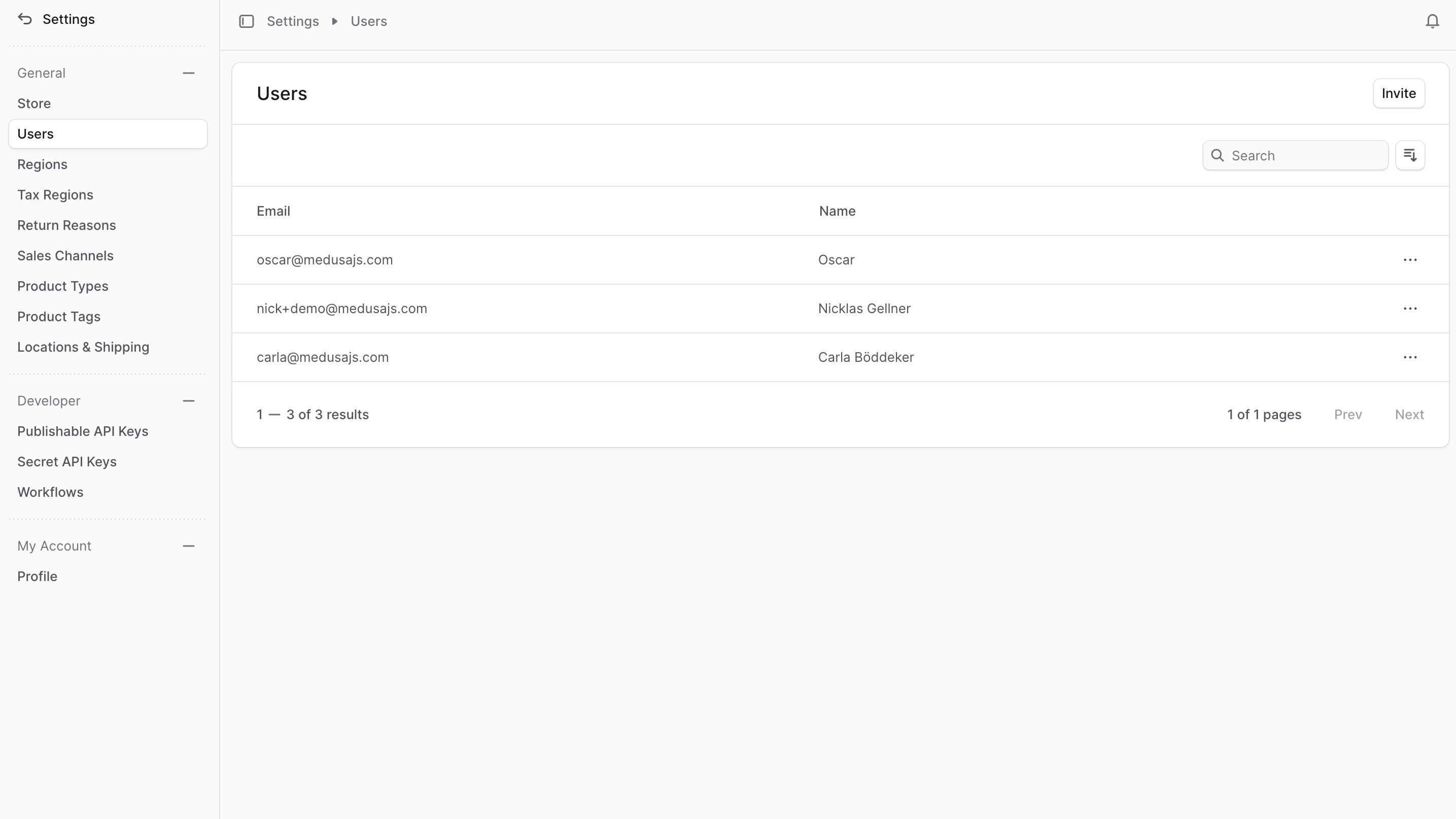
You can't create a user directly. Instead, you need to invite them to join your store from Settings → Users by clicking Invite.
View Users
You can view users by going to Settings → Users. In the list, you can see user details such as the name and email. You can also search, filter, and sort the users to find the specific item you are looking for.
View User Details
To view the details of a user:
- Go to Settings → Users.
- Click the user in the list.
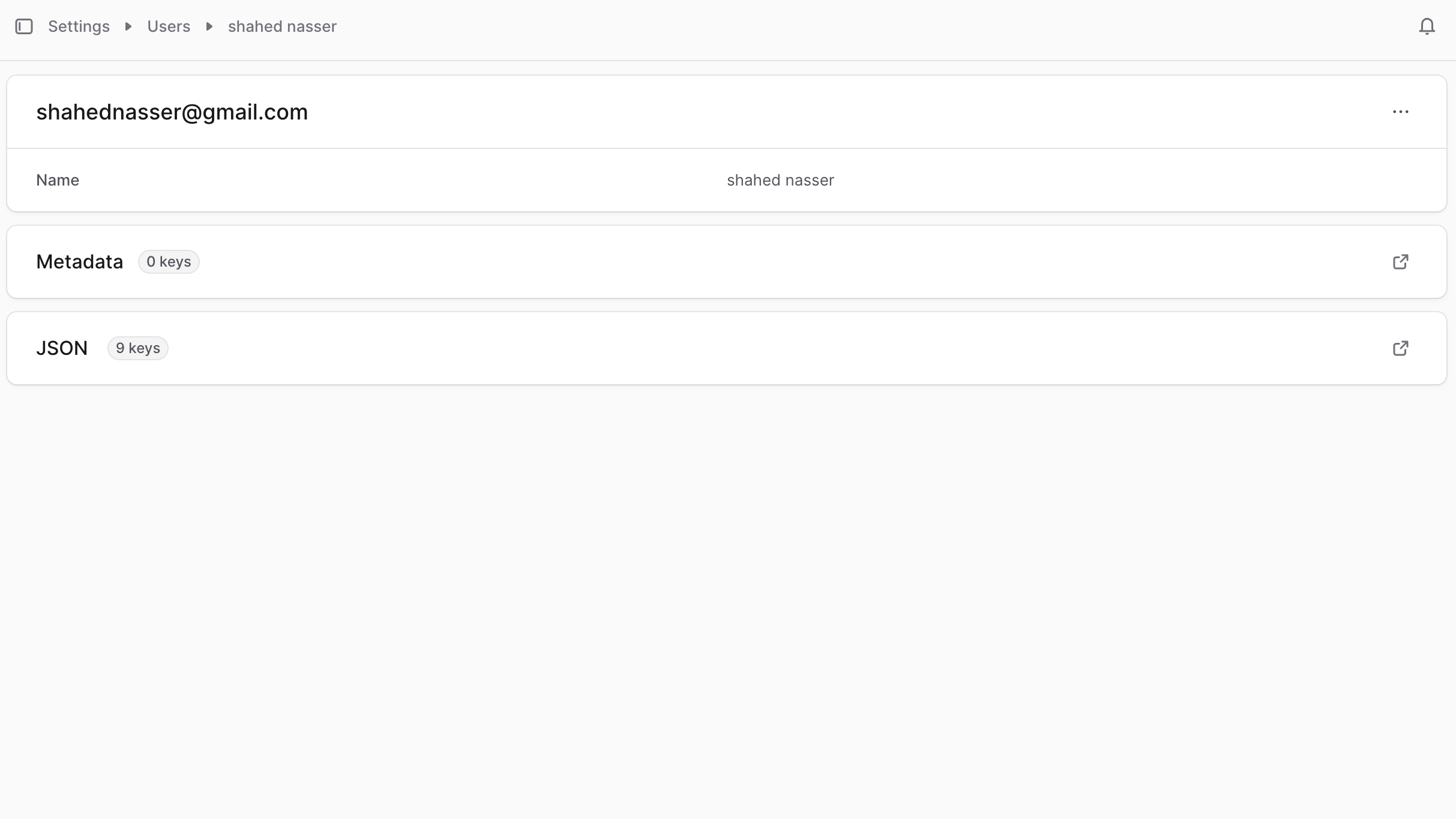
This opens the user's details page where you can also manage the user.
Edit a User's Details
To edit a user's details:
- Go to the user's details page.
- Click the three-dot menu in the first section's header.
- Choose Edit from the dropdown.
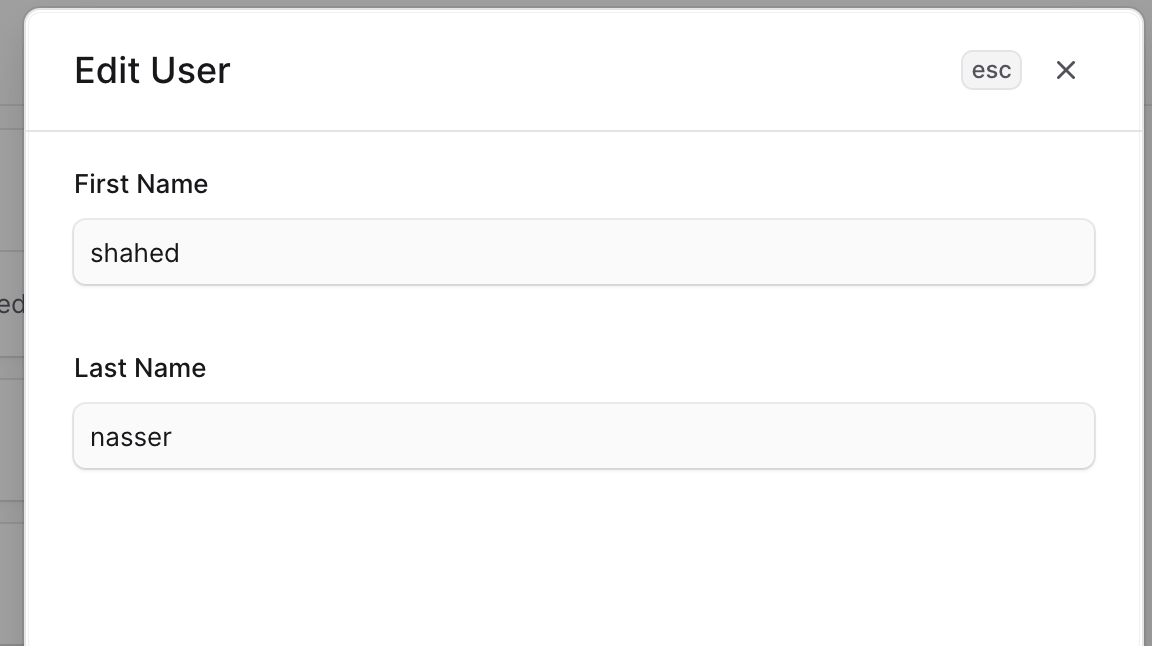
- In the side window that opens, edit the user's first and last names.
- When you're done, click Save.
Manage User Metadata
Metadata is custom data that can be associated with the user in key-value pairs. This is usually used by developers for custom integrations or to store additional information about the user.
To edit the user's metadata:
- Click the arrow icon in the Metadata section.
- In the side window that opens:
- Manage the key-value pairs in the table.
- To add a new row of key-value pairs before or after a row:
- Hover over the row and click the three-dot menu at its end.
- Choose Insert row above or Insert row below from the dropdown.
- To delete a row of key-value pairs:
- Hover over the row and click the three-dot menu at its end.
- Choose Delete row from the dropdown.
- When you're done, click Save.
Delete a User
Deleting a user is irreversible.
To delete a user from your store:
- Go to Settings → Users.
- Find the user in the list and click on them.
- Click the three-dot menu in the first section's header.
- Choose Delete from the dropdown.
- Confirm deleting the user by entering their name and clicking Delete in the pop-up.